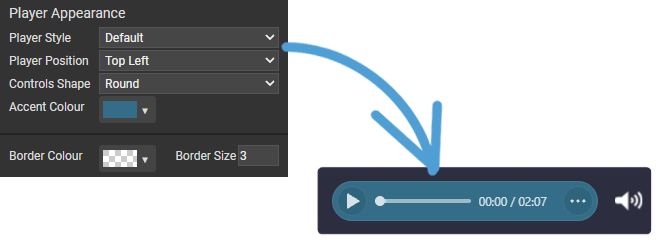
The Audio module lets you add sound to your pages, from leadership messages to spoken explanations of key content. Audio adds a human touch, boosts engagement, and makes your document more accessible for readers who prefer to listen rather than read.

-
MP3 files are supported.
-
You must own the copyright of any audio files.
-
An audio file can be uploaded directly to the module as a version resource - select the refresh icon to refresh the list of resources available.
-
Multiple audio files can also be uploaded to your Resources Manager.
-
Navigate to a document, and select 'Design' for the version you wish to work on.
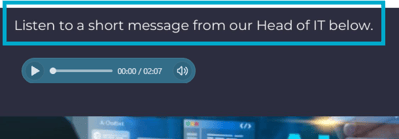
Before adding an audio module, add a brief heading or description so visitors understand its purpose.
-
Select the ‘Interactivity’ tab at the top of the page.
-
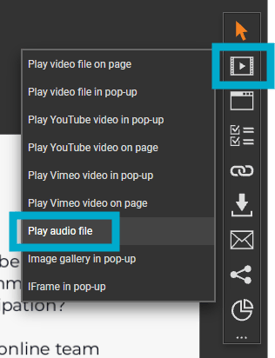
Select the ‘Media’ module type from the ‘Add Interactivity' palette.
- Select the 'Play audio file' option.
-
Click and drag out the module to add to your page - this is the area that the player will appear and visitors will use to play/pause the audio file.
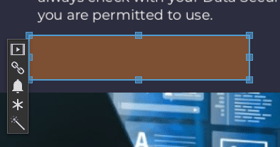
Two options are available - choose which works best for you:
- Upload an Audio File
Upload your own audio file - drag and drop, or select the 'Add Files' button. - Select an Existing Audio File
Select an audio file that has been previously uploaded.
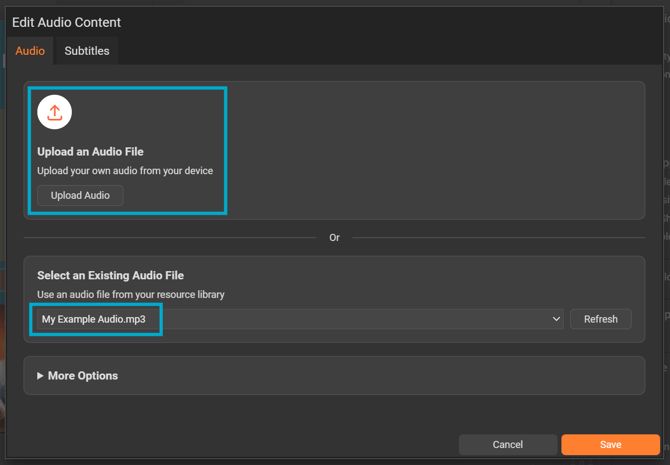
Avoid positioning an audio module off-page. If it's not visible to visitors, they won't be able to control playback, such as pausing, rewinding, or muting.
Settings
Select a module already on the page to open the Settings palette. From here, you can customise the player’s appearance and behaviour to match your brand and requirements.
General
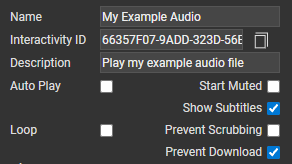
Name
The 'Name' field is set by default, but it's important to update it to something unique that reflects the interactivity as it will be shown in the Analytics of you document - For example, 'Online Communication Audio File',
Interactivity ID
Copy this token and paste it into the 'Activate Interactivity' menu item type to activate the module directly from a menu.
Description
The text entered here will display when a user hovers their cursor over a module. It is also read out by a screen reader when a document is viewed in accessible mode, providing essential context for people who rely on assistive technologies.
Loop
Select the 'Loop' checkbox to continuously replay the audio until the visitor stops it.
Auto Play
Select the ‘Auto Play’ checkbox to start the audio file automatically, without the visitor needing to press play.
Start Muted
Select the 'Start Muted' checkbox to play the audio file without sound initially. Visitors can enable audio at any time using the playback controls.
Most modern browsers have strict auto-play and muting policies, so in some cases your chosen settings may not be applied.
Prevent Scrubbing
Select the ‘Prevent Scrubbing’ checkbox to stop visitors from skipping ahead in the audio. This is particularly useful when you need the entire file to be listened to - for example in compliance, policy, or mandatory training content.
Prevent Download
Select this option to hide the download control in the player, preventing visitors from downloading or saving a copy of the audio. This is particularly helpful if you want the file to only be accessed within your document.
Player Appearance
Customise the audio player to match the rest of your brand. Choose settings such as player style, accent colour, and controls shape to match your guidelines, helping the player blend smoothly into your document design, giving your audience a polished, on-brand experience.
Player Style
Choose how the player will appear on the page:
-
Default
A control bar will be visible, allowing listeners to see the progress of the audio file. -
Minimal
The control will use a simplified design that shows a play/pause icon.
Player Position
Choose how the player will be positioned on the page:
-
Top Left
-
Top Center
-
Top Right
-
Bottom Left
-
Bottom Center
-
Bottom Right
Controls Shape
Choose the shape of the player on the page:
-
Default (slightly rounded corners)
-
Round
-
Square
Accent Colour
Choose the player colour by selecting a brand colour from the colour picker or entering a HEX code.
Consider your colour choice carefully - it should reflect your brand, while also helping to draw attention to key content.
Border Colour and Border Size
A border adds a keyline around the player. Use the Border Colour field to set the border colour, and the Border Size field to control its thickness.