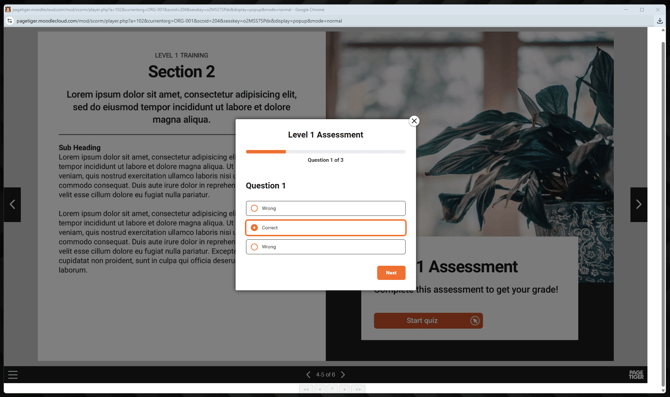
A dynamic SCORM package will always display the most recently created and published version of your PageTiger document, so it is important to follow best practice and create a new document version whenever you need to make changes.
Step 1 - Generate the dynamic SCORM package
- Navigate to the document you would like to create a dynamic SCORM Package for.
If you plan to secure your document, select the 'Security Rules' tab and choose a suitable rule.
- Select the 'LMS' tab and complete the LMS Settings.

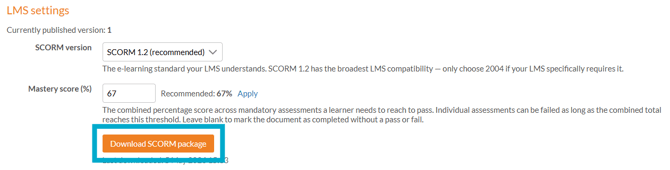
SCORM Version
Select which version of SCORM you wish to use:
- 1.2
- 2004
The e-learning standard is SCORM 1.2. Only choose 2004 if your LMS specifically requires it.

Mastery score
Enter the overall SCORM pass threshold (between 0 and 100), or leave this field blank to mark completion when the learner reaches the final page. You can update the mastery score at any time without re-generating the SCORM package, as the new value will be applied automatically the next time a learner launches the activity.

-
Scores are based on mandatory assessments only.
-
Optional assessments are recorded in the LMS gradebook but do not affect pass/fail results.
-
For mandatory assessments, only the latest attempt counts, and learners may retake them as often as needed.
-
A learner can still pass overall even if they fail individual assessments, as long as their combined mandatory score meets the required pass mark.
Package name
Enter a name for the SCORM package, ensuring it's recognisable as it cannot be renamed after downloading.

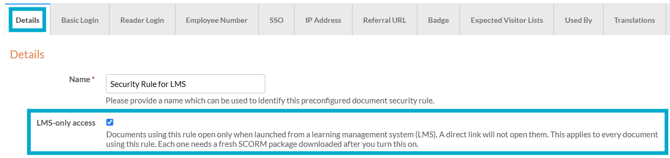
For added security, a SCORM package can be restricted to work through an LMS only. If someone accesses the document directly, they will see a Page Not Found message. To enable this setting, create or edit a security rule and select the 'LMS-only access' checkbox.
Once the LMS settings have been applied, select the 'Download SCORM package' button.
-
A zip file will then download and save to your machine.
The Assessment Status section summarises all assessments in your document, showing the page they appear on, whether they are mandatory, and their pass and maximum scores.

It also provides the overall scores for all mandatory assessments, along with the resulting mastery score.
Step 2 - Upload as a new activity in your LMS
- Create a new Course in your LMS (or edit an existing one).
- Add a new SCORM activity.
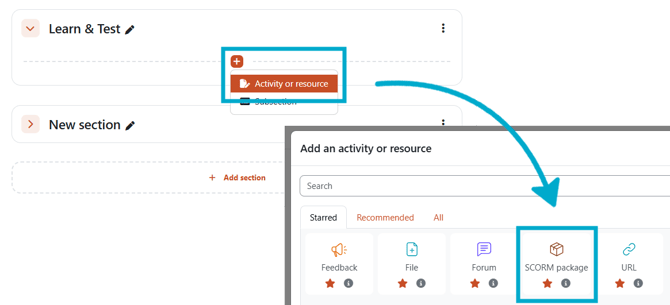
- Upload the SCORM Package (ZIP file) and ensure it's set to open in a new window.
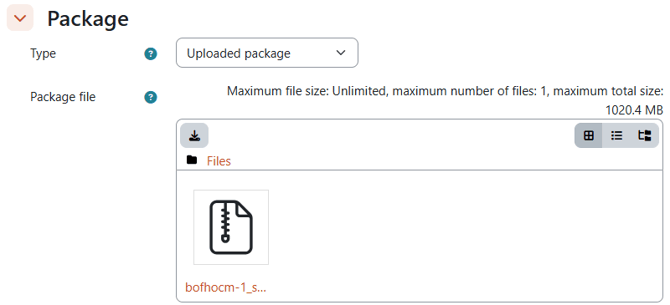
How you create a course and add a SCORM activity can vary depending on your LMS platform - please refer to your LMS user guide for guidance specific to your system.
Step 3 - Distribute to your learners!
- Distribute your course to your learners where they will be able to view the PageTiger document in a new window.
- They will be asked to 'Submit Results' once they have completed the assessment or reached the final page.
- Any interactions in the PageTiger document will be shown in the grade book for the activity.
W