
By packaging your document as a dynamic SCORM file, you can host your interactive content in PageTiger while seamlessly presenting it within your LMS course, ensuring a consistent learner experience, centralised updates, and reliable reporting.
A dynamic SCORM package is essentially a ‘container file’ that contains a small launcher page that instructs your LMS to display a PageTiger document link inside an iFrame.
Introduction
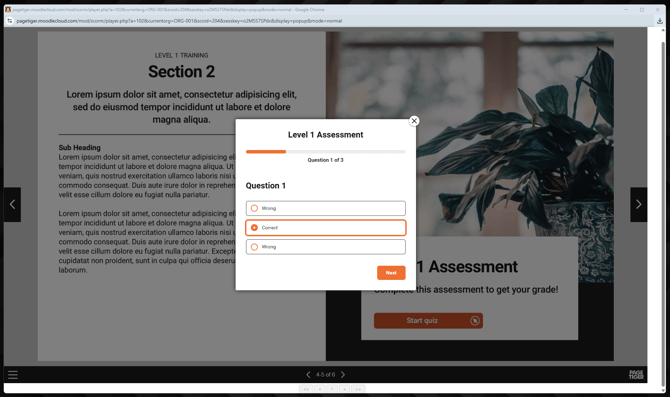
When you upload a dynamic SCORM package as a new course activity in your LMS, it will display the most recently created and published version of your PageTiger document. The tracking data, such as page views and assessment scores, will still be captured in PageTiger, and also passed into your LMS.
If you need to track the reader email addresses in your PageTiger analytics, apply a security rule to your document that captures the email.
Document Checklist
Use the below checklist to make sure your document is ready for dynamic SCORM packaging.
| Version Control | Follow best practice and create a new version in your document each time you make updates. | ✅ |
| Modules: Assessments | Include an Assessment module if you would like to pass the score through to your LMS. | ✅ |
| Settings: Style | Untick the 'Contents' and 'Other Versions' option for the Style that is applied to your document. | ✅ |
| Settings: Security Rule | Apply a security rule to your document to protect it. | ✅ |
| Settings: Enable iFrame (if applicable) | Tick the 'Enable IFrame' checkbox to ensure the document displays properly within your course. (if applicable) | ✅ |
| Publish |
Remember to publish! |
✅ |
The dynamic SCORM package will display the most recently created and published version of your PageTiger document. An unpublished message will display if your document has no published versions.