
Overview
Once our Professional Services team has created your new branding and shared it with your account, your previous branding will no longer be available. New documents can use your new branding straight away, and existing documents need switching over.
-
Stay consistent
Every document reflects your latest brand. -
Quick to do
No need to rebuild or redesign your documents. -
Your content stays put
Only the branding changes.
How to switch an existing document to your new branding
-
Unpublish the document.
-
Open the design of your document.
-
Select the 'Document' icon in the left-hand menu.
-
Select 'Select Default Branding'.
-
Choose your new branding from the drop-down list and select 'Save'.
-
Republish the document.
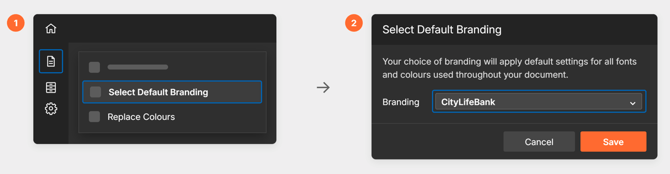
Repeat these steps for each existing document.
What happens after you switch
How your new colours appear depends on your document's design type:
-
Fully Editable documents
Your new colours are ready to select in the colour picker for each panel. To update colours across the whole document in one go, use the 'Replace Colours' option. -
Components panels in Fully Editable documents
Your new colours are applied automatically to any Components panels. To fine-tune a panel, right-click it and choose a different colour. -
Layout Library documents
Your new colours are applied automatically throughout the document. To fine-tune a panel, select it and choose a different colour.
-
Check before you go live
Preview before you republish to make sure everything looks just right with your new colours and fonts. -
Prioritise popular documents
Start with your most-viewed documents so readers see your new branding as soon as possible