Checklist
| Create a document version | ✅ |
| Apply document settings | ✅ |
| Set as TigerKit | ✅ |
| Add content and choose TigerGenius Settings | ✅ |
| Add interactivity and choose TigerGenius Settings | ✅ |
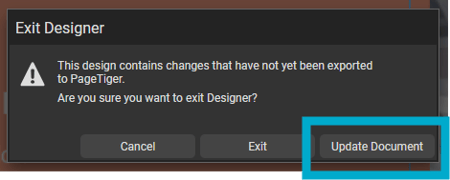
| Exit and update | ✅ |
1. Create a document version
The first step to creating a TigerKit is to create a new version of a document.
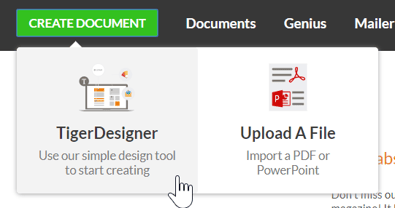
Visit this section of the user guide if you’re unsure or need a quick refresher.
2. Apply document settings
It's essential that a 'Style' and 'Security Rule' is applied to your document before it can be set as a TigerKit. Settings are applied on the 'Manage Document' page - simply select the tab, choose an option from the drop-down list, and save.
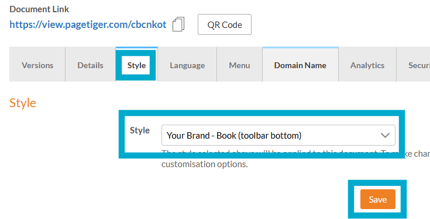
To create a new setting, select 'Documents' from the main menu followed by 'Settings'.
3. Set as TigerKit
To begin, navigate to the version of a document that you would like to set as a TigerKit,
-
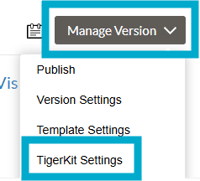
Select the select 'Manage Version' button.
-
Select 'TigerKit Settings'.
-
Tick the 'TigerKit' checkbox.
-
Enter a suitable name and description for the TigerKit.
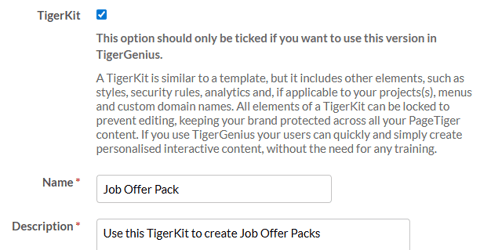
Ensure the description is clear and concise so TigerGenius Users understand what the kit is for and when to use it.
Publishing
Choose if TigerGenius Users can publish documents created from the TigerKit themselves, or if documents should be published automatically.
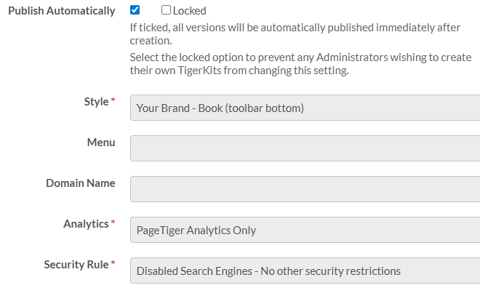
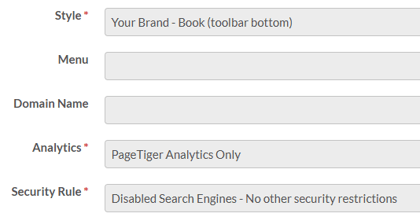
Settings
Any settings you have applied to the document will be displayed here as read-only, and will be enforced when a TigerGenius User creates a document from the TigerKit.
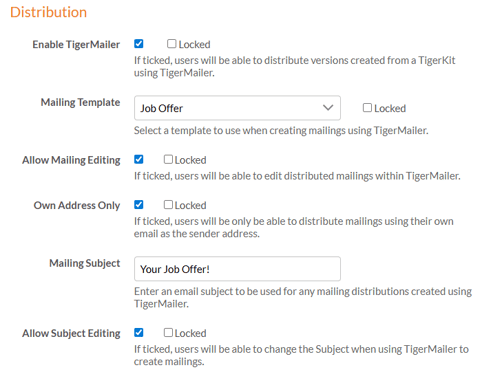
Distribution
Choose if TigerGenius Users can distribute documents created from the TigerKit using TigerMailer, and what level of control they have.
4. Add Content and TigerGenius Settings
Once the TigerKit settings have been applied, navigate back to the version and select 'Design', to set which panels will be editable in the TigerKit.
Text, Story, List and Image panels can be set as editable for a TigerGenius Setting.
-
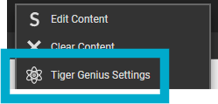
Select a panel, followed by 'TigerGenius Settings'.
-
Tick which parts of the panel will be editable in the TigerKit, and enter a 'Title' and 'Description' so the TigerGenius User knows what to complete.
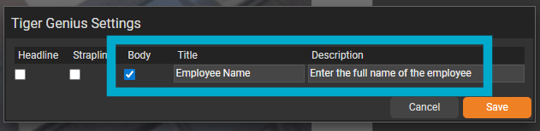
In the above example, the Body text of a Story panel has been ticked, so the TigerGenius User can input the name of the employee - they won't be able to edit the Headline or Strapline of the Story panel.
5. Add Interactivity and TigerGenius Settings
Once you have set which panels are editable in the TigerKit, you can repeat the process for interactivity.
Link to a webpage, iFrame and Download a File modules can be set as editable for a TigerGenius Setting.
-
Select the 'Interactivity' tab from the top menu in TigerDesigner.
-
Select a module, followed by 'TigerGenius Settings'.
-
Tick which parts of the module will be editable in the TigerKit , and enter a 'Title' and 'Description' so the TigerGenius User knows what to complete.
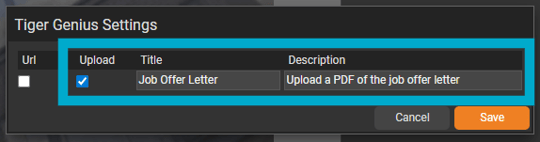
In the above example, a Download PDF File module has been set as editable, so the TigerGenius User can upload a PDF when they use the TigerKit.
6. Exit and Update
When you’re happy with your changes, exit TigerDesigner, making sure that ‘Update Document’ is selected.