
TigerKits help remove repetitive manual work and ensures every document is consistent, accurate, and impactful.
1. Log into your TigerGenius account
-
Log in at https://admin.pagetiger.com/
-
You will need your account number, email address and password.
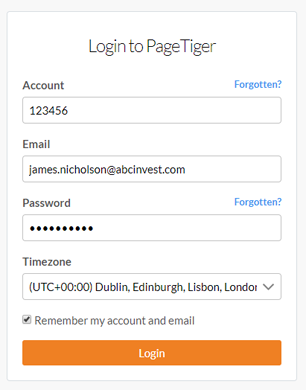
If you are a Full Access user, you will be logged into your PageTiger Admin account and can select Genius from the main menu to access TigerGenius.
2. Create
-
Select the 'Create' button to get started.
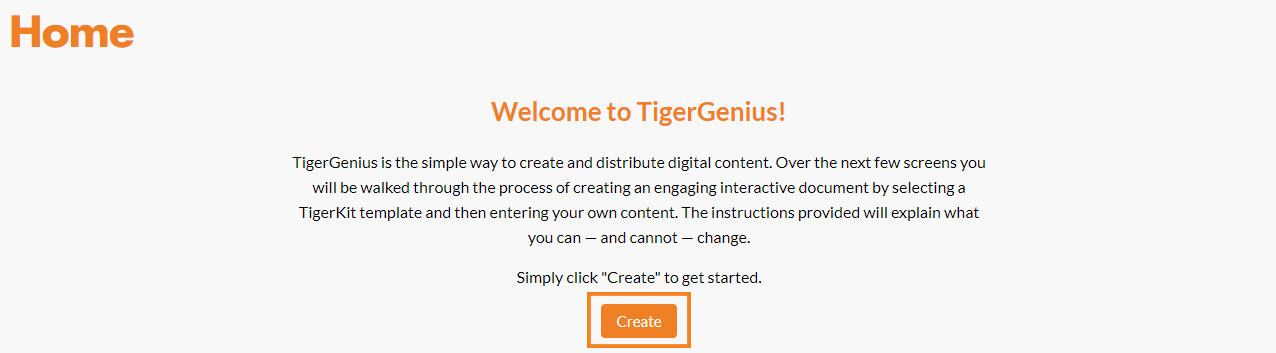
- Any TigerKits available to you will display, ready for you to preview or use.
Preview a TigerKit to understand its purpose, see how it looks, and confirm it is suitable for your audience before you select it.
-
Select 'Use this kit' to create a new version using the chosen TigerKit.

-
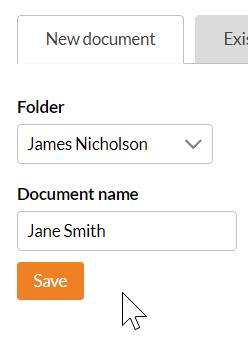
Add the version to a new or existing document.
-
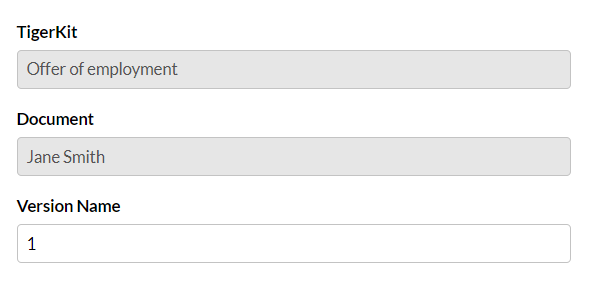
Enter an version name.
3. Start customising!
After selecting Continue, you will be guided to complete any editable panels or interactive elements, such as updating text or uploading a PDF.
Each field that requires input will include a clear name and description, and selecting a field will highlight exactly where the change will appear in the version.
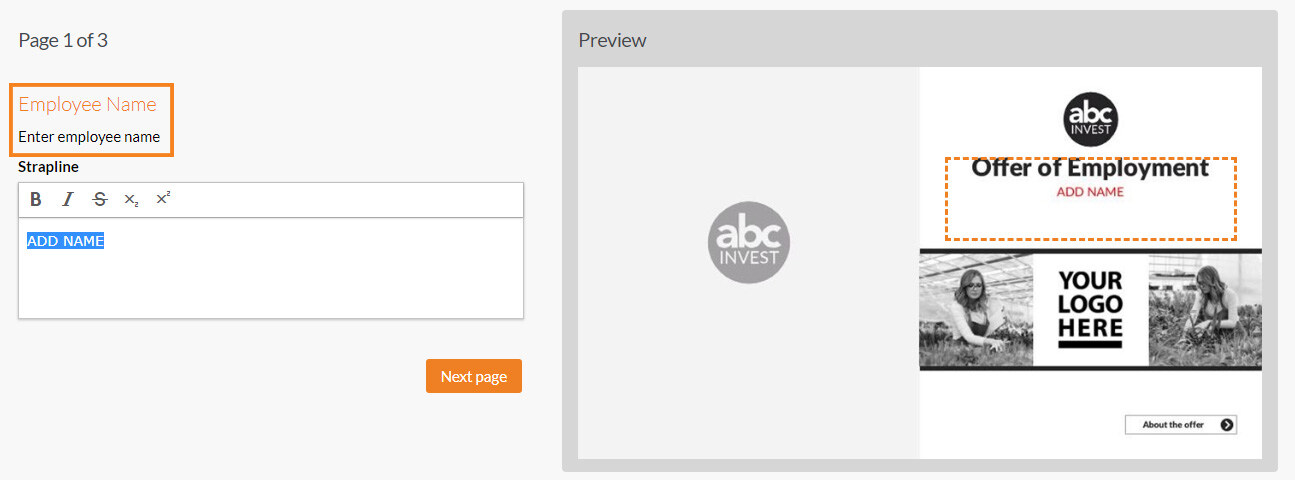
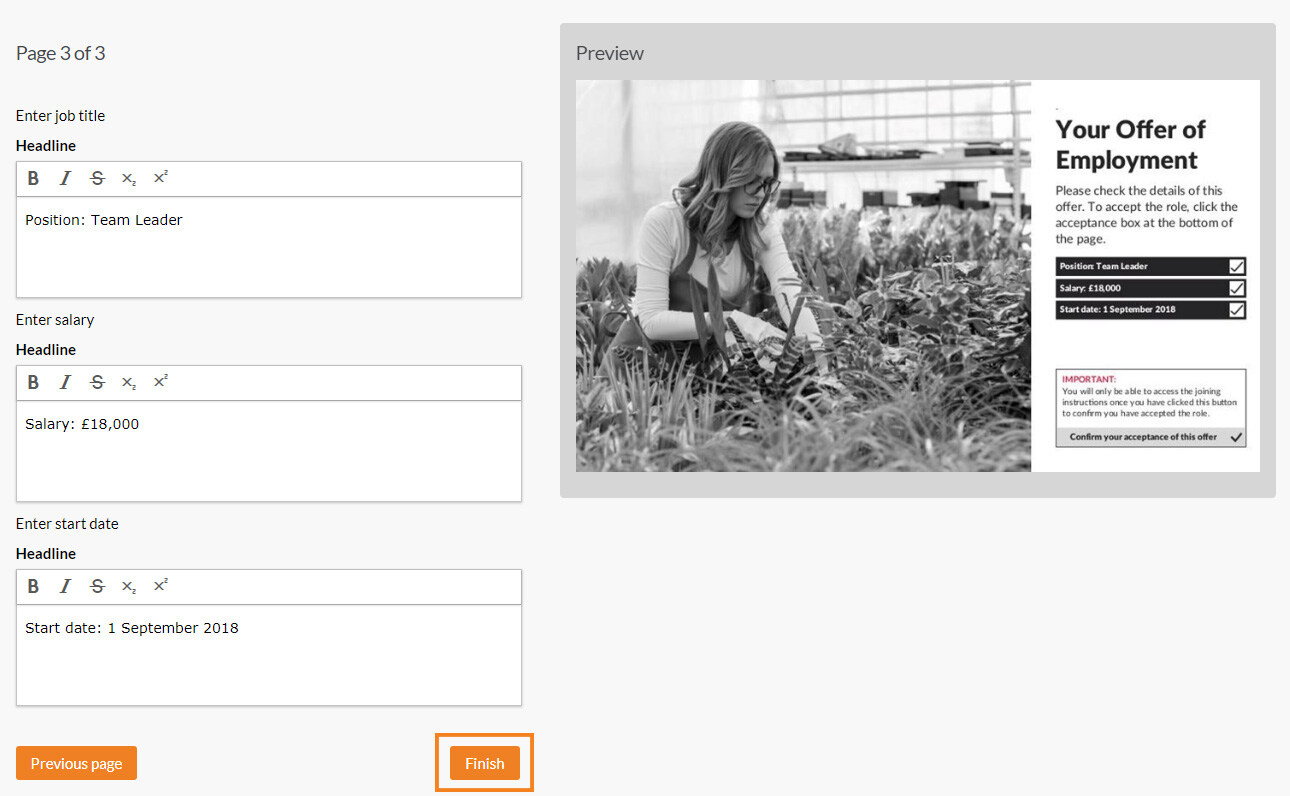
The preview will update to display any changes that you make, giving you instant visual feedback as you customise your content.
-
Once you are happy with your customisation, select 'Finish' to generate the new version.
4. Manage Version
The 'Manage Version' page will appear as soon as your new version has finished generating.
-
Temporary link
The option to create a temporary link is always available. Choose an option from the drop-down list and a link will generate.
Select the copy icon to copy the link ready to distribute.
-
Edit version (available if version is unpublished)
Select this button to make further changes to the version.
-
View version
Select this button to view the version.
-
View reports
Select this button to view the analytics area for the version.
-
Manage version
-
Rename
Select to change the name of the version. -
Publish (available if version is unpublished and TigerKit permissions)
Select to publish the version and make it live. Once selected,
-
A link will generate and can be copied by selecting the copy icon.
-
-
Delete (available if version is unpublished)
Select to delete your version. Important: deleting a version cannot be undone. -
Unpublish (available if version is published)
Select to unpublish your version.
-

What happens next?
When you next log in to TigerGenius, any documents you have created will be listed on the homepage, making it easy to see all your work in one place. From here, you can quickly identify each document by its name and status, and decide what you want to do next.
Select a document to open its details, manage the content, and view or edit the version within it.
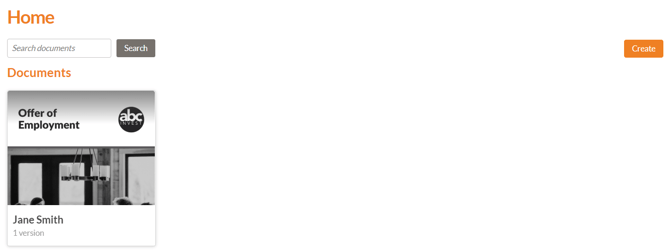
Continue to create new documents at any time by selecting the 'Create' button - this allows you to reuse your TigerKits, keeping documents aligned to your brand.