
If you’re an Account Owner, you have full control to manage the users on your account using self-service tools. This means you can add new users, update their details, and remove access for anyone who no longer needs it.
Deleting a user
-
Log into your account.
-
Select 'My Account', followed by 'Users'.
-
Select 'Edit' for the user you need to delete.
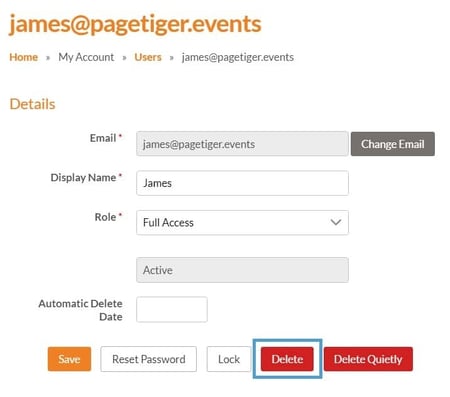
A new screen will then open, showing the selected user’s details, ready for you to confirm and complete the deletion.
-
Select the red 'Delete' button.
-
Select 'Save'.
Need a helping hand? If you’d rather not make the changes yourself, or are planning a larger update, your Customer Success Manager can help! They can provide guidance on best practices and make updates on your behalf.
What happens next?
The user will receive an email confirming that they have been deleted from your account, and can no longer be able to log in.
Anything created by a deleted user will still be available in your account.
How to reinstate a deleted user
-
Select 'My Account', followed by 'Users'.
-
Use the filter on the right-hand side to view 'Deleted Only'.
-
Select 'Edit' for the user you would like to reinstate.
-
Select 'Undelete'.
-
Select 'Save'.

What happens next?
The user will receive an email confirmating that they have been reinstated as a user on your account and can log in again.
The user can continue to use their previous password, but you may prefer to send a password reset email so they can create a new one and keep their login details secure.