
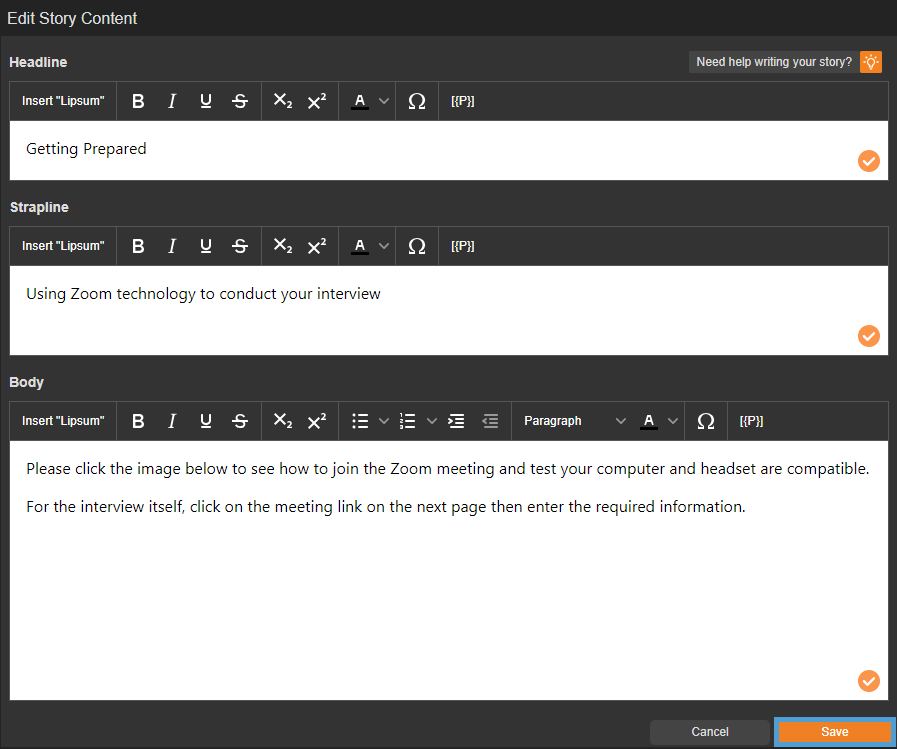
Designer retains your changes as you work, but changes made in pop-up editors need to be saved separately. Always select ‘Save’ when editing text, More Information pop-ups or Assessments.
You’ll be logged out after 30 minutes of inactivity on the page. Before this happens, an on-screen warning will appear that you can click to stay logged in. If your session ends, you may lose any unsaved changes made in a pop-up editor, so save regularly in those editors to protect your work.
Saving
As you work on your Document any changes will be retained when you leave Designer, so you won't find a 'Save' button upon exiting.
Always remember to save if you're working in a pop-up editor though - for example a Text box in Designer, or a More Information pop-up or Assessment in Interactivity.
Exiting
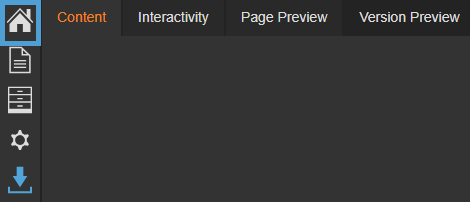
When you are ready to exit, select the 'Home' icon at the top left of the page in Designer.
Updating your document
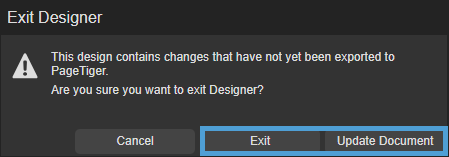
You can either 'Exit' without exporting your changes (don't worry, they will still be saved!) or select ‘Update Document’ which will pull the changes through so they can be seen when you view the Document outside of Designer.
If you have a lot of text to enter (for example, in a Text panel or More Information module) we advise writing it outside of PageTiger first, or regularly selecting ‘Save’ if you’re typing directly into the text editor. Otherwise you could risk losing your text by not being active on the page after 30 minutes.