
The 'Upload a File' option is a great choice if you already have a PDF or PowerPoint file created outside PageTiger and want to bring it to life with some interactivity! You can bring it into PageTiger via the 'Upload a File' option to get started.
For best results, we recommend uploading a PDF file rather than a PowerPoint file, as they are are more compatible and deliver a better outcome.
-
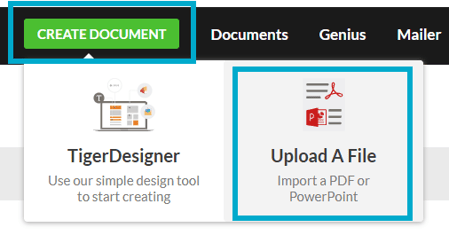
Select ‘Create Document’.
-
Select ‘Upload a File’.
Web links will be carried across from your PDF file into your PageTiger document - other elements, such as page view links or embedded videos, are not supported.
Instead, add them using interactive modules, such as:
-
Drag and drop your file or select it from a folder location on your device.
After choosing a file you will be asked to select where to save it.
You will see two tabs, 'Express' and 'Full Control' - these are your two saving options.
Express
Express is ideal if you want to create a new document quickly and are happy for it to use an automatically generated URL made up of random characters.
The Document URL can be changed at any time if you later decide you would like it to be something more specific.
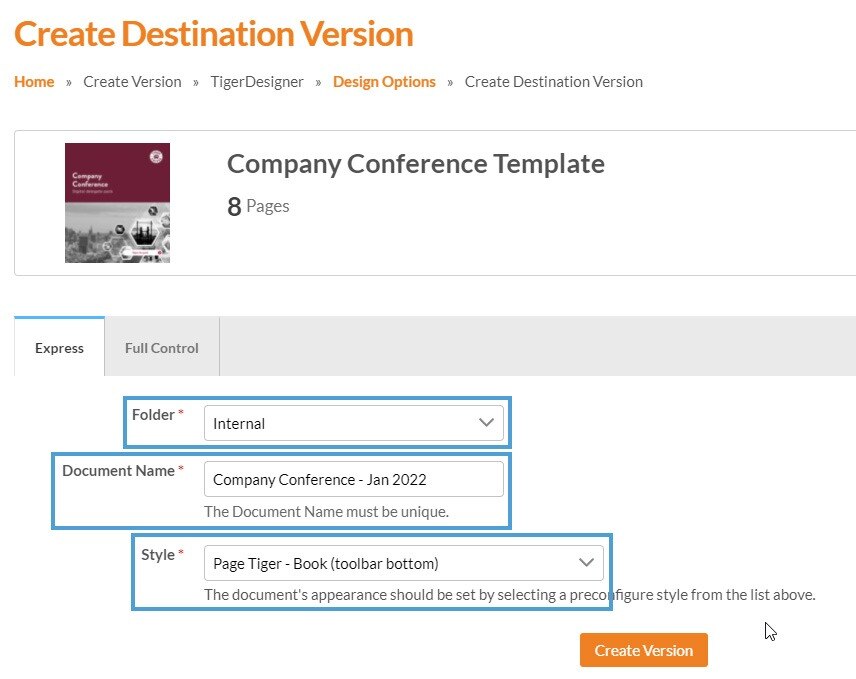
- Select a folder (e.g. Internal)
- Enter a document name (e.g. Company Conference – Jan 2022)
- Choose a style
- Click Create Version to continue
A new version of the document will then be created, ready for you to start adding interactivity.
Full Control
The Full Control option allows you to define the specific URL that will be used to view and access your document.
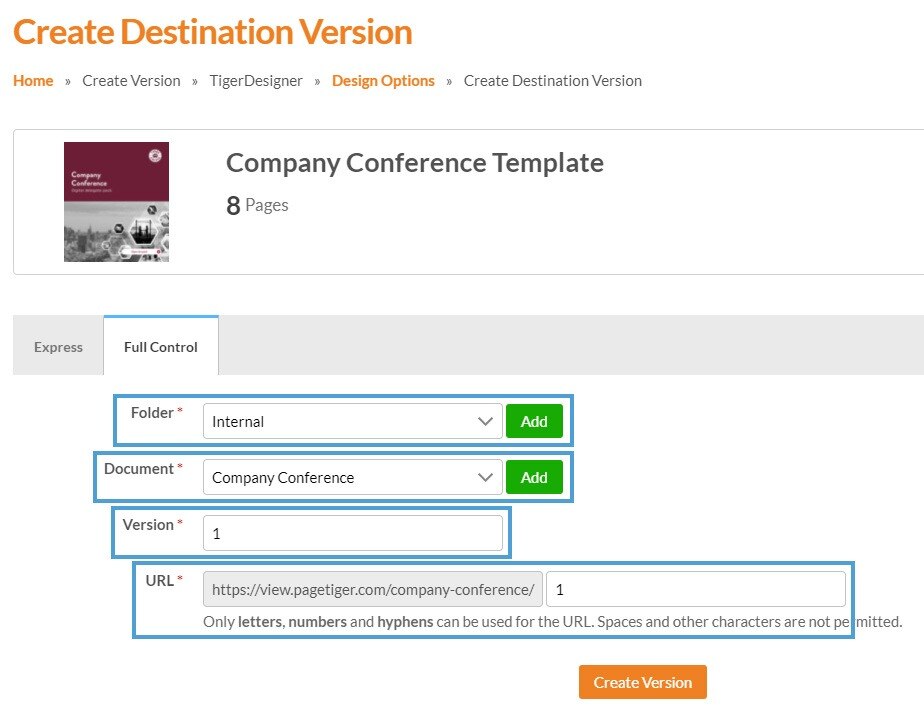
- Select an existing folder, or click Add to create a new one
- Select an existing document, or click Add to create a new one
- Enter a version name (e.g. Version 1 or V1)
A preview of the URL will then be displayed so you can see the full link of the document and how it will be accessed.
The Document URL can be changed at any time if needed.
-
Select the 'Create Version' button.
A new version of the document will then be created, ready for you to start adding interactivity.
Any hyperlinks in your PDF file will pull through into your PageTiger document on the initial upload.
However - if you later replace the file, the hyperlinks will not be refreshed or updated.
Next steps
Once your new document has been created, you can begin enhancing it straight away - either by adding interactive module to increase engagement, or importing the file into TigerDesigner to take a more creative approach by adding editable panels such as Text, Image, or List.
Two Design Modes are available:
-
Interactivity Only - gives you the ability to add interactivity to your document and if you want to replace the file with updated versions you can!
-
Design & Interactivity - allows you to enhance the file with both design elements and interactivity. The file will be fully imported into TigerDesigner and you will no longer be able to replace the file.
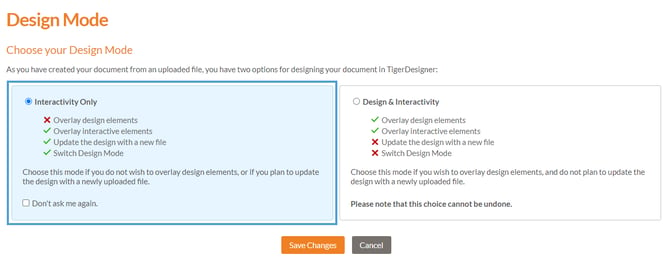
It's important to know that 'Design & Interactivity' imports the file into TigerDesigner - this action cannot be undone, and you will no longer be able to replace the original file.
It is important to understand the difference between the two modes, as some actions cannot be undone - read more about Design Modes and when you might choose to use them.