
Whether you're fixing a typo or adding new content, simply edit your file outside of PageTiger and then replace the original directly within the platform.
When a file is replaced, any existing interactivity will remain in place - however, if the page order has changed, you may need to reorder the interactivity accordingly. Instructions for doing this can be found further down the page.
The 'Replace File' option is only available when the Design Mode is set to 'Interactivity Only'. If 'Design and Interactivity' is selected instead, the file will be imported into designer and the Replace File option will no longer be available - this cannot be undone. In this case, you would need to create a new document using the 'Upload a File' option.
How to replace a file with an updated version
-
Navigate to the Document that contains the Version you wish to update.
-
Unpublish the Document first if it is published,
-
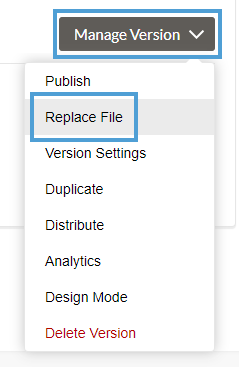
Select 'Manage Version' for the Version.
-
Select 'Replace File' from the drop-down list.
-
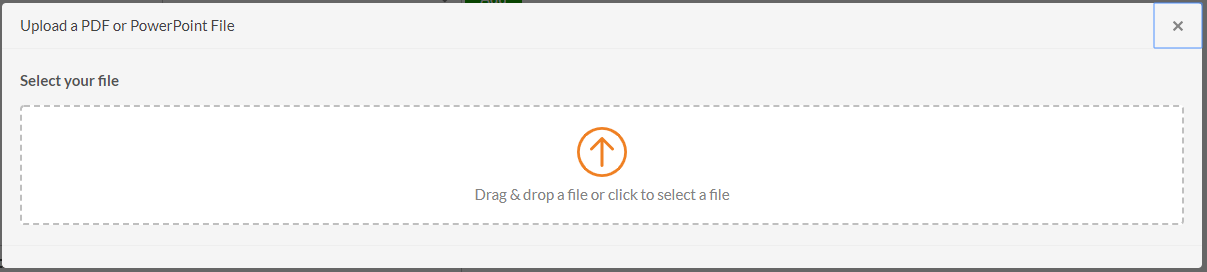
You will be prompted to drag & drop the file or click to select it from a folder location on your machine.
-
Select ‘Update Version’.
Hyperlinks are pulled through to the initial version of the document, if the file is replaced the hyperlinks will not update.
Reorder Interactivity
Have the number of pages changed in your new file or have any pages been re-ordered?
If the answer is yes, it’s important that you complete the ‘Reorder Interactivity’ screen.
This step is crucial for ensuring all pages align properly and any existing interactivity is correctly linked to the appropriate page.
- Each page from your existing and updated PDF will be displayed in separate columns.
- In the right-hand column, you will notice some pages labelled as 'NEW PAGE.' This indicates that these pages do not have any associated interactivity.
- You will need to align these pages with the corresponding new pages in your updated PDF.
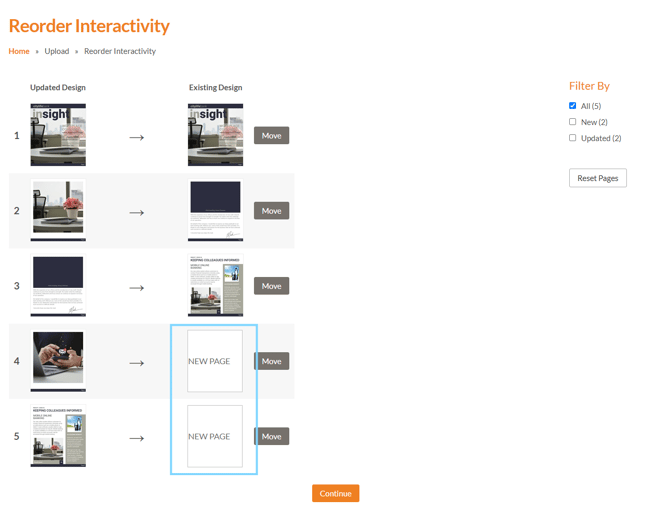
- The simplest way to move a page is to select the 'Move' button and select the desired page number that it needs to be assigned to.
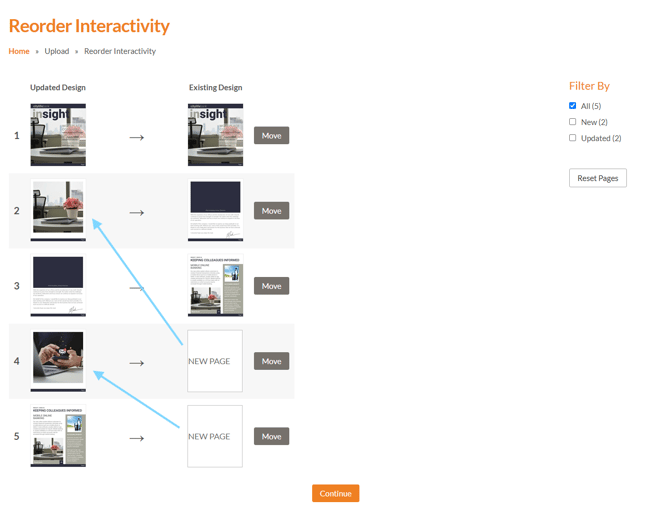
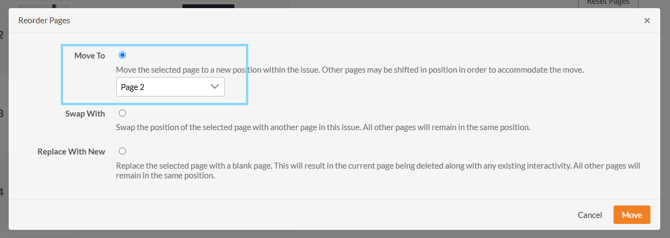
- After completing this step, all existing pages will be properly aligned, and any new pages in the PDF will be labelled as 'NEW PAGE'.
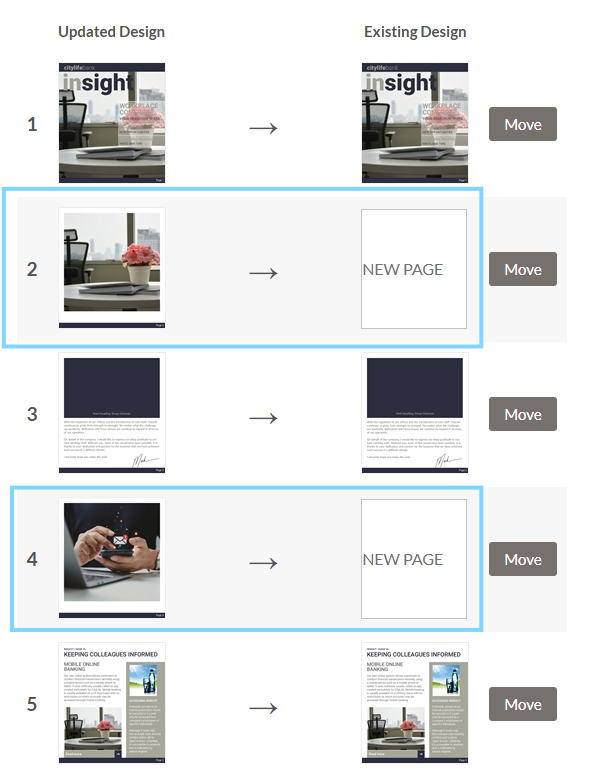
If you have any questions or need assistance using this feature, our Support team is on hand to to provide guidance via Live chat or via email support@pagetiger.com