
Tags offer a flexible way to categorise the documents in your account. Similar to folders, they help you group related content so it is easier to find and manage. You can apply more than one Tag to a document, allowing it to appear in several relevant groups.
Tags are optional, so you can create and assign them as needed. They are particularly useful as your document collection grows, helping you keep related content organised.
A Tag can be selected from your admin homepage, which will take you directly to the documents that use it.
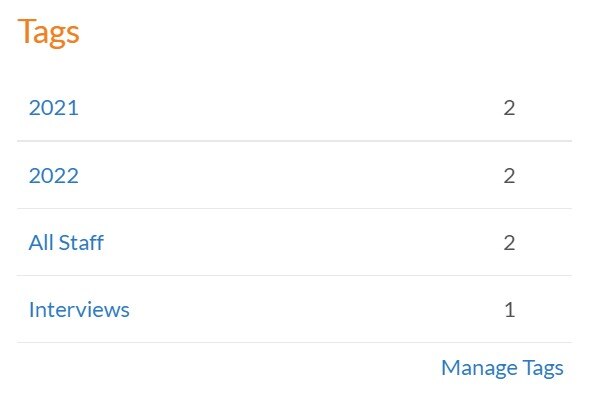
How to create a Tag
-
Select Documents from the main menu followed by ‘Settings’.
-
Select ‘Tags’.
-
Select the ‘Add’ button.
-
Enter the name for the Tag followed by the ‘Save’ button.
Any Tags you add will then be available to assign to a document in your account.
How to assign a Tag
-
Navigate to a document and select the ‘Details’ tab.
Any Tags available will appear just below the Document URL.
-
Select the checkbox for any Tags you would like to assign to the document.
-
Select the ‘Save’ button.
You can un-tick a checkbox to remove a Tag. Don't forget to save your changes!