A duplicate is an exact copy of an existing version, maintaining the same design and interactivity. Document Settings, such as Style, Security Rule, or Menu, won't be included, as they are applied at document level rather than version.
- Manage version control more effectively
Distribute the Document Link for a document, then create a new version each time a change is needed - readers always land on the latest published version. - Create multiple similar versions
Keep most of the content as-is, and amend the parts required. - Create a backup copy
Duplicate a version to keep a safe copy before making further changes.
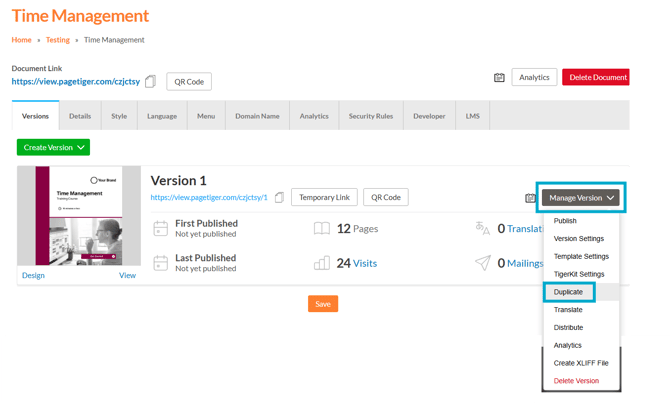
- Select 'Manage Version' for the version you need to duplicate.
- Select 'Duplicate'.
- Choose where to save the new version - this can be an existing document or a new one, depending on your requirements. The system will default to 'Full Control' and the 'Document' will be the current document.
Use the dropdown to select an existing document or choose 'Add' to create a new document.
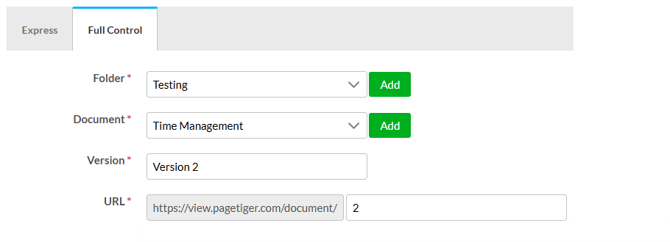
Save the new version in an existing document and distribute the Document Link. This type of link will always land on the latest created and published version, creating a seamless experience for viewers when updates are made.
- Select 'Create Version'.
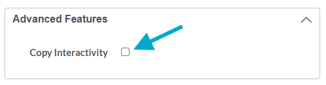
All interactivity from the original version will be included in a duplicate, unless the 'Copy Interactivity' checkbox is unselected in 'Advanced Features'.