
Placeholders are text fields that prompt you for input when using a template. You can easily incorporate placeholders into a version before setting it as a template, and it can help streamline the process of filling in multiple fields efficiently.
- Story panel.
- List panel.
- More Information module.
How to add a placeholder
-
Navigate to a document and select ‘Design’ for the version.
-
Click on a Text, Story or List panel.
-
Click Edit Content’ and the text editor for the panel will open.
-
Position your cursor where you would like to add the placeholder and select the ‘Placeholder’ icon [{P}].
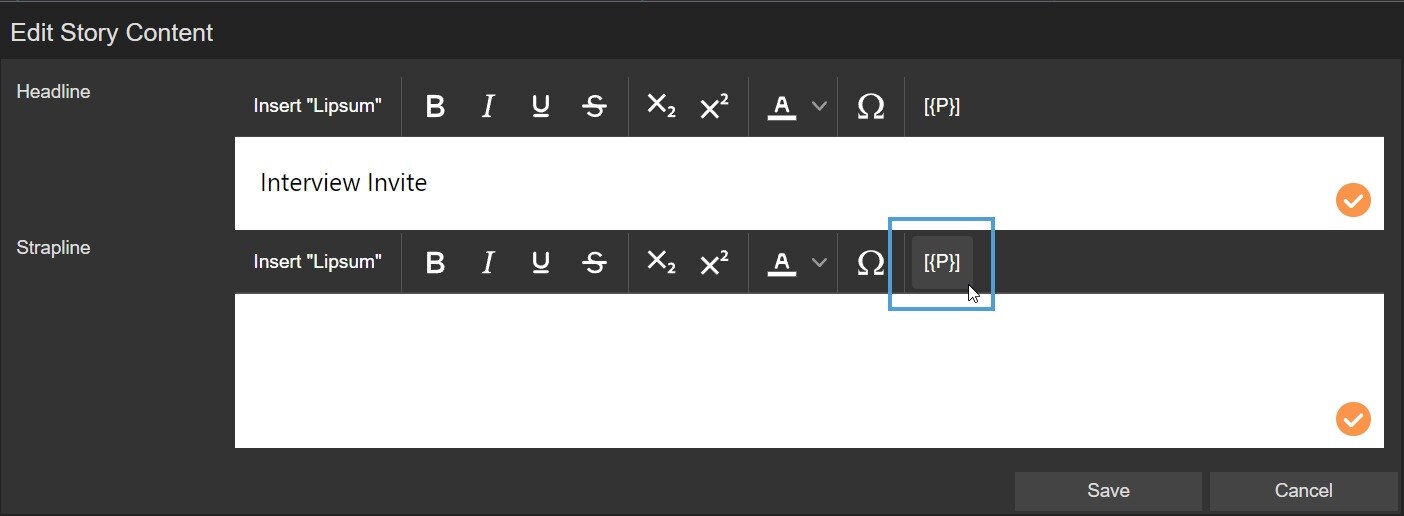
Placeholder options
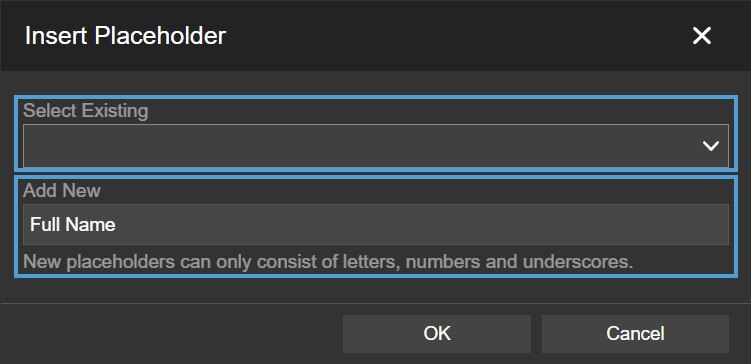
Two options are available when adding a placeholder.
Select Existing
If you have already added a placeholder it will appear here, or you can select a pre-configured placeholder that is information already held by the platform, for example, PT Issue Date or PT Reader Email.
Add New
If you would like to add a placeholder it can be entered here. Simply type in the placeholder name, for example ‘Full Name’ and select ‘OK'
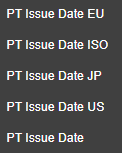
Global placeholders are available for different regional date formats. This is particularly helpful, for example, when you are sending a training document to employees in the United States and issuing a certificate. In this case, you can use the ‘PT Issue Date US’ placeholder to ensure the date appears in the MM/DD/YYYY format.
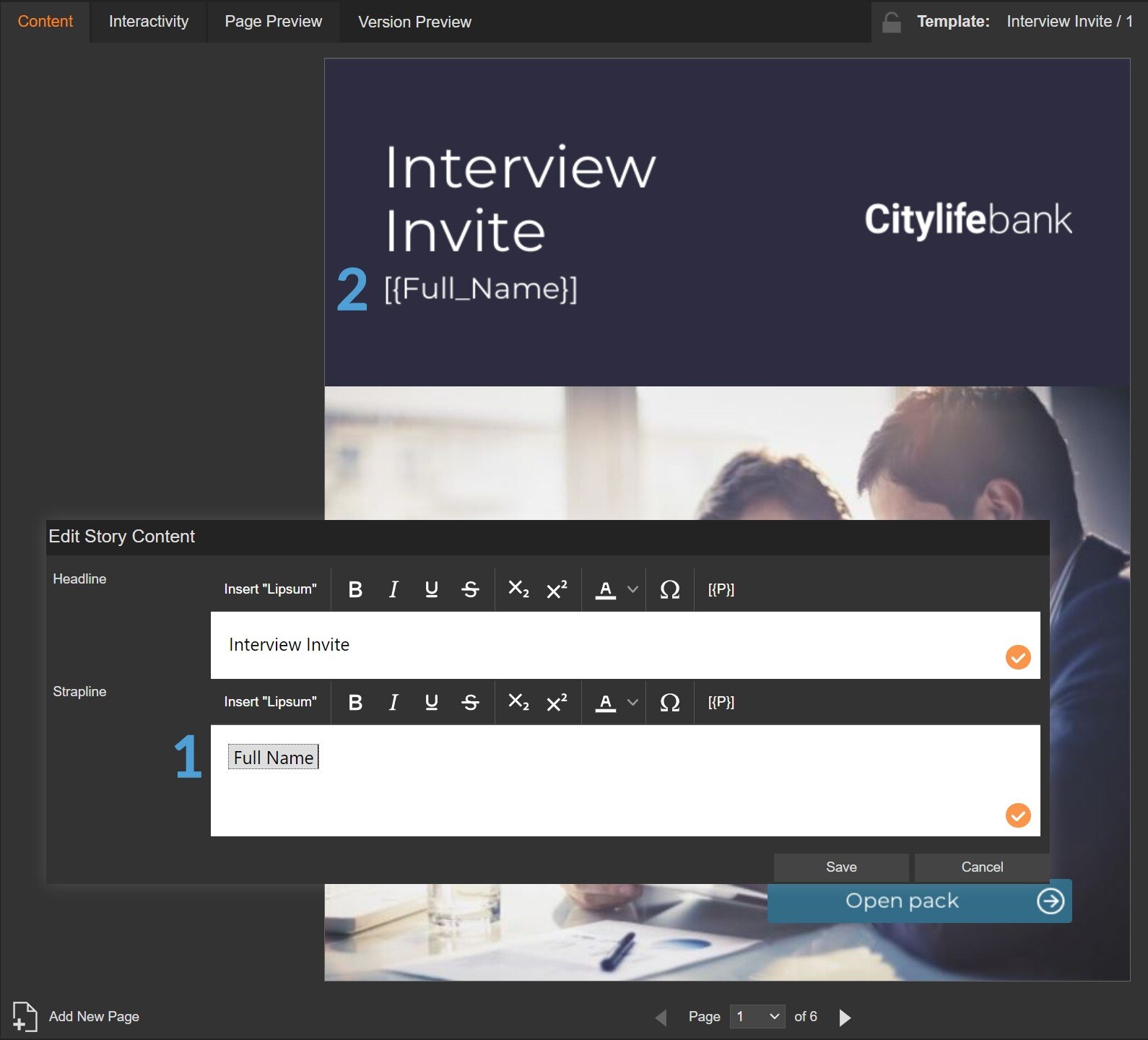
What does a placeholder look like?
- How a placeholder will look in a text editor once added to a panel, such as a Story or Text panel.
- How a placeholder will look in Design mode once added to a panel, such as a Story or Text panel.
Read more about how to fill in placeholders when you use a template.