
A multiple choice question provides a list of predefined answers and requires the reader to select the single option that best applies to them. Also known as a 'radio button' question, it's important not to confuse this question type with with 'multiple-answer' or 'select many', which allows the visitor to select more than one answer.
Example
Q: When can mobile devices be used in the workplace?
Answer 1) During breaks and for emergencies
Answer 2) Never
Answer 3) Any time
How to add a 'Multiple Choice' question
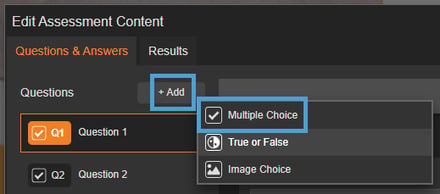
On the 'Question & Answers' tab, select 'Add' and then choose 'Multiple Choice' to insert a new question ready for you to configure.
-
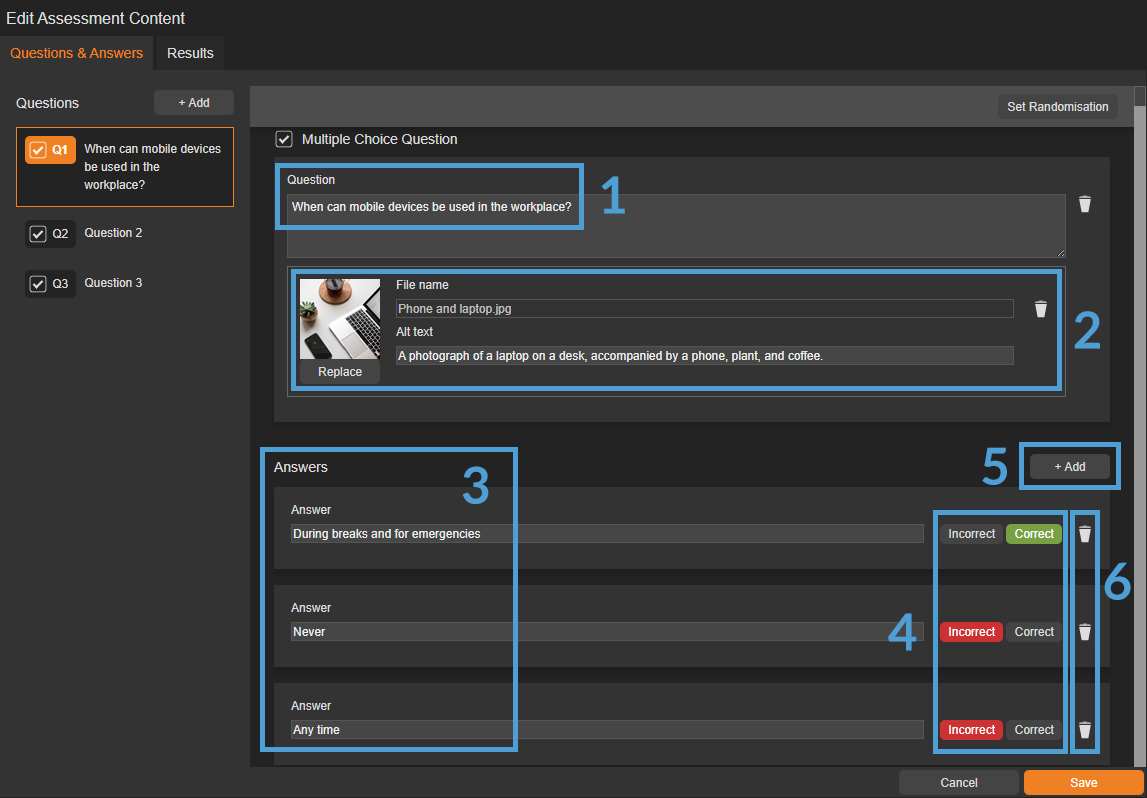
Add your question into the 'Question' field.
-
Use the 'Insert Image/Replace' option to add an image to support your question or add visual interest.
-
Add the answer(s) into the 'Answers' section.
-
Set the answer as 'Incorrect' or 'Correct'.
-
Use the 'Add' button to add another answer (if applicable).
-
Use the small bin icon to delete an answer (if applicable).
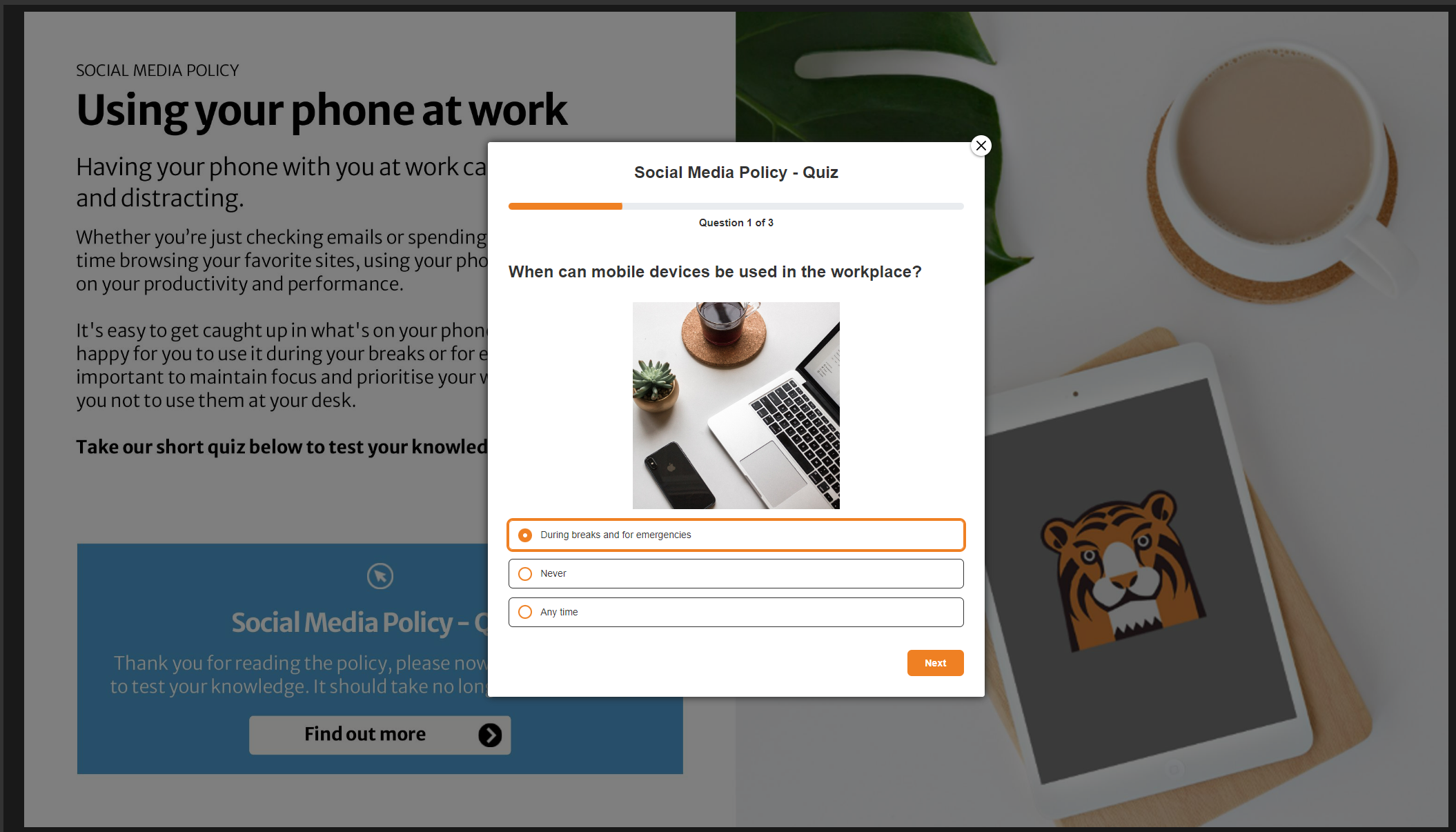
What does a 'Multiple Choice' question look like?
When a visitor opens your document, they can select the clickable area to launch the Assessment module. A pop-up window will then open, displaying the multiple choice question, and supporting image (if used), and the list of answers to choose from.
Only one answer can be marked as correct. If you would like to offer multiple correct options, consider adding each as a separate answer and include a final option such as “All of the above.”