
Keeping track of who's viewed an important document shouldn't be guesswork. An Expected Visitor List makes it simple to see exactly who's logged in, and, just as importantly, who hasn't.
Benefits
-
Clear visibility: A straightforward comparison between who was expected to view a document and who actually has.
-
Account-wide convenience: Once created, an Expected Visitor List applies automatically across all documents in the account - no need to reapply it each time.
-
Actionable data: Downloadable lists of visited and not-visited addresses make it easy to follow up with anyone who's missed a document.
-
Built-in reporting: A visual breakdown, including a pie chart and percentage of visits, gives an instant snapshot of engagement.
How to create an Expected Visitor List
- Select 'Documents' from the main menu, followed by 'Settings'.
- Select 'Expected Visitors'.
- Select the 'Add' button.
- Enter a name for the list in the 'Name' field.
A clear, logical name makes it easy to identify who's included - for example, "Sales Team" or "Finance Team".
- Select Save to reveal further options.
- Paste the relevant email addresses into the 'Bulk Add' section, then select 'Add'.
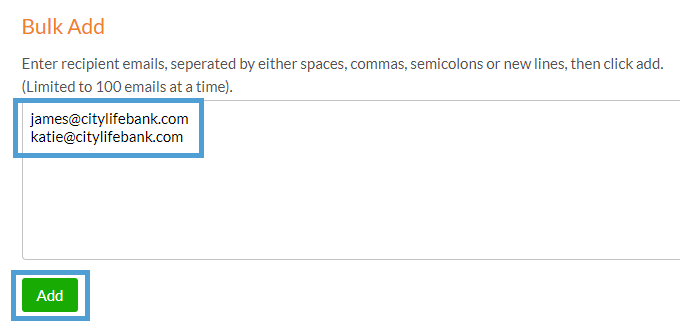
Up to 100 email addresses can be added at a time, separated by a space, comma, semicolon or new line.
- Select Save again to create and store the list.
A list of email addresses can also be uploaded directly via Import > Choose File, as an alternative to bulk adding.
How to monitor an Expected Visitor List
-
Navigate to the relevant document.
-
Select 'Manage Version' for the version to be reviewed.
-
Select 'Analytics' from the list of options.
The Version Dashboard will display, with any Expected Visitor Lists shown in the panel on the left-hand side.
Selecting a list reveals its visit percentage, along with a pie chart and two tables - one for visited addresses, one for not-visited. Both tables can be downloaded for reporting.
-
Download the "Not Visited" list and use it as a ready-made contact list for a follow-up reminder email.
-
Keep list names specific to the group they represent, so they remain easy to identify as more lists are added over time.
-
Remember that an EVL only works alongside a reader login or SSO security rule, since visitor identity needs to be captured for the comparison to work.
FAQs
Q: Does an Expected Visitor List work with any document security setting?
No - the document must use a reader login or SSO security rule, so that each reader's identity can be captured and compared against the list.
Q: Can the same Expected Visitor List be used across multiple documents?
Yes - once created, a list is automatically available across every document in your account.
Q: What happens if someone visits a document but isn't on the Expected Visitor List?
They will be unable to view the document and will see a message explaining that they do not have permission to access it.