
Connect your documents to a Google Analytics account to track reader activity and include document performance within your wider analytics reporting. The connection is quick to set up, and to get started you need a Google GA4 Number.
Please refer to the Google Analytics Help Center if you are unsure how to obtain a Google GA4 Number or use Google Analytics.
How to set up a Google Analytics rule
-
Select ‘Documents’ from the main menu, followed by 'Settings'.
-
Select ‘Analytics’.
-
Select the ‘Add’ button.
-
Enter a name for the new analytics rule.
Enter a name that includes the document name so you can easily identify what it relates to. For example 'Google Analytics - Becoming an Effective Communicator'.
-
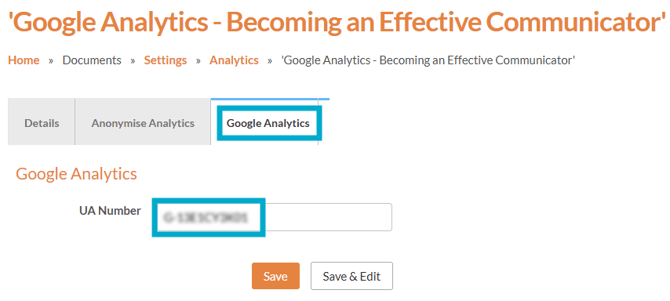
Select the 'Google Analytics' tab.
-
Paste your GA4 Number into the field provided.
The field is currently labelled as 'UA Number' but will accept a G4A number.
-
Select the 'Save' button.
How to apply to a document
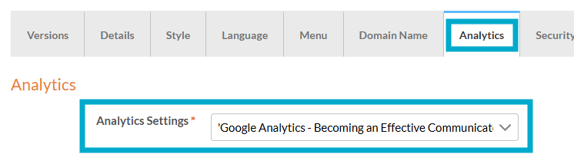
Once the above steps have been completed, the analytics rule can be applied to your document. This links the document to the Google Analytics account you chosen, allowing tracking data to be collected the next time readers access it.
-
Navigate to a document.
-
Select the ‘Analytics’ tab.
-
Select the analytics rule from the drop-down list.
-
Select ‘Save’.
What happens next?
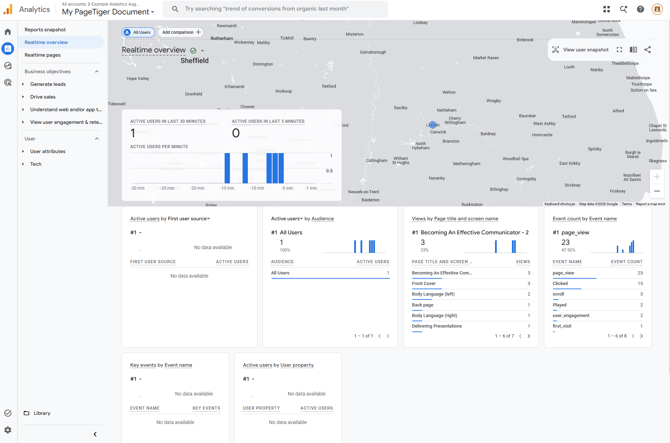
The next time you log into your Google Analytics account, the reporting data for your PageTiger document will be available. The data collected and how it is categorised is determined by Google - for the most accurate and up-to-date information about what is tracked, please refer to Google Analytics Help Center, as the details may change over time.
Example data
Screen recording updated August 2026
Things to note:
- Reader consent is respected, and nothing is tracked until the reader accepts performance cookies.
- The labels displayed in Google Analytics are picked up from the Page Titles and Module Names used in the PageTiger document.
- Readers are not identified in Google Analytics, even if captured in the PageTiger document.
- Google Analytics does not load for SCORM or LTI launches, so documents opened through an LMS are not tracked.
- The 'Anonymise Analytics' analytics rule only affects PageTiger reporting.
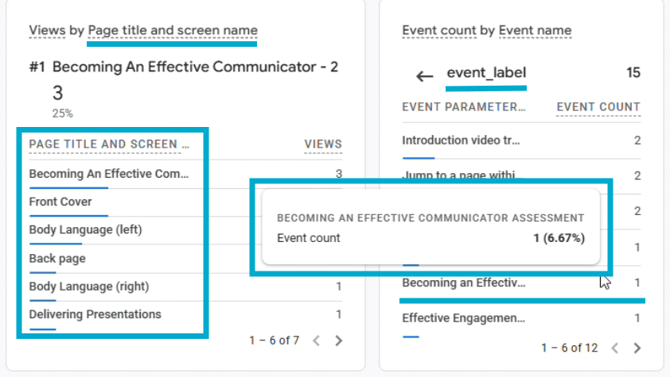 Screenshot updated August 2026