Notifications can help you respond quickly and decisively to visitor interactions.
The first step to using Notifications is to create one - once done it can be added to a Version, Page or piece of Interactivity - when a visitor interacts with it, a real-time email notification will be sent to an email address of your choice.
HR wants to know as soon as Sophie responds to her job offer. The offer pack includes an assessment module asking her to confirm whether she accepts the role. With a notification set up on the module, HR is emailed at hr@citylifebank.com the moment Sophie completes it - giving them a real-time update without needing to check manually.
How to create a new notification
-
Select ‘Documents’ from the main menu.
-
Select ‘Settings’, followed by ‘Notifications’.
-
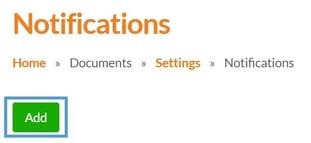
Select the ‘Add’ button.
Notification Settings
-
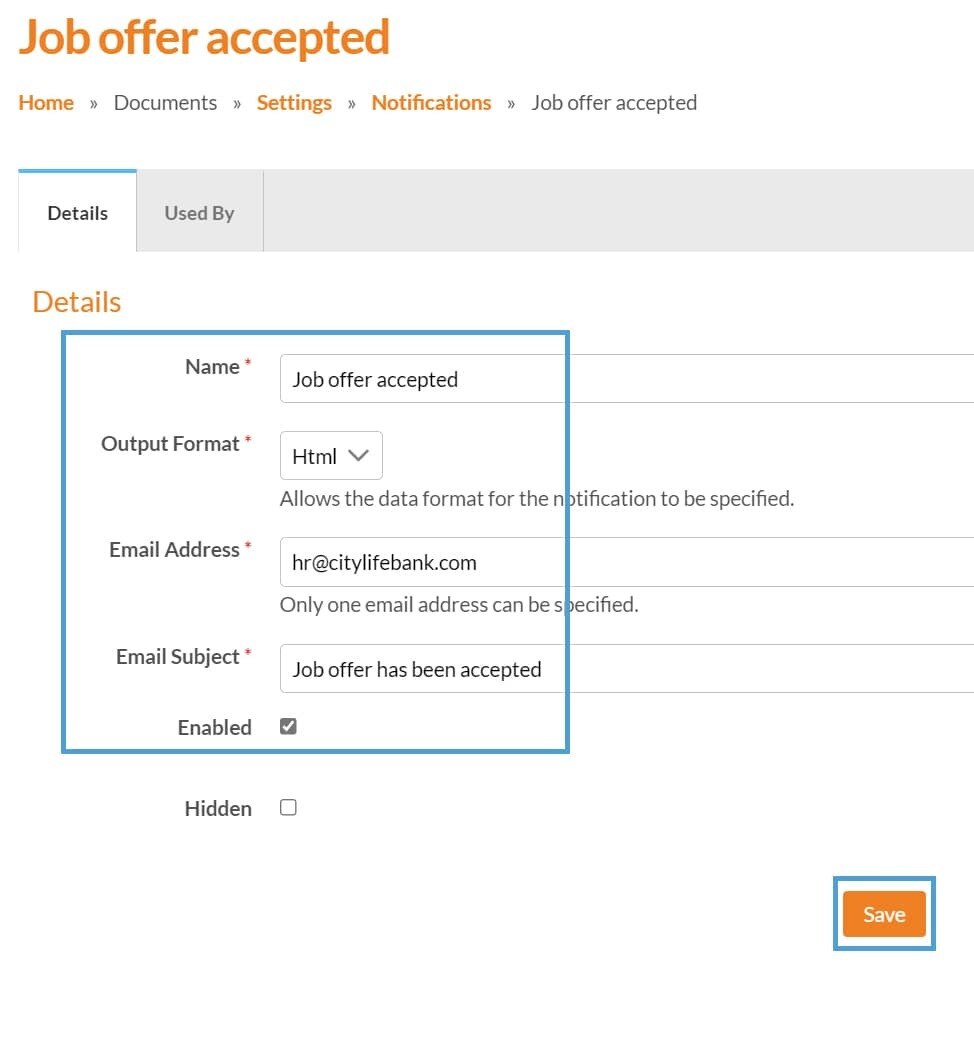
Name
Enter a name for the notification.
Make sure the name is clear and logical, so you know what you’re looking for when you add the notification. For example - 'Job Offer accepted'.
-
Output Format
Select the format that you would like your email Notification to be displayed in:-
Text (Displays in plain text).
-
JSON or XML (Use if you wish to integrate with a computer system).
-
HTML (Recommended as it will display the email in rich text).
-
-
Email Address
Enter the email address that you would like the Notification to be sent to. This may be your own email address or someone else, for example a manager or generic email address for an HR team. -
Email Subject
Enter a subject for the Notification. It’s important that this is clear and concise so the recipient know what the email is referring to.
As with the Name, it's important that the Email Subject is clear, so you know what it is referring to when the email is received. For example - 'Job Offer has been accepted'.
-
Enabled
When this box is ticked the Notification is enabled. Un-ticking this box will prevent any further Notifications being sent. -
Hidden
Select this option to hide the Notification, preventing it from being used in a further version. If the Notification is already in use somewhere, it will be unaffected. -
Select the 'Save' button to save the notification .
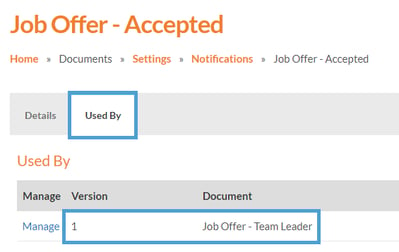
See where a notification is being used by selecting the 'Used By' tab.