
Adding a notification to a piece of interactivity enables you to track when a visitor views, completes, or responds to content - like a quiz, poll, or video.
HR wants to know as soon as Sophie responds to her job offer. The offer pack includes an assessment module asking her to confirm whether she accepts the role. With a notification set up on the module, HR is emailed at hr@citylifebank.com the moment Sophie completes it - giving them a real-time update without needing to check manually.
How to add a notification to interactivity
- Click on the piece of interactivity that you would like to add a notification to.
-
Select the Notification icon from the flyout menu.
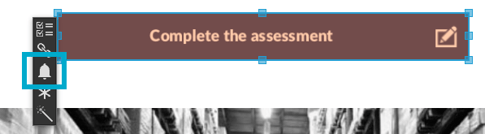
- Choose the required notification from the drop-down list.
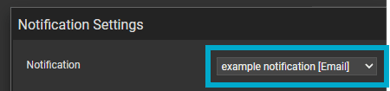
Once set up, a real-time email notification will be sent when the piece of interactivity is selected or engaged with.
Notifications and Polls/Assessments
Polls and Assessments have more option available, as a notification can be triggered by how the visitor interacts with it - for example, when they pass a quiz, or respond negatively to a poll.
Follow the same steps above, then choose the Poll answer, Assessment answer, or Result you want to trigger the notification.
Example 1 - Assessment
Send a notification when a visitor passes an assessment:
-
Click on the assessment module, followed by the notification icon.
-
Select a notification in the 'Results' section - in this example it will be sent when 'Pass' is achieved.
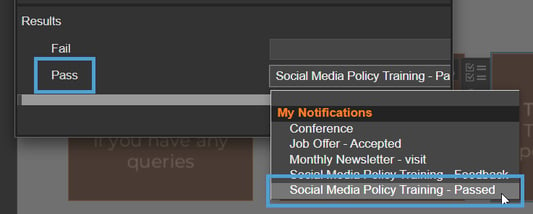
This type of notification can be useful if a visitor passes a test and you would like to reach out and congratulate them.
Example 2 - Poll
Send a notification when a visitor selects a specific poll answer:
-
Click on the poll module, followed by the notification icon.
-
Select a Notification in the 'Options' section - in this example it will be sent when 'Not so good' is chosen.
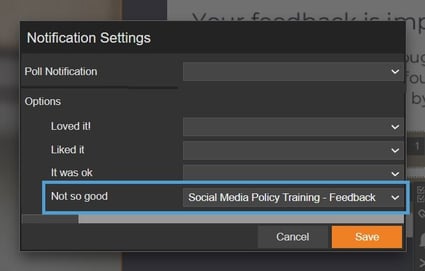
Sending a notification when someone responds to a poll can be useful if you would like to follow up with a visitor to learn more about their answer.