
Prevent visitors from turning the page until they complete a required action, such as accepting T&Cs or passing a quiz.
Mandatory interactivity stops visitors moving to the next page until they've engaged with a specific piece of content - useful anywhere you need confirmation that something's been read or completed, not skipped past.
Scenario
HR sends Jane a job offer document. Before she can continue, she needs to accept the T&Cs via a pop-up box. Setting that pop-up as mandatory means Jane can't move forward until she's clicked 'Accept T&Cs'.
Setting a module as mandatory
- Click the piece of interactivity that you would like to make mandatory.
- Select the 'Mandatory' icon from the flyout menu.
- Tick the 'Mandatory' checkbox to set the module as mandatory.
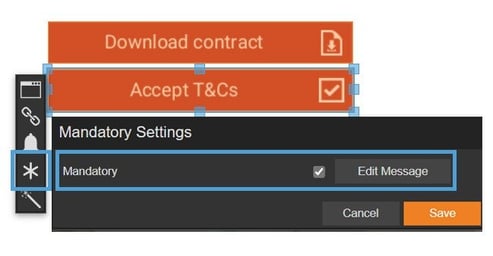
-
Click 'Edit Message' to enter the message that visitors will see if they try to turn the page before completing it.
A mandatory message is a short piece of text that displays in a pop-up box if the visitor attempts to turn the page before completing mandatory interactivity.
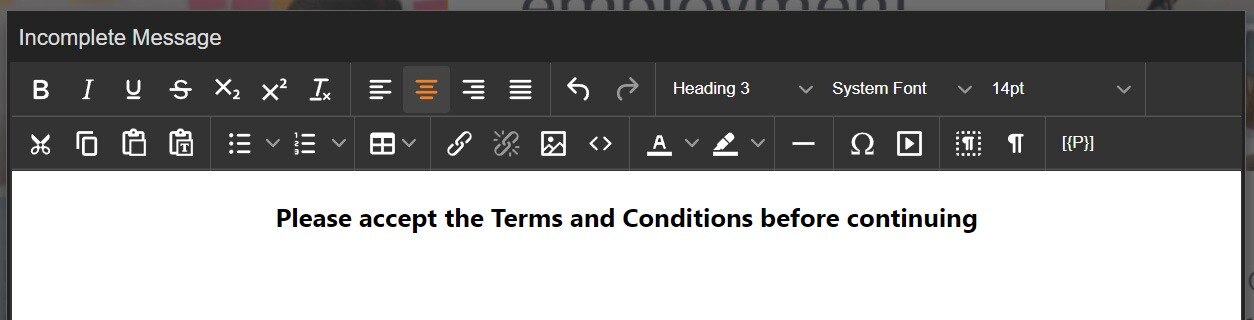
-
That's it - the visitor can't proceed until they've interacted with that module.
Order of mandatory modules
If a page has more than one mandatory module, they are triggered in the order they appear on the page - left to right, top to bottom.
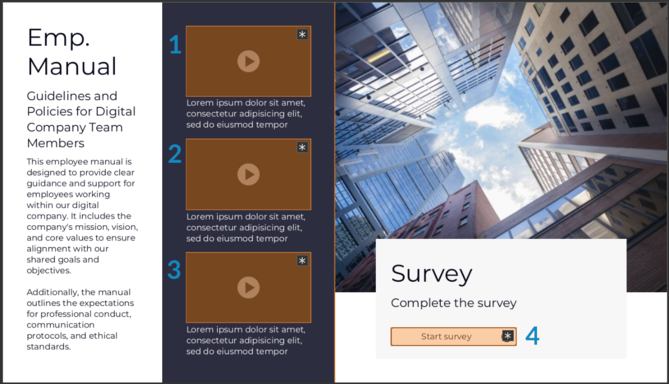
Add a custom mandatory message for individual modules to make the requirement clearer to readers. For example - "Please complete the assessment" or "Please watch the video."
Using 'Mandatory' for Assessment modules
Assessments have multiple possible Results (messages shown based on the visitor's score), so there's an extra option - instead of (or as well as) making the whole module mandatory, you can make a specific Result mandatory. This means the visitor must achieve that Result, not just attempt the assessment, to continue.
A 'Result' is a message that displays to a visitor based on the score achieved after completing the assessment. Find out more about Assessment modules.
- Click the assessment module.
- Select the 'Mandatory' icon.
- Tick the checkbox next to the Result(s) you want to make mandatory.
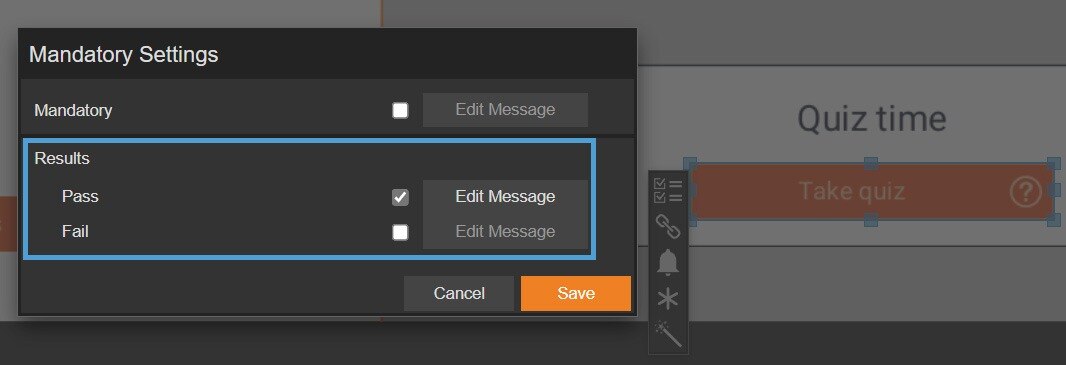
Scenario
Jane's Health & Safety training ends each section with a quiz. The 'Pass' Result is set as mandatory, so she must pass before moving to the next section.