You can link a piece of interactivity to a panel in your document so it stays aligned when updates are made. Once linked, the interactivity will automatically move and resize whenever the panel is repositioned or adjusted.
Example
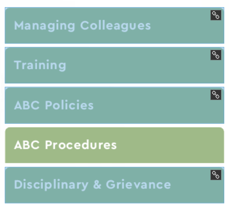
James at ABC Invest has created a document for managers that includes a "contents" page that uses List panels and 'Jump to a page' modules for easy navigation. By linking each module to its matching List item, James can add new items to the contents list whenever needed, without the 'Jump to a page' modules falling out of sync.
How to link interactivity to a panel
- Click on the piece of interactivity that you would like to link to a panel.
- Select the 'Link to Panel' icon from the flyout menu.
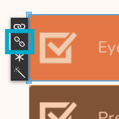
- Now select the panel that you would like to link the piece of interactivity to.
What happens next?
How to unlink Interactivity
If you no longer need to link the piece of interactivity to a panel, it can be unlinked in two steps.
-
Click on the piece of interactivity that you would like to unlink from a panel.
-
Select the 'Unlink to Panel' icon from the flyout menu.