
Types of Accessible Mode
Two accessibility modes are available, making it easier for visitors to view, interact with, and engage with your documents. These modes are designed to support different visual and accessibility needs, giving each visitor control over how content is presented on their screen.
|
Accessible View |
High Contrast View |
|
The content of the document is displayed in HTML mode, and will look similar to the default view. |
The content of the document is displayed as black text on a white background, |
| Provides visitors with a good way to navigate and interact with your document. | Visual noise is reduced by removing certain elements. |
| Increases readability for those with visual impairment or reading difficulties. | Increases readability for those with a visual impairment or reading difficulties. |
| Creates a more accessible experience and accommodates all visitors. | Enables readers to have a better focus of the content. |
| Compatible with assistive technologies like screen readers (page text, interactivity and images are read aloud). | Compatible with assistive technologies like screen readers (page text, interactivity and images are read aloud). |
By switching between Accessible View and High Contrast View, visitors can choose the experience that offers the best readability, reduces visual strain, and works smoothly with assistive technologies such as screen readers.
Choosing an Accessible Mode
- Visit a document by selecting the document link provided.
- Select the 'Tab' key on your keyboard or choose an accessible mode from the toolbar.
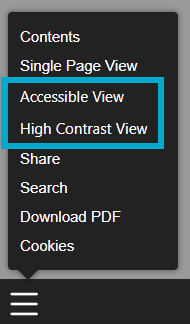
The visitor’s computer will remember their chosen accessible mode, so they do not need to select it each time they return. They can also press the 'Tab' key again or use the toolbar options at any point to switch back to the Default View.