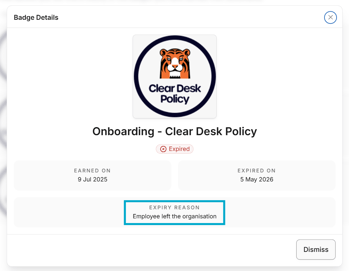
There may be times that you need to manually expire a badge - perhaps the criteria for earning it has changed, you want to clean up older badges that no longer align with your direction, or it needs removing due to a user breaching guidelines.
Whether a badge is assigned directly to an assessment or linked to from a course, you can now easily expire it manually, giving you more control over who they're awarded to.
- Select 'Documents', followed by 'Settings'.
- Select 'Badges'.
- Click 'Manage' next to the badge you want to update.
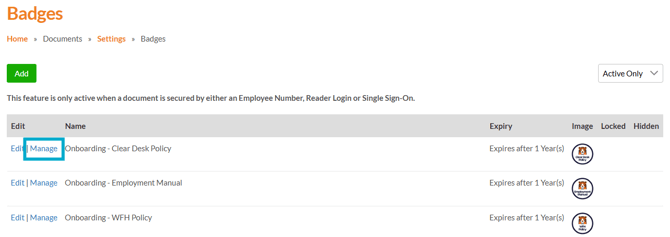
The 'Manage' option is also available on the 'Awarded To' tab for a badge.

- After selecting 'Manage', you will be presented with a list of all users that have been awarded the badge.
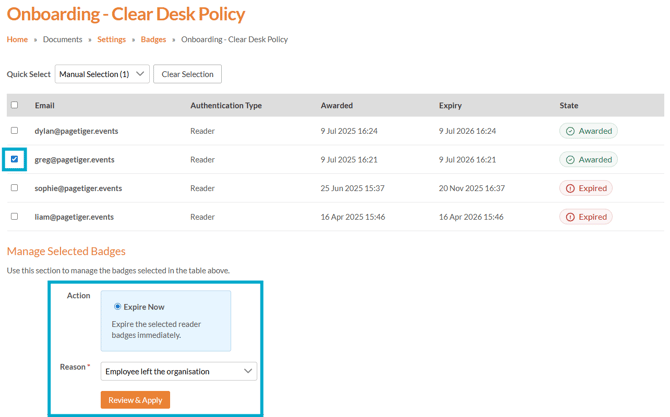
- Select the checkbox next to the user (or users) you would like to expire the badge for.
- Make sure 'Expire Now' is selected, and select a reason for the expiration.
- Select the 'Review & Apply' button.
- Confirm your selection and the badge will then be expired.
Be sure to double-check your selection, as it cannot be undone.
- Once done, the badge status will change from 'Awarded' to 'Expired'.

- The expiry reason will be recorded and displayed on the "Awarded to" tab for a Badge.

What happens next?
If the badge is linked to a Course:
- The next time the user logs into their 'My Account' area, the badge will display as 'Expired' in the Course, with the option to renew it if they are still assigned to the EVL.
- The next time the user logs into the related landing page a toast notification will display in the bottom-right informing them that the badge is available for earning.
- If you have notifications enabled, an email will be sent the next time your scheduled notifications run (e.g. daily at 8am).
- The Course Analytics will display a warning icon for the expired badge.

This icon appears when a badge has expired either automatically or manually.
If the badge is not linked to a Course:
- When the user next logs into their 'MyAccount' area, the badge will be listed as 'Expired' with the expiry reason.