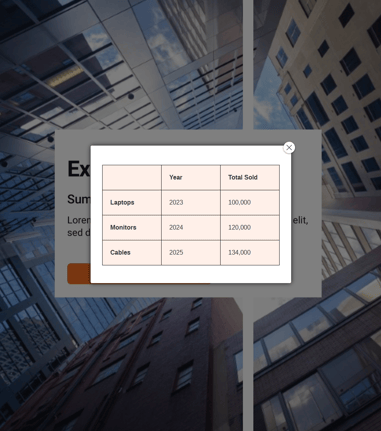
Select the 'Table' option from the toolbar to insert your table, then customise elements such as border colour to make the content more engaging for your readers.
Add a table
-
Select the ‘More Information’ module from the ‘Add Interactivity' palette.
-
Select the ‘More Information’ option and click and drag the module out on the page
Position the clickable area of the module over a List panel containing a call to action, such as ‘View table’ or 'View company report', so your readers know what to do.
-
Edit the More Information pop-up box.
-
Select the table icon, followed by 'Table'
-
Now choose the required number of rows/columns.
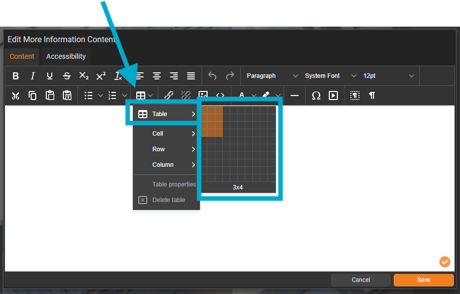
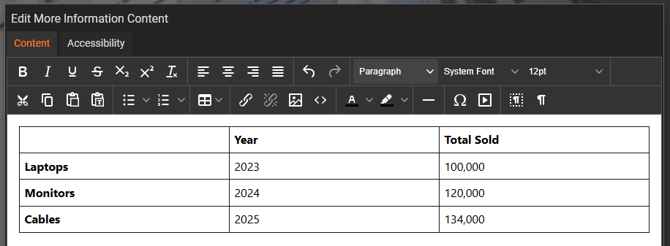
The table will then be inserted into the content editor, and you can start entering your content directly into the table cells.
Adjust the appearance of a table
-
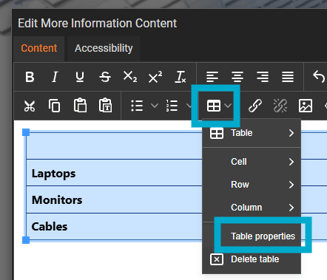
Click and drag to highlight the table.
-
Select the 'Table icon', followed by 'Table Properties'.
- Select the 'Advanced' option.
- From here you can set the following:
- Border style
- Border colour
- Background colour
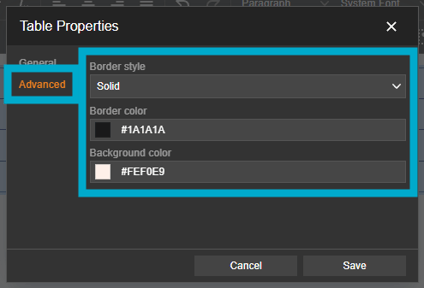
The above options are also available for 'Cell/Row/Column Properties'.
Once the table has been added and saved, your readers can simply click the clickable area or button when viewing your document, and the pop-up box will open to display the table.