
Panels are the building blocks of a Fully Editable page. Each panel type has its own job, from adding body text and images to creating buttons and contents pages. Use this page to find the right panel quickly, then select the link to view the full guide.
All panel types can be found in the Panel palette, to the right of the page design when a document version is open in Design mode.
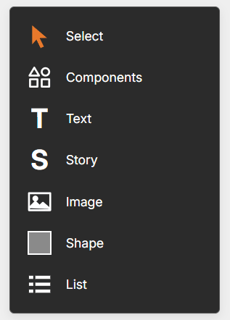
Select Tool
Not a panel type as such, but the tool used to select, move and resize panels on the page. Selecting a panel also opens its Settings, ready to make changes. It’s active by default when a version is opened.
Best for: moving, resizing and editing existing panels. View the Select Tool guide.
Components
Ready-made, on-brand panels that can be dropped onto a page in seconds. Branding is applied automatically, and any component can be resized or detached for full creative control.
Best for: building polished pages quickly without configuring every setting manually. View the Components panel guide.
Text
A single, uninterrupted block of text with a clean, consistent format. Text panels are read as paragraphs by screen readers, so they should be used for body text only.
Best for: paragraphs, descriptions and general body content. View the Text panel guide.
Story
Similar to a Text panel, but with three sections: Headline, Strapline and Body. Each section can be shown or hidden, and longer text can flow from one Story panel into another.
Best for: articles and structured content that needs a clear heading. View the Story panel guide.
Image
Adds photographs, logos or infographics to the page. Upload images, reuse existing ones from the Inventory or choose from the Getty Stock Library, then crop and style as needed.
Best for: bringing content to life and making a lasting impression. View the Image panel guide.
Shape
A simple way to add visual interest and contrast. Choose from over 20 shapes, including hexagons, speech boxes and arrows, then set the colour, rotation and border.
Best for: backgrounds, highlights and connecting information on the page. View the Shape panel guide.
List
Creates a set of items, each with an optional headline, body text, icon and chevron. Pair a List panel with interactivity to create buttons or a clickable contents page.
Best for: buttons, contents pages and helping readers navigate the document. View the List panel guide.