As your list of mailings grows, some regularly housekeeping can go a long way. Whether it's tidying up drafts, reusing a mailing that worked well, or clearing out anything no longer needed, TigerMailer makes it easy to keep things organised.
Getting started
- Select 'Mailer' from the main menu, followed by 'Search'.
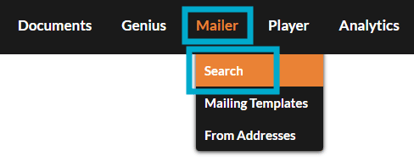
All mailings will be listed here, whether they have been sent, saved, or set as templates.
Filter
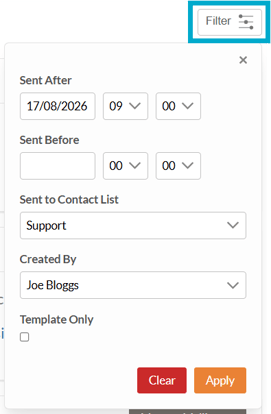
Use the filter at the top right to narrow the list and find the mailing you need more quickly. This is especially helpful if you have a large number of saved drafts, sent mailings, and templates, as it makes it easier to locate the right item before managing it.
Housekeeping options
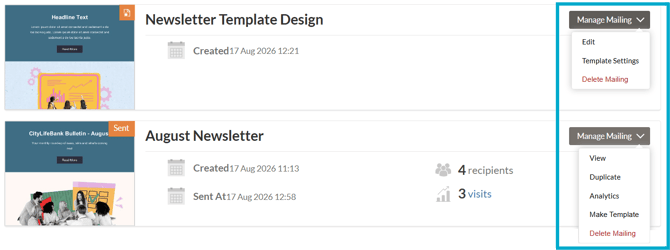
To begin, select 'Manage Mailing' for the mailing you want to work with. This opens a menu of available actions, such as editing a saved draft, viewing a sent mailing, duplicating a previous send, checking analytics, or managing template settings.
Please note that some options are only available for certain mailing types.
-
Edit
If you saved a partially completed mailing by selecting 'Finish Later', use this option to open it again and continue working on it. -
View
If you have sent a mailing, use this option to preview it. -
Duplicate
If you have sent a mailing, use this option to make a copy of it. -
Analytics
If you have sent a mailing, use this option to view its analytics. -
Make Template
Use this option to turn the mailing into a reusable template. -
Template Settings
If the mailing is already a template, use this option to rename it or remove its template status. -
Delete Mailing
If you no longer need the mailing, use this option to delete it.
Once a mailing has been deleted you will no longer be able to view any analytics data associated with the mailing.