
Available with Essentials Plus - contact your Customer Success Manager to upgrade!
A glossary file defines how certain words, terms, or phrases should (or shouldn’t) be translated in your document. Some words can have different meanings depending on the context, and uploading a glossary provides the intended translation for each term to ensure accuracy.
Consistency
Ensure key terms (like product names, technical jargon, or brand language) are translated the same way every time.
Brand integrity
Maintain your brand voice and tone, which is especially important for marketing or customer-facing materials.
Prevent incorrect translation
Help avoid cases where words are translated when they shouldn’t be, like brand names, acronyms, or technical terms.
Efficiency
Streamline the translation process by reducing the need for back-and-forth with a translator.
How to create a glossary file
A glossary file must be in a .tsv format, which can be created using Notepad, providing a clear view where you can easily see and edit your terms.
-
Open Notepad.
-
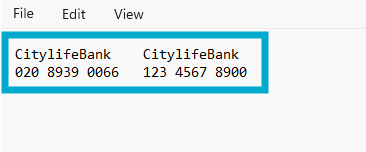
Structure the content as below (selecting the Tab key between each column).
-
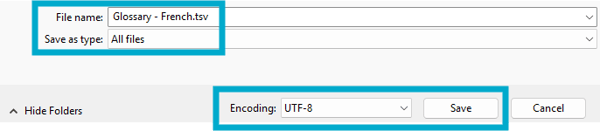
Select 'File', followed by 'Save As'.
-
Select 'All Files' for the 'Save as type' option.
-
Enter a file name, including '.tsv' at the end - for example Glossary - French.tsv.
-
Ensure 'UTF-8' is selected for the 'Encoding' option.
- Select 'Save'.
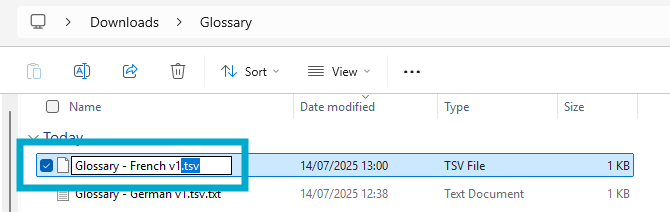
If required, rename the file extension from .txt to .tsv manually.
And that's it!
You have a formatted a .TSV file ready to be uploaded when you create a translation.
Example use case
The English term "cookies", when used in a technical context (such as websites), might be translated into German as "Kekse", meaning "biscuits". To avoid this, upload a glossary file to ensure the English term is retained.
