
Available with Essentials Plus - contact your Customer Success Manager to upgrade!
Once a version of a document has been translated, it may not be perfectly accurate, and text length can vary between languages. This can impact both meaning and layout, so it's important to use the Review option to review content and ensure it sounds natural, conveys the intended message, and fits the design properly.
Things to look out for:
- Inaccurate translations
- Awkward phrasing
- Text that doesn’t fit the layout
- Any missing or untranslated sections
- Font that may not support that language
Where possible, ask a native speaker or professional translator to review your translated content to ensure accuracy and clarity.
Getting started
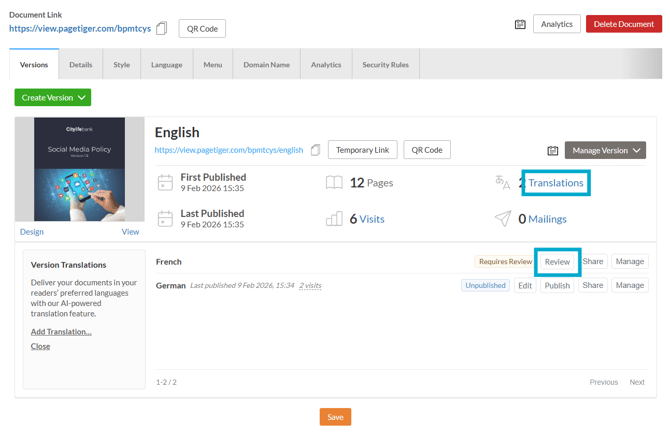
- To begin, select the 'Translations' option to expand the translations drawer.
- Select the 'Review' button to open TigerDesigner.
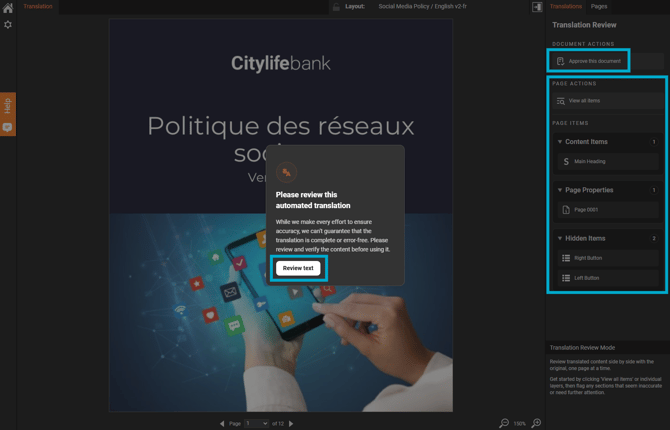
- Select the 'Review text' button to begin reviewing your translated content.
- Use the right-hand panel to review all content, focus on a specific section, or check any hidden sections.
- View all items
Select this option to review all content on the selected page. - Content items
Expand/select an individual option to review a specific piece of content on your page. - Hidden items
Any hidden panels on the selected page will be listed here - expand/select this option to review them. - Page Properties
Expand/select a page properties page number to review the SEO page content used.
To review specific content at page level, simple double-click on a panel to open the 'Translation Review' editor.
Review
- Once a section has been chosen, a pop-up box will display showing the original text alongside the translated version.
- From, here, either flag the items you want to revisit later, or edit them directly.
Approve
-
When you’re happy with your changes, select the 'Approve This Document' button and confirm that all reviews are complete.
-
After approving, you can either exit TigerDesigner and return to the Manage Document page or continue working on your content.
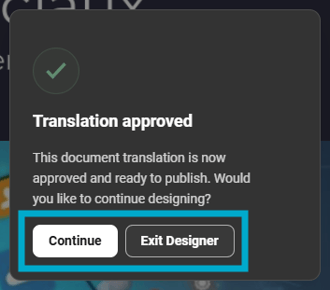
Choose 'Continue' if you need to update any part of the document design. This is especially useful when changing to a font that supports a specific language. We recommend building documents with Components wherever possible, as this makes it easier to switch branding later. If the new branding uses a different font, all panels will update automatically, rather than requiring you to change each font manually.
Temporary Links
Before moving on to publishing your translated version, you may want to send it to someone else to review - this is where a temporary link is ideal.
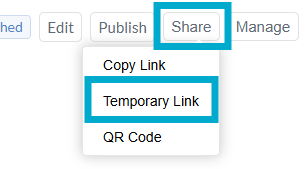
Simply select the ‘Share’ button, then choose ‘Temporary Link’ to generate a link that will expire after the time period you set. A temporary link enables you to view the document as a 'viewer' or 'reader'
Ready to publish your translated version? Read more here!