
Folders are created within 'Settings' and act as categories to help organise your documents.
A new folder structure is now available, allowing you to create hierarchical folders up to five levels deep. This enhancement makes it much easier to navigate your documents and locate what you need efficiently.
What is a hierarchical folder structure?
A container system where parent folders can contain subfolders, which themselves may contain other subfolders. This creates a tree-like hierarchy that organises your document based on their relationships and categories.
A well-organised folder structure simplifies the process of locating your documents.
When documents are scattered across various folders or stored randomly, it can become challenging to track down exactly what you need. By setting up clear and structured folders you can enjoy a smoother, more efficient workflow.
Benefits
- Easily organise your documents
- Better storage
- Faster retrieval times
- Efficient document management
- Select 'Documents' from the main menu, followed by 'Settings'.
- Select the 'Folders' option.
- Select the green 'Add' button to add a new folder.
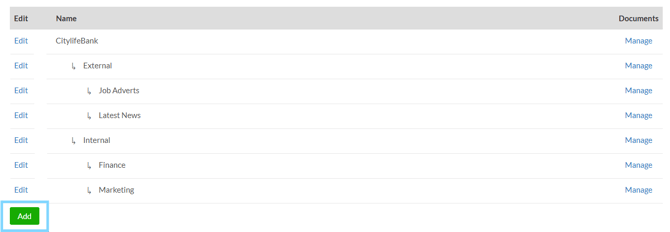
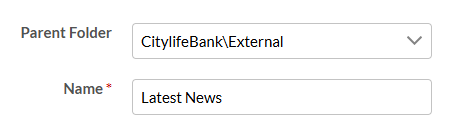
- Choose a parent folder and enter the name of the new folder.
Hide Folder
You can set a folder to ‘hidden’ if you no longer need to use it. Before you do this, the folder must be empty, with no documents stored in it, you may need to move your existing versions to another folder first.
To hide a folder open the folder in edit mode.
-
Select Documents.
-
Choose Settings from the dropdown.
-
Click 'Folders'
-
Choose Edit for the folder you wish to hide.
-
Select the ‘Hidden’ checkbox and save.
This helps you keep your folder structure clear and focused, while still allowing you to restore the folder later if you need it again.
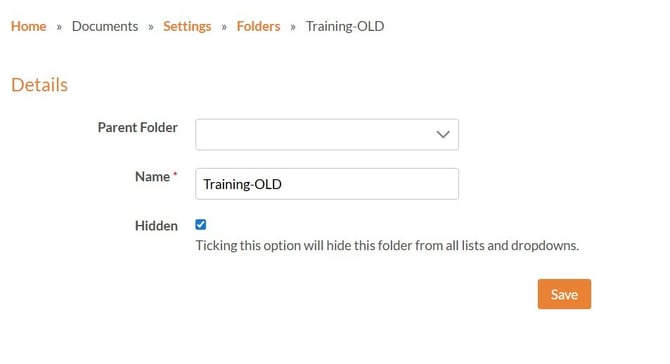
Hidden folders:
-
Won't display on your Admin homepage.
-
Are not available to select when creating a new document.
-
Can only be hidden if it's not in use by a document.
-
Can be unhidden at any time.
Unhide Folder
To unhide a folder go to the folder management area. This will open the full list of folders in your account.
-
Select Documents.
-
Choose Settings from the dropdown.
-
Click 'Folders'
-
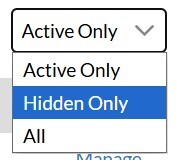
Use the filter dropdown to select 'Hidden Only'.
-
Click edit for the folder you want to restore.
-
Untick 'Hidden'.
- Select 'Save' button.