
All versions are stored within a document, but there may be times when you need to change where a version is saved. Moving a version to a different document helps you keep your content organised, apply the correct document settings, and ensure that people can easily find and access the right version.
You may need to move a version to a different document if it has been added to a new or incorrect document by mistake, or if you want to apply a different set of document settings.
The version URL (e.g. view.pagetiger.com/mydocument/myversion) must be unique and not match any of the versions in the document you wish to move it to. Instructions on how to edit a URL can be found here.
How to move a version to another document
-
Navigate to the 'Document Management' page for your version.
-
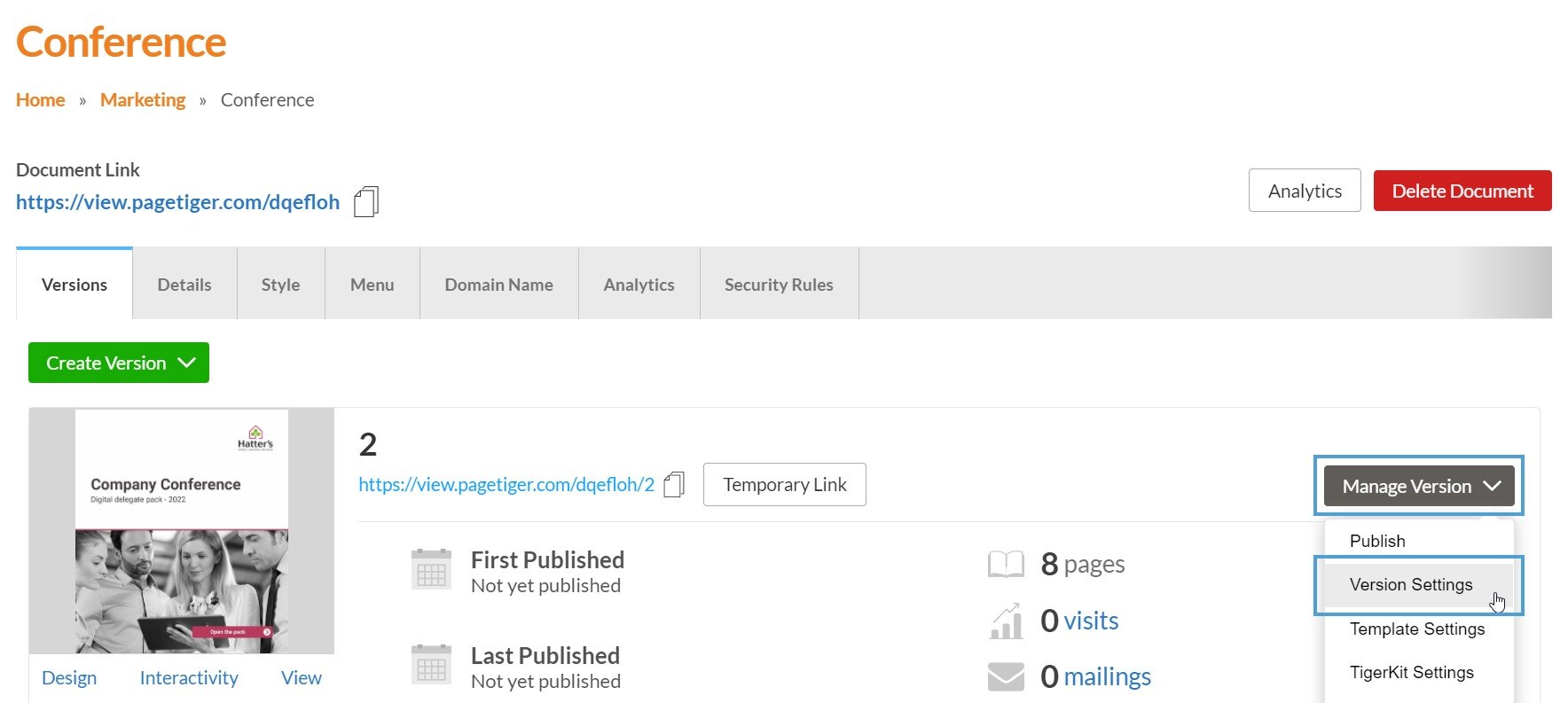
Select ‘Manage Version’ for the version you would like to move, followed by ‘Version Settings’.
-
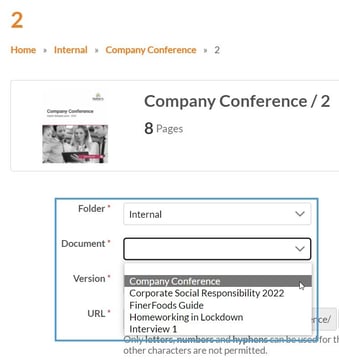
Choose the 'Folder' and 'Document' that you would like to move your version into.
-
Select the 'Save' button.
-
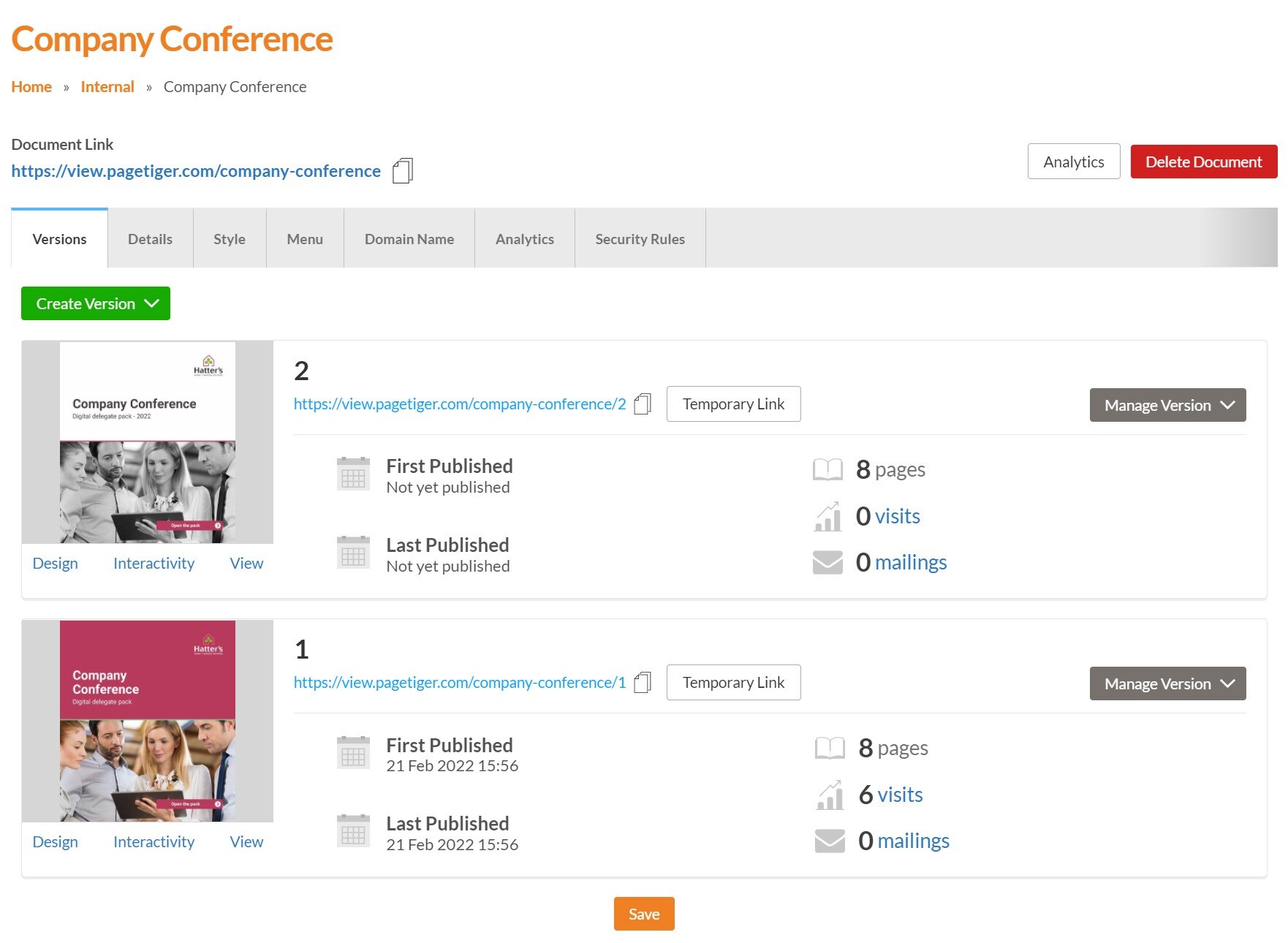
Once saved, your version will be moved.
To move a version into a completely new document, first create the document from the main menu by selecting ‘Documents’ > ‘Create’.