Menus are a great solution for helping readers navigate around a document, highlighting important pages or information, and linking related documents together to create an information hub.
Create a menu after you have finished adding all of your content. This makes things much easier, as anything you need to link to will available for you to select when building the menu.
How to create a new Menu
-
Select ‘Documents’ from the main menu.
-
Select ‘Settings’ followed by ‘Menus’.
-
Select the ‘Add’ button.
-
Start by entering a name for the Menu in the 'Details' section.
Make sure the name is clear and recognisable so you know which Menu you're looking for when you wish to add it to a Document.
-
Before continuing, select the ‘Save’ button at the bottom of the page.
-
A 'Menu Structure' will then display ready for you to begin adding ‘Menu Items'.
Menu Items
Menu items are clickable buttons within a menu that trigger actions, such as opening a web link, moving to a specific page in a document, or enabling the visitor to search the content.
To add a new menu item
-
Select the 'Add New' option in the menu structure.
-
The 'New Menu Item' page will open, allowing you to choose the type of menu item you want to add and configure its settings.
A full breakdown of all menu item types, their uses, and how to add them here can be found here.

For the best user experience, include no more than 8 items in any single menu item or submenu.
Once you have built a menu the colours and style can be set to ensure it’s on brand and compliments your document. The menu will default to black, but can be changed using the below options:
Menu Colour
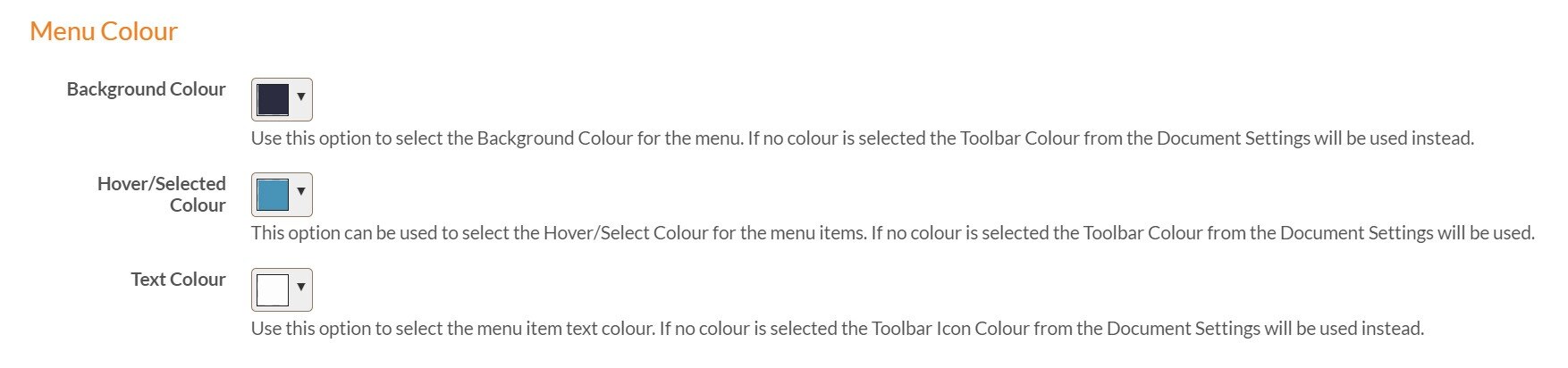
Background Colour
Select a colour that will be used as the main colour for the menu.
Hover/Selected Colour
Select a colour that will be used when you hover over a menu item. Be sure check it complements the main menu colour!
Text Colour
Select the colour that will be used for the in the menu. As with the hover colour, ensure it complements the main menu colour and doesn’t make it difficult to read.
Menu Styling
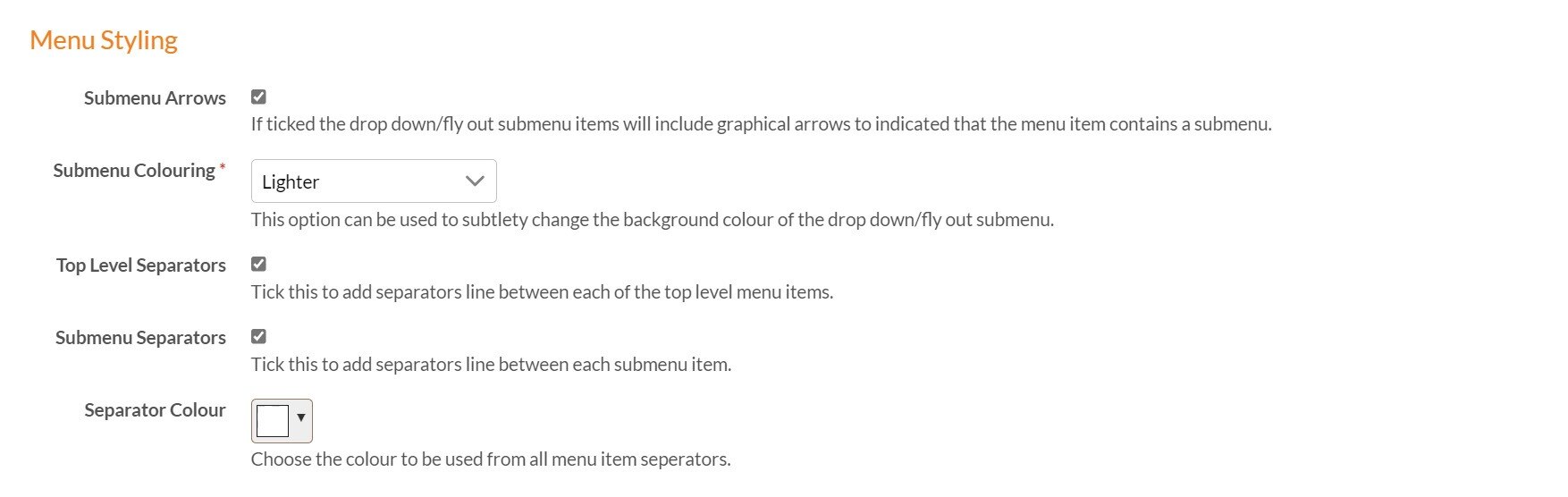
Submenu Arrows
If this checkbox is select the drop-down submenu items will include graphical arrows to indicated that the menu item contains a submenu.
Submenu Colouring
This option can be used to subtlety change the background colour of the drop-down/fly-out submenu.
Top Level Separators
If this checkbox is selected separator lines will be added between each of the top level menu items.
Submenu Separators
If this checkbox is selected separator lines will be added between each submenu item.
Separator Colour
Select the colour that will be used for separator lines.