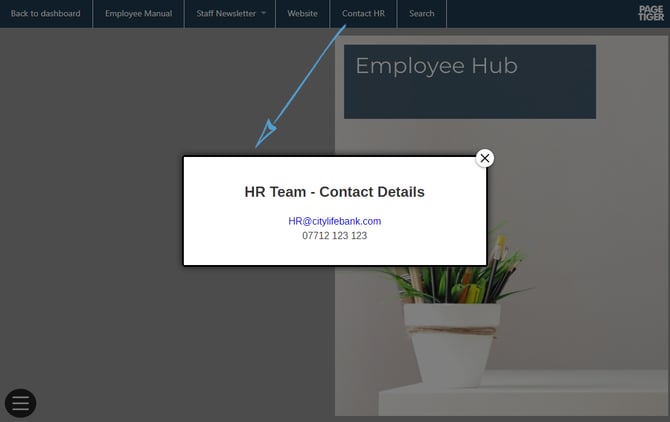
Menu items are clickable buttons within a menu that trigger actions, such as opening a web link, moving to a specific page in a document, or enabling the visitor to search the content.
A well-planned menu structure organises your content so users can quickly find what they need, enhancing the overall experience and encouraging them to engage more deeply with your document.
Add a new menu item
-
After you have created and saved a new menu, the 'Menu Structure' will appear.
-
Select the 'Add New' option in the menu structure.

-
The 'New Menu Item' page will open, allowing you to choose the type of menu item you want to add and configure its settings.
For the best user experience, include no more than 8 items in any single menu item.
Menu Item Types
The following section explores the available menu item types and guidance on how to use them effectively.
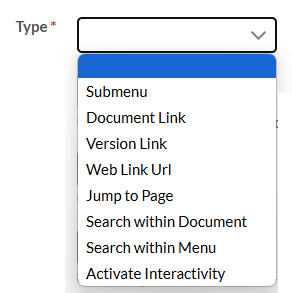
Submenu
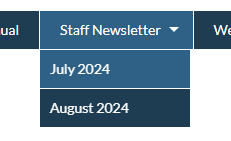
Submenus reveal their content when the reader hovers their mouse over it or taps it on their touchscreen device. They're a great way to sort or organise the items in your menu.
For example - you may have a Submenu called 'Staff Newsletter', which contains links to the newsletters you have created for each month.
- For the best user experience, include no more than 8 items in a submenu.
- If a submenu does not contain any items, it will be hidden when the document is viewed.
Document Link
Access another document that you have created in your account. This feature is an excellent way to connect related documents and enhance the overall user experience.
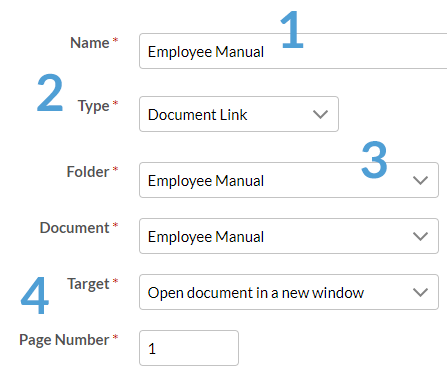
- Enter a name for the menu item.
- Choose 'Document Link' as the Type.
- Select the document you wish to link to by selecting it's Folder, followed by Document name.
- Choose how you would like the document to open and on which page.
If your documents are a part of a suite of related documents, remember to apply the menu to all of them to ensure they're all linked together.
Version Link
Access an alternative version of a document that has been created in your account. This option is perfect for showcasing related versions that you want your readers to explore.
- Enter a name for the menu item.
- Choose 'Version Link' as the Type.
- Select the version you wish to link to by selecting it's Folder, Document and Version name.
- Choose how you would like the document to open and on which page.
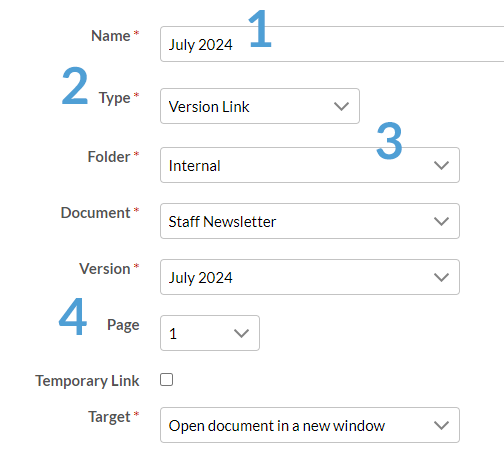
If the version is not yet published, tick the Temporary Link checkbox to substitute the published link with a temporary one.
Web Link Url
Open a website of your choice in the current browser tab or a new one, enabling your readers to explore content providing valuable information relevant to your document.
- Enter a name for the menu item.
- Choose 'Web Link Url' as the Type.
- Enter the website URL and choose how you would it to open. Don't forget to include 'https://'!
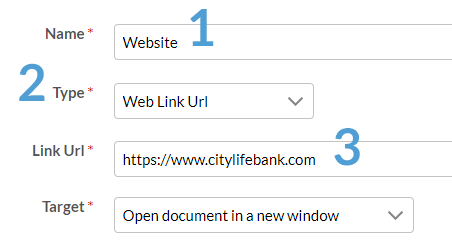
It is advisable to open the link in a new window to ensure your readers can easily return to their position in your PageTiger document without losing their place.
Jump to Page
Help your readers navigate around a document by providing links to specific pages. This feature encourages greater engagement by allowing them to quickly discover content that may be of interest.
- Enter a name for the menu item.
- Choose 'Jump to Page' as the Type.
- Select the page that you wish to navigate to.
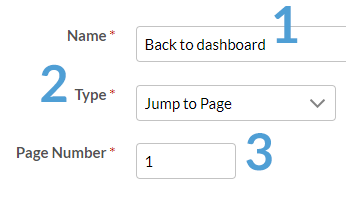
This option can only be used to navigate around the same document.
Search within Document
Use this menu item type to add a search box to your document. A search can significantly enhance user experience, by enabling your readers to effortlessly locate the information they're looking for.
- Enter a name for the menu item.
- Choose 'Search within Document' as the Type.
And that's it! The search menu item will display in your menu, and once selected will open, allowing your readers to search for the information they need.
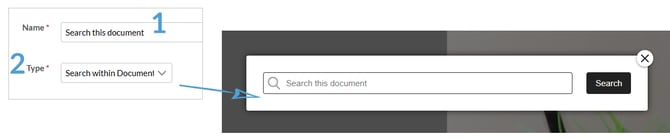
This option will search the document currently being viewed only.
Search within Menu
Improve the user experience by enabling your visitors to search and find information in each and every document linked to from your menu.
- Enter a name for the menu item.
- Choose 'Search withing Menu' as the Type.
And that's it! All documents containing the searched for words will be returned in the search.
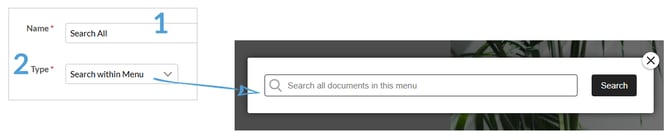
Protected documents won't appear in search results unless the viewer has the appropriate access rights, such as having been awarded a badge.
Activate Interactivity
Access an interactive module directly from a menu, such as a contact form, survey or a pop-up box containing information such as contact details.
- Add module to your page.
- Copy the Interactivity ID from the module settings.
- Edit/add a menu and enter a name for the menu item.
- Choose 'Activate Interactivity' as the Type.
- Enter the 'Interactivity ID' of the module into the 'Interactivity ID' field.
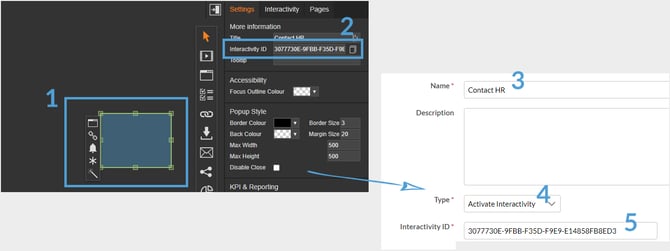
Consider positioning the module off page, allowing visitors to access it exclusively through your menu.