
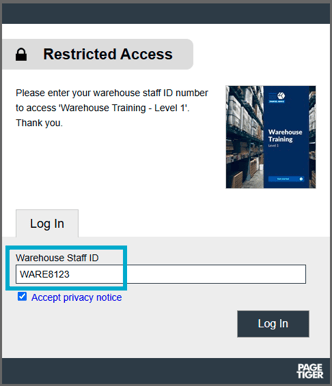
An Employee Number security rule is a useful alternative if your visitors don't have an email address, but you still want restrict access and identify them. Visitors simply enter their unique identifier in the format you set before they can access the document.
Looking to use this type of security rule? Contact our Support team first, as there's an extra setting that will need applying to your account before it's available.
-
Select ‘Documents’ from the main menu.
-
Select ‘Settings’, followed by ‘Security Rules’.
-
Select the ‘Add’ button.
-
Start by entering a name for the security rule.
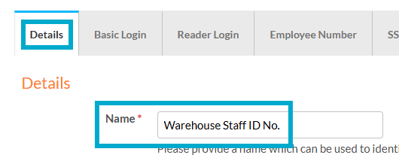
Choose a name that's clear and recognisable, so it's easy to find when you come to add it to a document later.
-
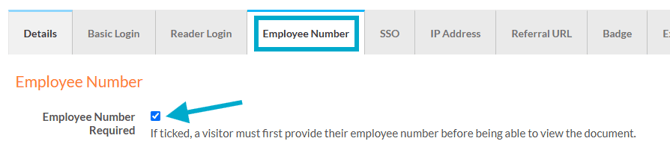
Select the 'Employee Number' tab.
-
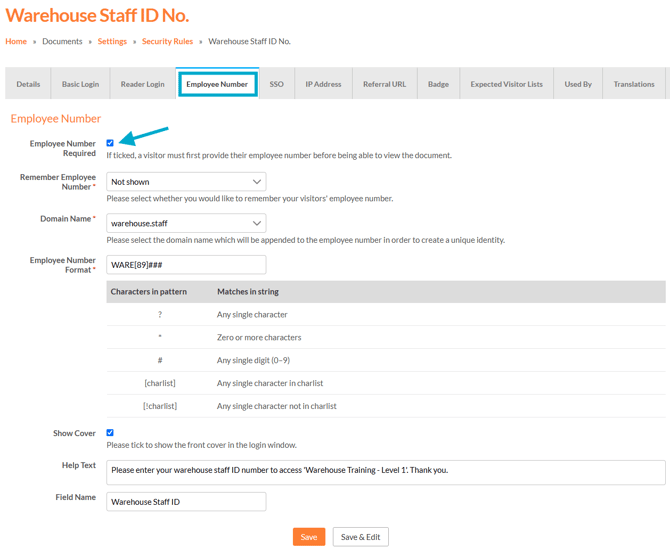
Select the 'Employee Number Required' checkbox.
-
Remember Employee Number
Choose if the visitor will have the option to have their employee number remembered. -
Domain
There should only be one option here - it acts as a virtual domain, with the sole purpose to be appended to the visitors employee no. to create a unique identity, which will feed into the analytics.

-
Employee Number Format
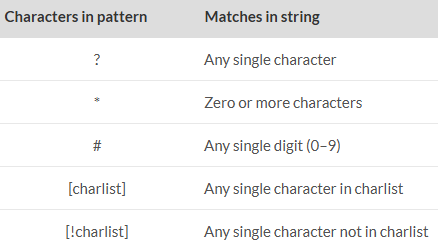
Set the format that should be followed when entering an employee number.
For example, the format used by Parcelwave is WARE followed by 4 numbers, with the first number always being 8 or a 9 (i.e. WARE8123). The format for this would be WARE[89]###.
-
Show Image
Select this checkbox to show the front cover of the document on the login window. -
Help Text
Add some help text of your choice which will display on the login screen to welcome visitors or help them understand what they need to do. -
Field Name
Although this field defaults to "Employee No", it can be changed to your requirements, for example, "Warehouse Staff ID" or "Client Ref".
Using an Expected Visitor List with Employee Number
An Expected Visitor List (EVL) can be used alongside this type of security rule to control access, making it a useful option if a specific, pre-approved group need to view the document.
- Create a new EVL.
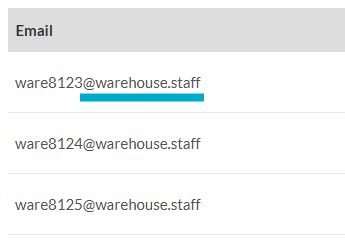
- Add each employee number with the virtual domain appended - for example WARE8123@warehouse.staff.
-
Create or edit an Employee Number security rule.
-
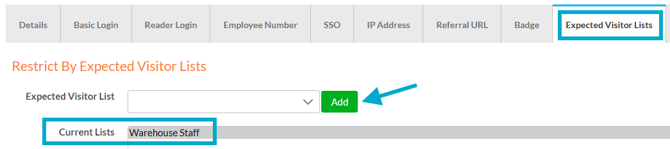
Select the 'Expected Visitors List' tab and choose the required list(s).
-
Save.
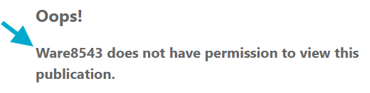
Visitors only need to enter their employee number when logging in - if they're not on the list, they won't be granted access.
Using Dynamic SCORM with Employee Number
If a document uses an Employee Number security rule, PageTiger can automatically provision a Reader Account for the user using the unique identify that your LMS has on file (for example - Client ID or Employee no.).
This means readers won't be asked to log in to the PageTiger document separately, and it will open seamlessly, using the details passed from your LMS.
Please contact our Support team if you would to discuss this option.