
Overview
Reader Login is a security rule that asks visitors to sign in with their own PageTiger reader account. Readers register once with their email address and a password, and their email address is verified, so you always know who's reading.
-
Verified readers
Every email address is confirmed, so your analytics are accurate. -
Secure access
Each reader has their own login, with no shared passwords to pass around. -
The right audience
Allow or block individuals and whole domains to suit each document. -
Confident reporting
Track engagement and gather insights knowing exactly who's viewing.
How to create a Reader Login rule
-
Set up the rule details. Learn more here.
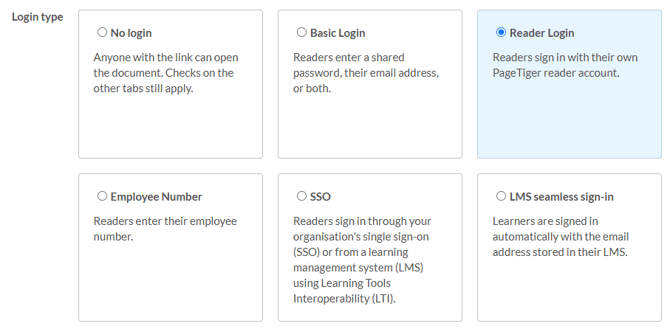
Once the rule details have been completed, the login type can be selected and set up.
-
Select the 'Reader Login' option.
- Choose an 'Interface Style':
- Modern (Recommended)
A faster, more polished login experience. - Classic
Legacy login screen.
- Modern (Recommended)
-
Restrict or deny by email address:
-
Restrict
To limit access, add email addresses to 'Restrict by email address'. -
Deny
To block access, add email addresses to 'Deny by email address'.
-
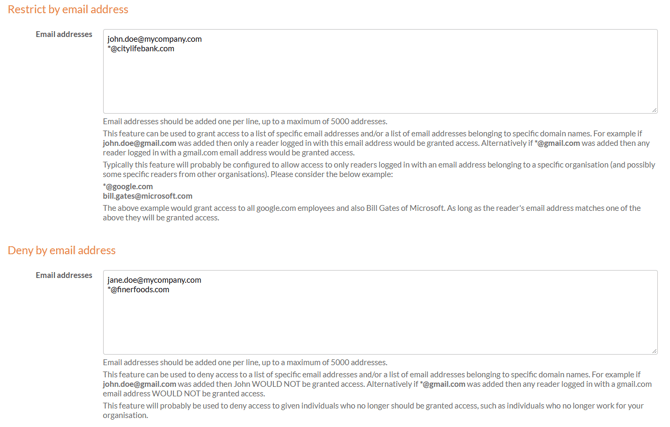
'Restrict by email address' and 'Deny by email address' work the same way:
-
One entry per line
Add each email address or domain on its own line. -
Individual readers
Enter a full email address, such as john.doe@yourcompany.com. -
Whole domains
Enter an asterisk followed by the domain, such as *@yourcompany.com, to include everyone with that email domain.
-
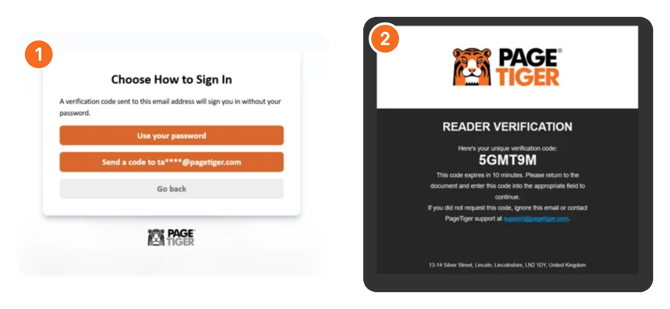
Let readers log in with a verification code:
-
On
Available with the Modern interface. Set 'Verification code by email' to 'On' to let readers log in using a one-time code sent to their email address instead of their password. -
Off
Readers must log in with their password. The option to receive a one-time code by email is not available.
-
-
'Show Cover' displays your document cover on the login screen. Clear the checkbox to hide it.
-
Add 'Help Text' to guide readers through the login screen.
-
Select 'Save', or 'Save & Edit' to save and keep working on the rule.
-
Name rules after their audience
Include the domain or group in the rule name, such as 'Reader Login (*@yourcompany.com)', so it's easy to find later. -
No verification email?
The reader may already have an account. Ask them to try 'Forgot Password' to reset their password instead. -
Add extra checks
Use the the other tabs, such as IP Address or Expected Visitors for extra control. - Help readers get started
Share our guide to logging in as a reader with your audience.