Use the EVL security rule option to control document access based on a pre-approved list of email addresses. When someone attempts to log in, their email address will be automatically checked against the EVL for the document. If their email appears on the list, access is granted and they can view the document.
Restrict sensitive documents to a specific, known audience, without relying on shared passwords or manual approval steps.
-
Select ‘Documents’ from the main menu.
-
Select ‘Settings’, followed by ‘Security Rules’.
-
Select the ‘Add’ button.
-
Start by entering a name for the security rule in the 'Details' field.
Choose a name that's clear and recognisable, so it's easy to find when you come to add it to a document later - for example: ‘Reader Login & Manager EVL'.
- Select either the Reader Login, Employee Number or SSO tab and choose the preferred login method.
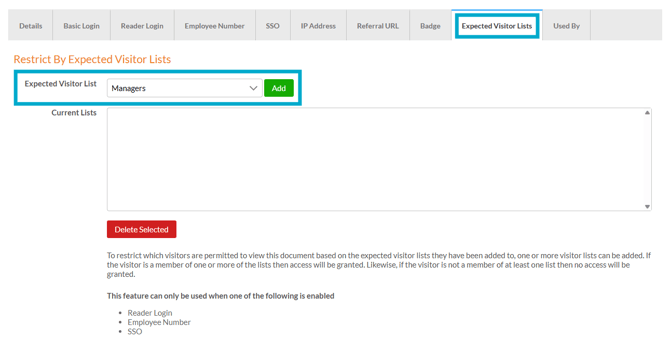
- Now select the 'Expected Visitor Lists' tab.
- Select an Expected Visitor List(s) from the available drop-down list.
- Select the 'Add' button.
Before selecting a list, make sure you’ve created at least one Expected Visitor List.
Removing an EVL
-
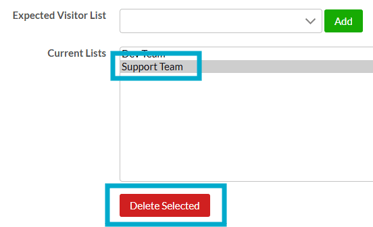
Select the EVL in the 'Current List's field section
-
Select the 'Delete Selected' button.