
Before you can award something, you need to create something to be awarded! This means designing the certificate, pass, or voucher that your visitors will receive once they achieve a specific outcome in an assessment.
Example use cases
-
Course completion certificate
- Car parking permit
- Guest pass or visitor badge
-
Voucher or token
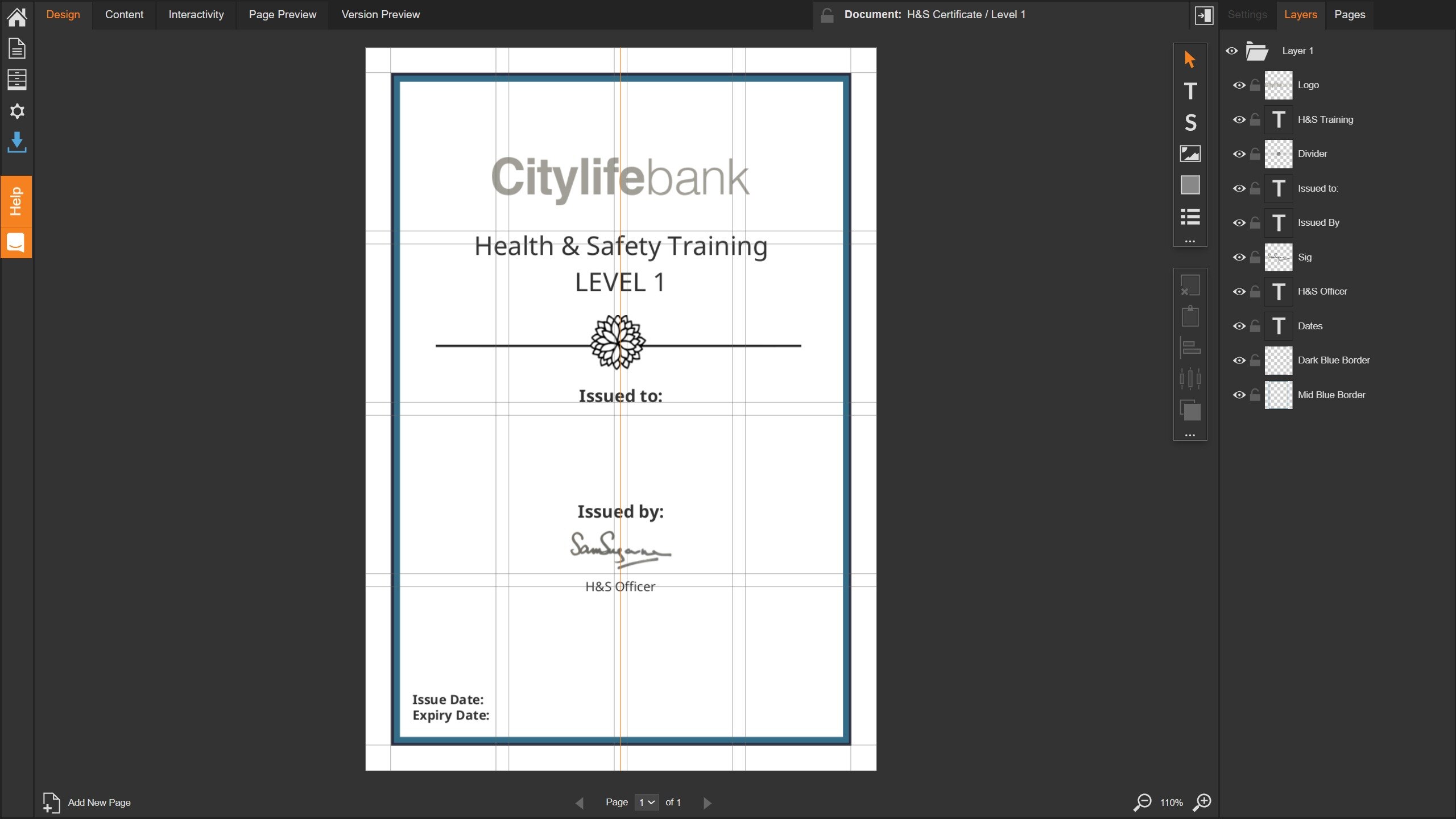
Creating a certificate works just like creating any other document.
The key difference is that certificates often include placeholders, that populate with visitor-specific information when the certificate is generated.
Grouping all of your certificates, vouchers, and passes in one dedicated folder location helps keep your account tidy, and make them easier to find in future.
Create a new design
Remember, this doesn’t have to be or even look like a certificate. You may want to create a drinks voucher, visitor pass or parking permit.
Adding placeholders
-
Add a 'Text' or 'Story' panel to the page.
-
Click to edit the content of the panel
-
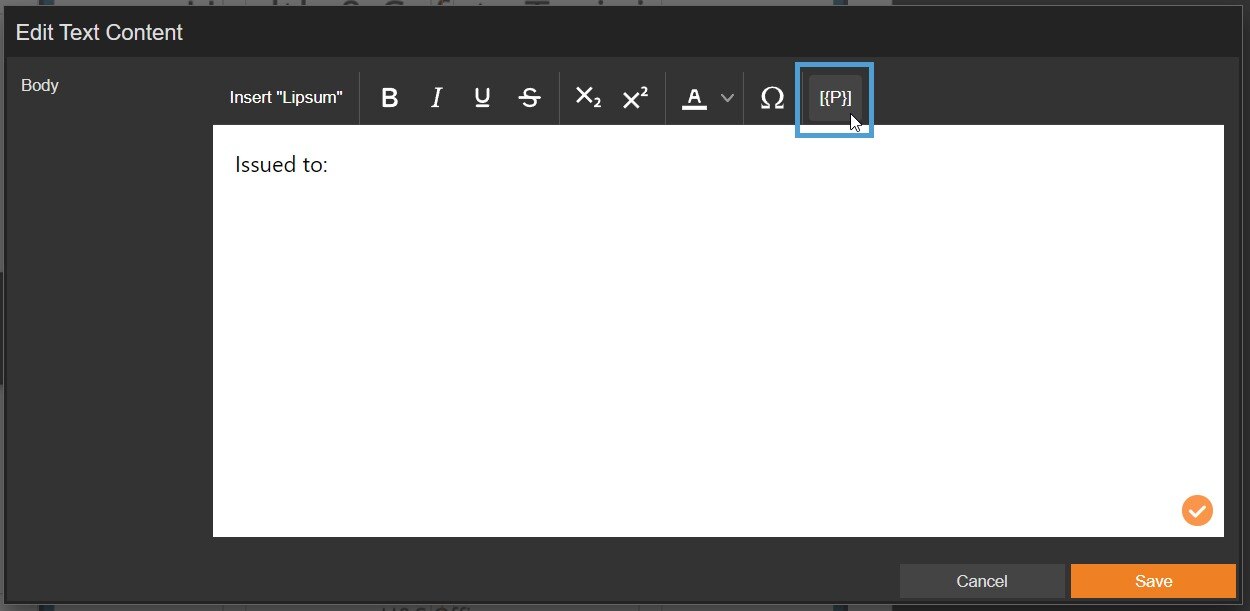
Place the cursor where you want to add the placeholder, then select the ‘Placeholder’ icon [{P}].
Placeholder options
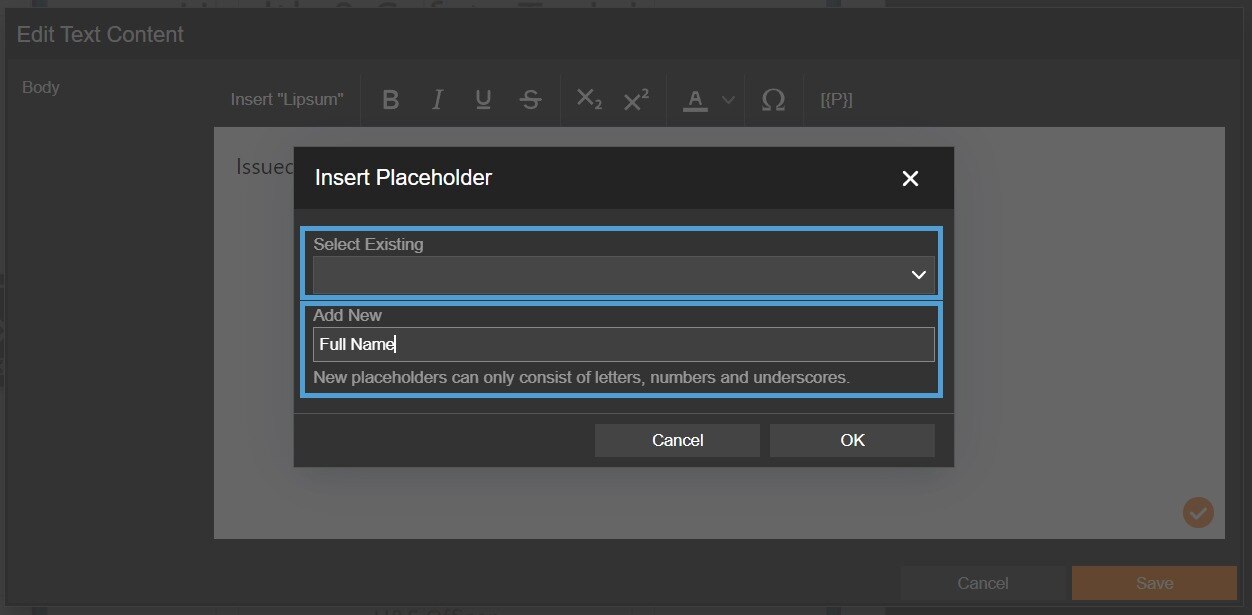
Two options for adding a placeholder are available:
Select Existing
If you have already created a placeholder, it will be listed here. You can also choose from pre-configured placeholders that use information already stored in the platform, such as PT Issue Date or PT Reader Email.
Add New
If you want to create a new placeholder, you can do that here. Enter the placeholder name, for example ‘Full Name’, and then select ‘OK’.
Next steps
Once you're happy with the design of your certification document, you can create a new 'Badge' that uses it.
Read more about how to add create a badge that uses the certificate.