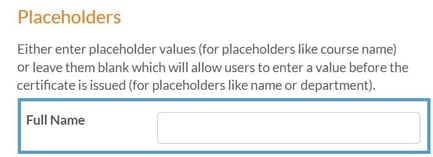
Think of the badge as the trigger - when a visitor completes an assessment, the badge tells the system which document to generate and hand out, whether that's a certificate, a parking pass, or a drinks voucher.
Add a certificate to a badge
-
Select ‘Documents’ from the main menu, followed by ‘Settings’.
-
Select the 'Badges’ option, followed by 'Add'.
-
Enter a name for the badge and complete any additional settings you need, such as a description or expiry date.
-
Now select the 'Certificate' tab, and choose the certificate that you want to use. ('Folder' > 'Document' > 'Version').
Group any certificate, voucher or pass designs into a dedicated folder to make them easier to locate.
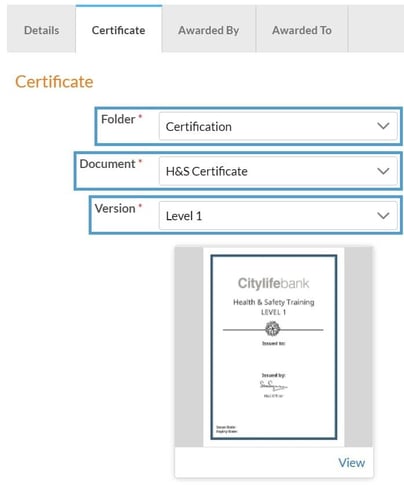
Once selected, a preview of the certificate will appear so you can review and confirm that you've chosen the correct design.
Certificate settings
Enable Download
Select this option if you want visitors to be able to download a copy of their certificate from their reader account.
Filename
Use this field to define the name of the generated PDF file.
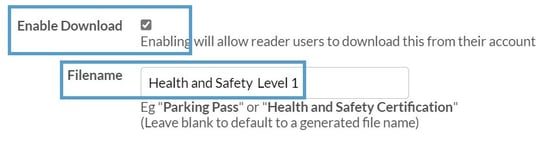
A clear, descriptive name helps the visitor identify what the file relates to, for example ‘H&S certificate’ or ‘Parking Permit’.
Internal Email
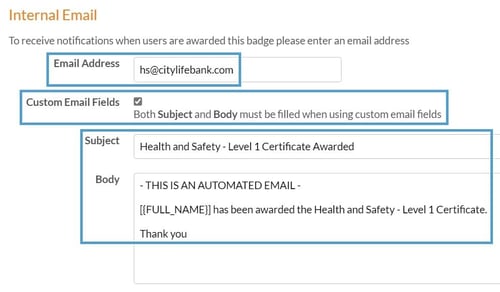
Complete this section if you would like a notification to be sent to a specific email address each time a certificate is awarded.
Email Address
The email address that will receive the email notification.
Custom Email Fields
Select this checkbox if you want to write a custom message for the email sent to the internal recipient. Placeholders can be included to pull in details from the generated certificate, such as Full Name or Team.
User Email
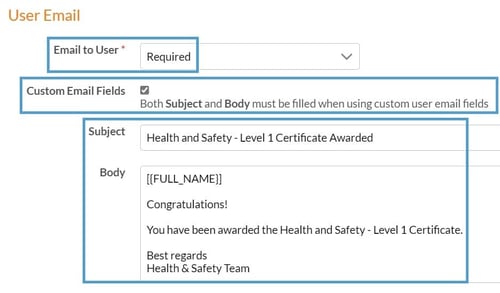
Email to User
Select if you would like the visitor to receive an email notification with a PDF copy of their certificate. Choose from:
- No
- Optional
-
Required
Having a PDF copy can be useful if the visitor wants to save it, share it with a manager as proof of completion, or keep a personal record of their qualification for future reference.
Custom Email Fields
Select this checkbox if you want to write a custom message for the email sent to the visitor. Placeholders can be included to pull in details from the generated certificate to make the email more personal and include important detail that they may need.
Placeholders
Any placeholders that you have added to the certificate design will display here.
-
Enter placeholder values if you have designed a generic certificate that will be used for more than one thing - for example, 'Course Name' or 'Address'
-
Leave blank to allow visitors to fill in the placeholder before their certificate is generated - for example, 'Car Registration' or 'Dietary Requirements'.