
Any document awarding a certificate must be secured with a Reader Login or SSO security rule.
The last step is also the easiest - simply add your badge/certificate to the Result of an assessment module to trigger when it is generated and delivered to your visitor.
-
Navigate to a document, and select 'Design' for the version you wish to work on.
-
Select the ‘Interactivity’ tab at the top of the page.
-
Add a new assessment or edit an existing one.
-
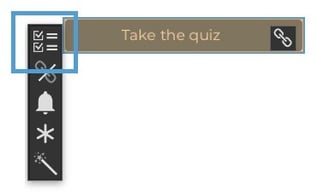
Now click on the module, followed by the edit option from the fly-out menu.
-
Select the ‘Results’ tab, and click on the result that you would like to link a certificate to.
-
Then select a badge/certificate from the ‘Award Badge’ dropdown list.
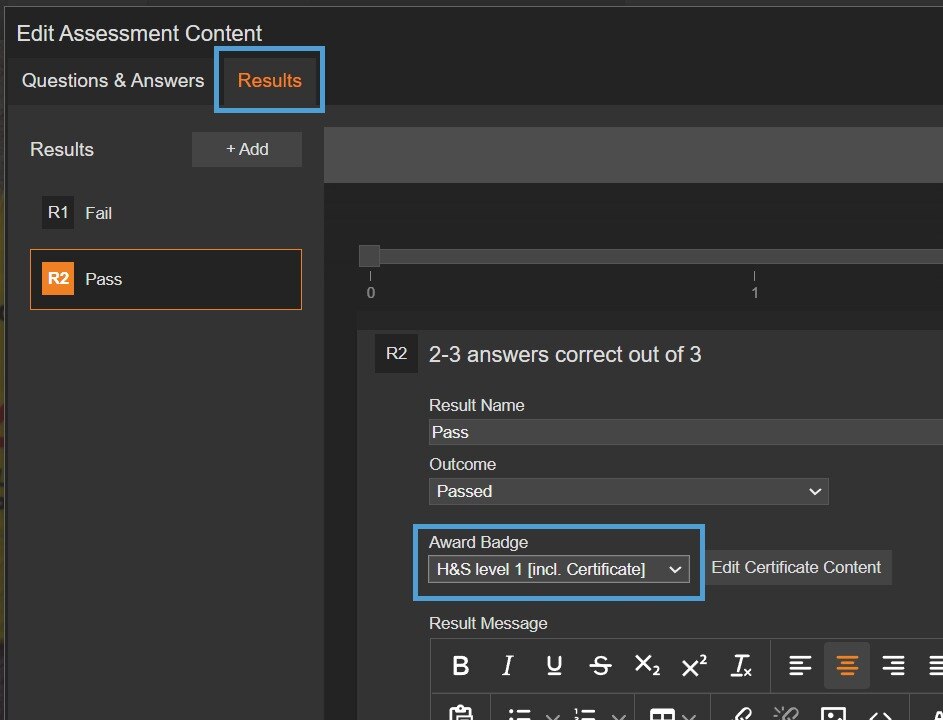
Any badges that include a certificate will have [incl. Certificate] in their title.
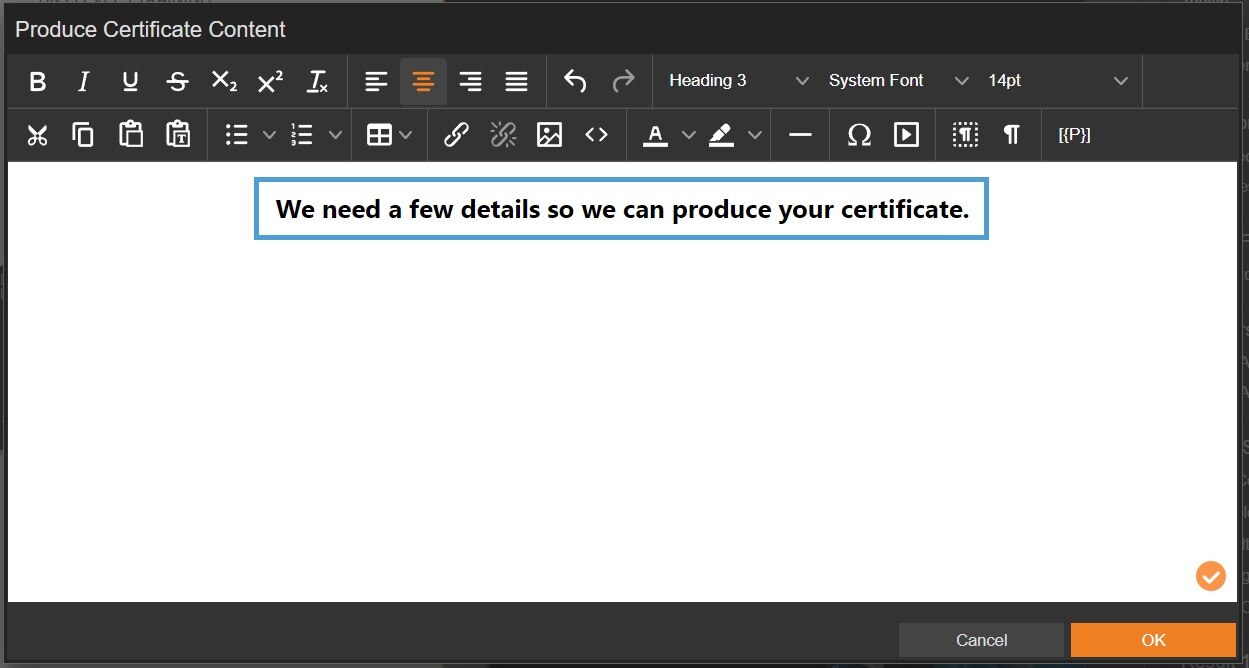
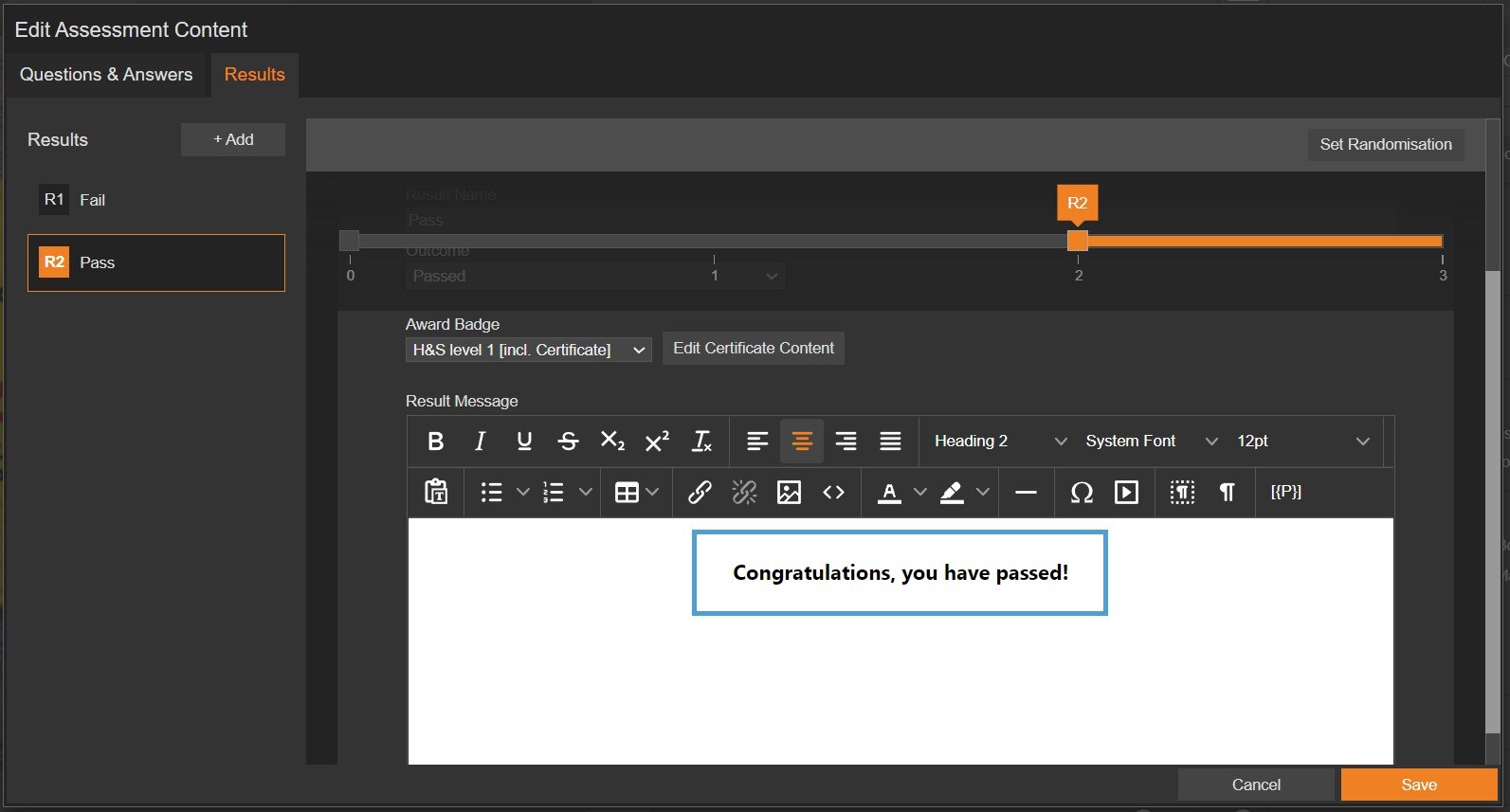
Once selected, you can define the message shown to the visitor, explaining that their certificate will be generated soon and specify any details they need to provide first, such as a registration number or employee ID.
-
Select the ‘Edit Certificate Content’ button to open the 'Produce Certificate Content' modal.
- Type in your custom message.
- Type your custom message into the 'Result Message' box and save.
What happens next?
When a visitor completes the assessment and achieves the required result, their certificate will be generated and saved to their account automatically. If you turned on email notifications during setup, both you and the visitor will receive a copy via email too.