Experience an enhanced homepage next time you log into your PageTiger account. It simplifies navigation and offers greater flexibility, including the ability to create and save your own custom filter sets.
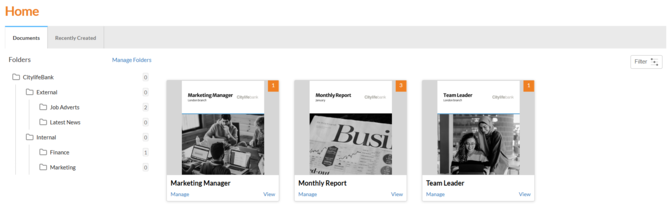
- Your most recent documents are front and centre - making it easy to pick up where you left off.
- Two tabs let you switch seamlessly between “Recently Created” and “All Documents"
- Filtering options make it quick to find the documents you need - save favourite filters for one-click access to your content.
- Create hierarchical folders up to five levels deep to categorise and organise your content with precision.
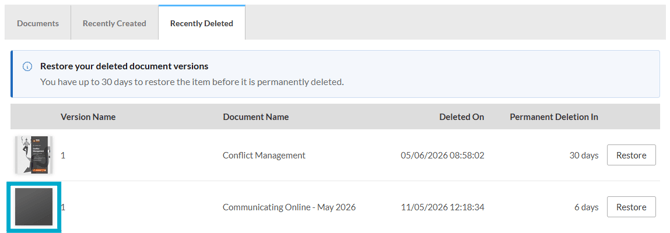
- Recover deleted versions using the "Recently Deleted" tab.
Documents tab
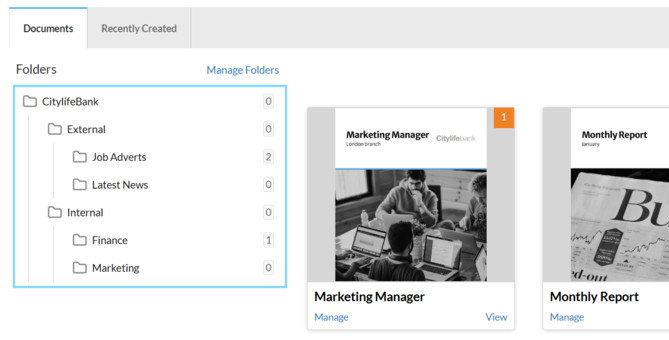
Easily access all the documents in your account through the 'Documents' tab - simply click on a document to view the versions within it.
The folder structure is displayed along the left-hand side of the page. Hierarchical folders can be created up to five levels deep, helping you to navigate to what you need more efficiently.
A hierarchical folder structure is container system where parent folders can contain subfolders, which themselves may contain other subfolders. This creates a tree-like hierarchy that organises your document based on their relationships and categories.
Recently Created tab
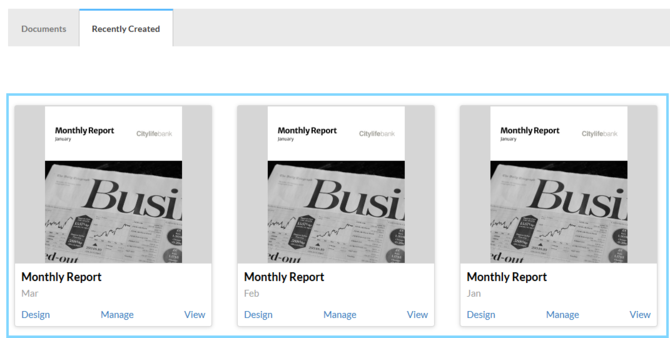
Switch to the 'Recently Created' tab to see a chronological list of all versions created in your account.
Recent Deleted tab
Use the 'Recently Deleted' tab to recover any document versions deleted within the last 30 days.
Filtering Options
Filter
Effortlessly locate the documents you need and save filter sets with our advanced filter.
- Select the filter at the top-right of the page.
- Enter your preferences into the available field(s).
Example
Josh in HR would like to search for all published documents saved in the 'Job Adverts' folder that were created between 1st and 2nd Dec 2024.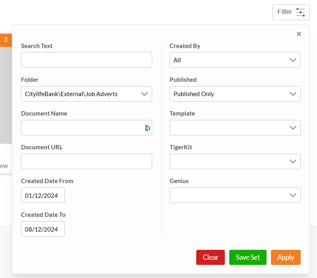
- Select 'Apply' to apply the filter.
Filter sets
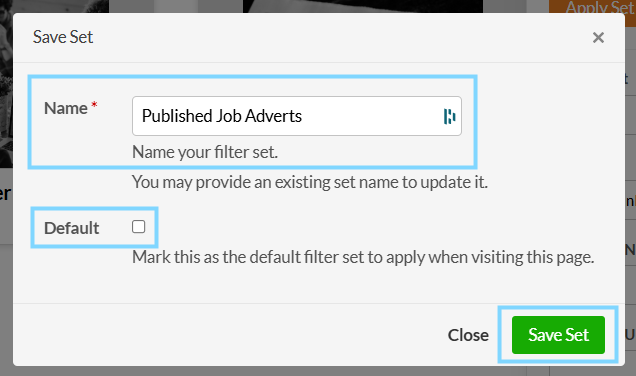
Follow the steps outlined above, and when you're ready, click the green 'Save Set' button. A 'Save Set' pop-up box will then appear ready for you to complete.
- Enter a name for the filter set.
- Tick the 'Default' checkbox if you would like to set it as the default.
- Select the green 'Save Set' button.
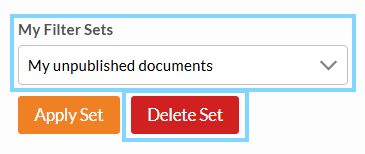
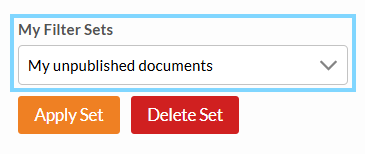
After you save a filter set, it will be accessible from the 'My Filter Sets' drop-down list, allowing you to quickly navigate to your desired documents in a click.
Delete a filter set
If you no longer need a saved filter set, you can remove it from your list to maintain an organised workspace.
- Select the saved set from the 'My Filter Sets' drop-down list.
- Click the red 'Delete Set' button.