
Using AI, you can quickly generate tailored multiple-choice assessment questions using your document content, More Information pop-ups and video scripts/subtitles, saving time and creating an engaging, effective learning experience for your visitors.
Available for 'Fully Editable' or 'Layout Library' documents only.
How to add an 'AI Multiple Choice' question
-
On the 'Question & Answers' tab, select 'Add', followed by 'AI'.
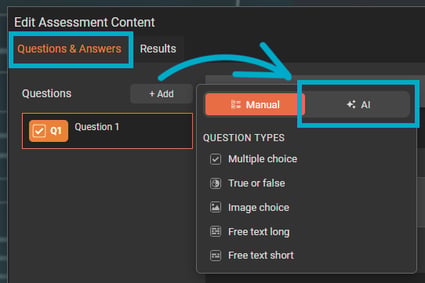
The AI generation modal will then open, ready for you to enter your requirements and generate a set of questions based on your content.
Visit our best practice guide to make the most of this feature and create assessments to accurately reflect your learning outcomes.
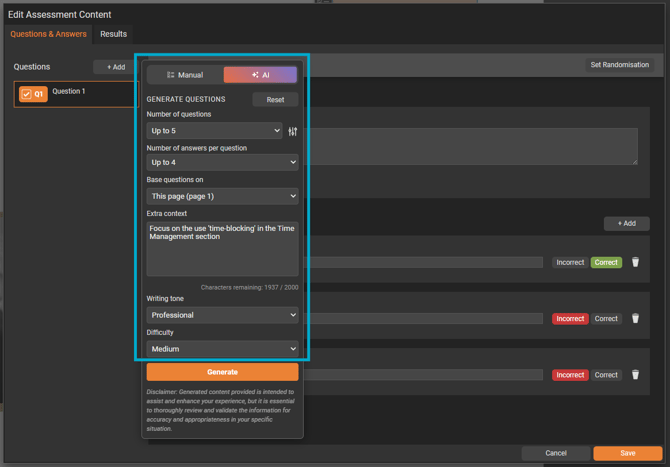
Generate Questions
Number of questions
Select how many questions you would like to include in your assessment. Choose from:
- Up to 3
- Up to 5
- Up to 10
Number of answers per question
Select the filter icon to display the option for choosing how many answers each question will have. Choose from:
- Up to 2
- Up to 4
- Up to 6
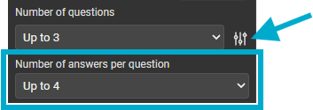
‘Up to’ means the AI will generate that number of questions/answers if there is sufficient content to support it. If there is not enough content to produce any questions or answers, you will be notified.
Base questions on
Decide what content the questions should be generated from - either the current page or the entire document. Choose from:
- This page
- Whole document
- Page Range (for example: 1, 3, 8)
Off-page content will not be used when generating questions.
Extra context
Use this field to guide the AI with any specific focus or requirements for your assessment questions.
For example, you may want to focus on the use 'time-blocking' in the Time Management section of your document.
Writing tone
Choose the tone of your questions to suit your audience. Choose from:
- Professional (default)
- Positive
- Sombre
- Engaging
Difficulty
Select how challenging you want the questions to be. Choose from:
- Easy
- Medium
- Hard
- Extreme
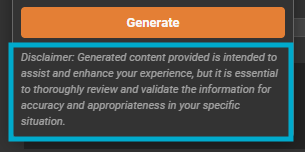
Generate button
Once you are happy with your requirements, select the ‘Generate’ button.
Your chosen content will be analysed and a tailored set of questions created based on the options you have selected.
Review
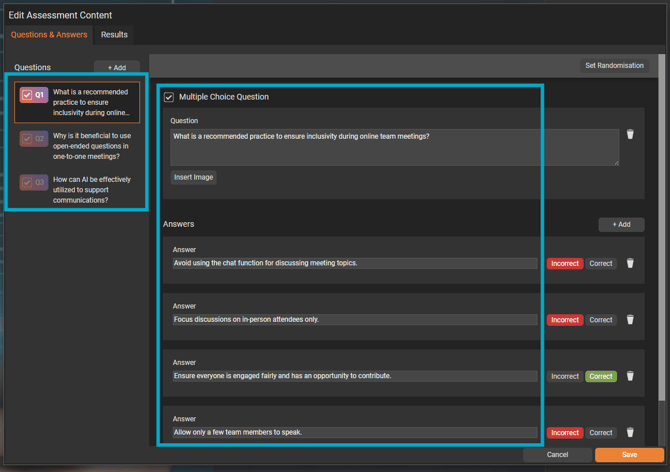
Within a few moments, a full list of questions and answer options will appear ready for you to review and refine, so you're fully satisfied with the assessment.
Refine the wording, adjust any answers, and remove or regenerate questions to ensure the final assessment is accurate, engaging, and aligned with your learning objectives.
- Create powerful learning materials, such as training guides and educational resources.
- Instantly turn passive reading into active learning.
- Prompt readers to recall and apply information, improving retention and understanding.
- Enhance how customers create, deliver, and reinforce knowledge within their content.