
Getting started
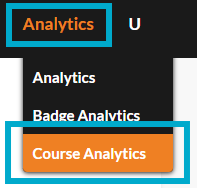
Select 'Analytics' from the main menu, followed by 'Course Analytics'.
Two options are available:
-
On-page
View course analytics in an on-page table, allowing you to quickly see learner progress, completion rates, and badge status at a glance, filter or sort the information, and identify where support may be needed. -
Download
Alternatively, you can download a spreadsheet of the data to review offline, combine with other HR or learning reports, share insights with stakeholders, and meet your internal reporting and compliance requirements.
How to view on-page analytics
-
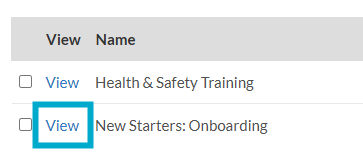
Select the 'View' button to view the analytics for a specific course.
A table will display showing a list of users assigned to the course, their completion percentage, and any badges they've earned.
-
Users
Select an individual user to see their progress.
-
Badges
Select an individual badge to see the completion analytics.
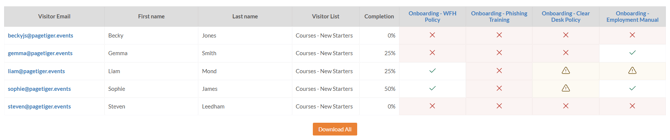
Names added to an Expected Visitor List will pull through into the table (and downloaded data), making it easier to identify your users.
How to download analytics
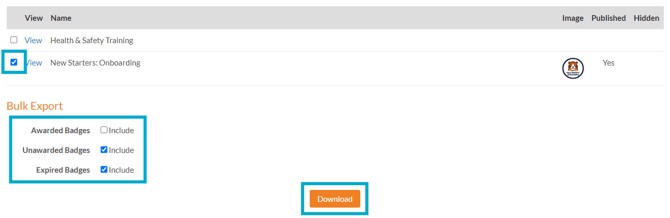
- Select the checkbox for the course(s) that you would like to view the analytics for.
- Select the type of information you would like to export - choose from:
- Awarded Badges
- Unawarded Badges
- Expired Badges
- Select the 'Download' button to download a spreadsheet of the data.
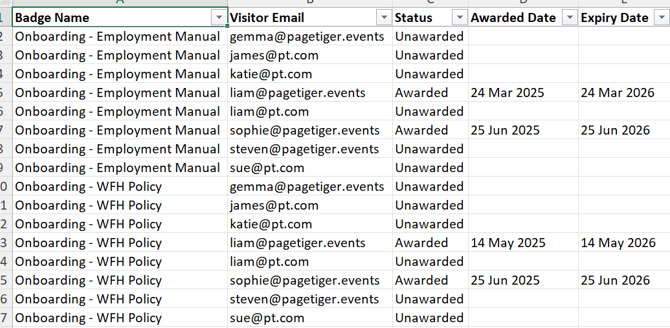
The data will include:
- Badge Name
- Visitor Email
- Award Status
- Award/Expiry Date
Download All
When you choose the 'View' option for a particular course, select the 'Download All' button to download a spreadsheet of all course data.
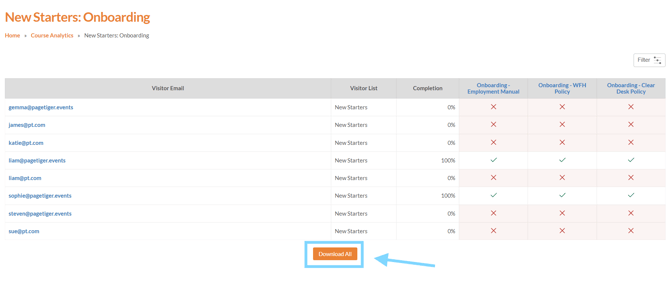
The data will include:
- Visitor Email (and names if completed in the EVL)
- Visitor List
- Completion Percentage
- The courses that they have been enrolled in with the date they were awarded the badge.
