
If you send the same type of mailing often, for example a job offer, a newsletter, a policy update, saving it as a template means you don't have to set it up from scratch each time.
Create a new mailing
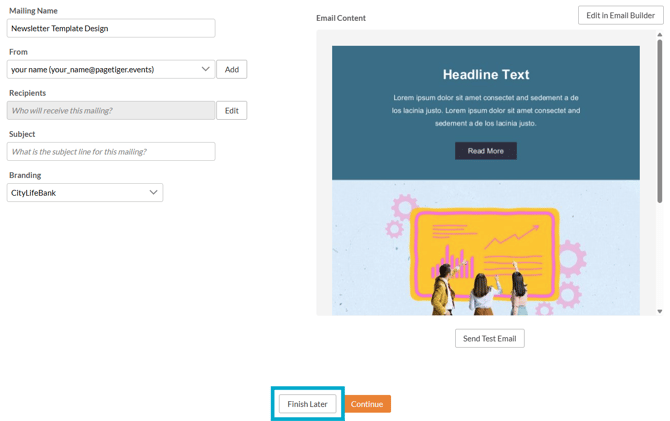
Create a new mailing as you normally would - select 'Finish Later' rather than 'Continue', as you're saving the mailing to turn it into a template rather than sending it straight away.
Create a mailing template
- Select 'Mailer' from the main menu, followed by 'Search'.
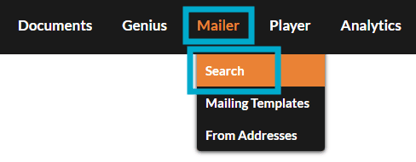
All mailings will be listed here, whether they have been sent, saved, or set as templates.
- Find the mailing that you have just created.
- Select 'Manage Mailing', followed by 'Make Template'.

- Select the 'Template' checkbox.
- Enter a name for the template
- Select 'Save Changes'.
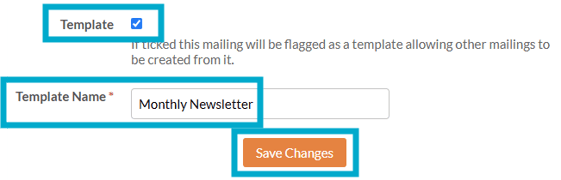
Choose a clear, descriptive name for the template so you can easily identify it later.
Using a mailing template
-
Navigate to the version you wish to distribute.
-
Select 'Manage Version', followed by 'Distribute'.
-
Select the 'TigerMailer' icon.
-
Select 'Use' for the template you wish to use.
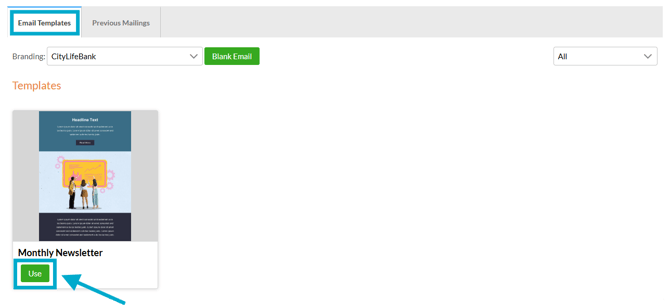
- Enter a name for the new mailing, and continue the usual steps for 'How to use TigerMailer'.