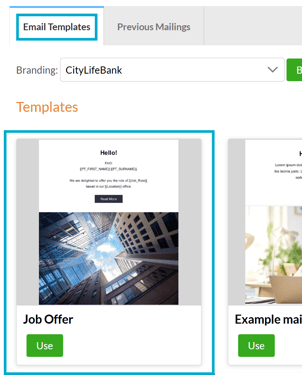
Rather than sending a generic mailing, placeholders pull through details like the recipient's name, location or job role. It's a simple way to make every message feel more relevant and personal.
-
Save time and reduce the risk of manual errors
-
Create a tailored, professional look
-
Boost engagement and build trust
-
Improve the overall experience for recipients
Types of placeholders
TigerMailer supports two types of placeholder:
-
Version Placeholders
-
Global Placeholders
Version placeholders
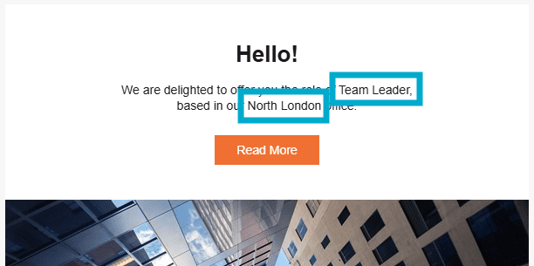
If a mailing is distributing a document created from a version template with placeholders, the same placeholders can be added to the mailing to automatically pull through matching content.
To add a Version Placeholder:
- In the 'Build Your Email' area, add a block.
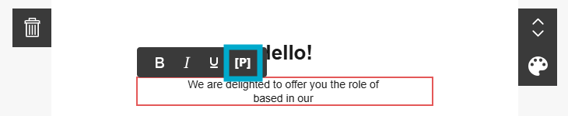
- Click into the block and select the placeholder '[P]' icon.
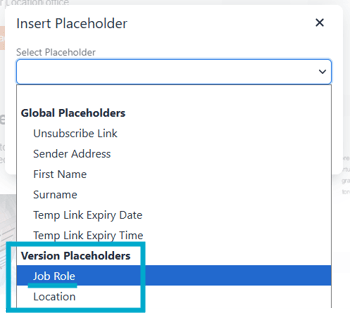
- Choose a Version Placeholder from the drop-down list.
- The placeholder will be added into the mailing design.
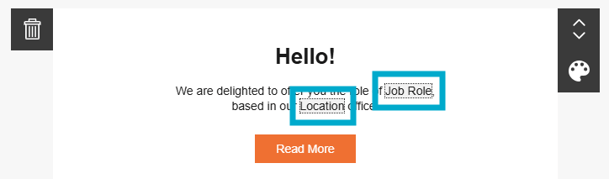
- When the mailing is sent, each placeholder automatically pulls through the corresponding text from the document being distributed.
Global Placeholders
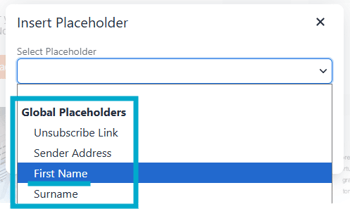
Global Placeholders personalise and control mailing content by inserting system-held information, such as a recipient's name or an unsubscribe link, directly into the email.
| Placeholder | What it does |
| Unsubscribe | Inserts a link allowing the recipient to opt out of future mailings |
| Sender Address | Displays the email address the mailing was sent to |
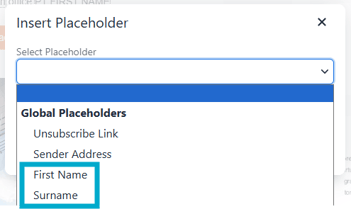
| First Name | Populates with the recipient's first name (if included in the Expected Visitor List (EVL)) |
| Surname | Populates with the recipient's surname (if included in the EVL) |
| Temp Link Expiry Date | Shows the expiry date of a temporary link, for unpublished document distribution |
| Temp Link Expiry Time | Shows the expiry time of a temporary link, for unpublished document distribution |
Include each recipient's first name and surname in an Expected Visitor List so the placeholders can be populated.

To add a Global Placeholder
-
In the 'Build Your Email' area, add a block.
-
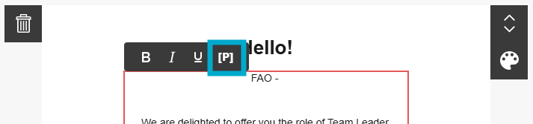
Click into the block and select the placeholder '[P]' icon.
-
Choose a Global Placeholder from the drop-down list.
-
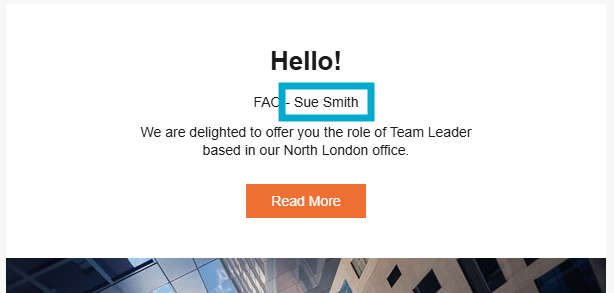
The placeholder will be added into the mailing design.

-
When the mailing is sent, each placeholder pulls through the corresponding text.
Example use cases
Scenario 1: Newsletter to a large audience
Use an 'Expected Visitor List' with 'First Name' and 'Surname' completed, then add the 'First Name' and 'Surname' Global Placeholders to the mailing. Every recipient automatically receives a personalised version.
Scenario 2: A recurring document built from a template
If documents are regularly created from a template with placeholders (such as Job Role and Salary), set up a mailing template using Version Placeholders. Each new mailing then automatically pulls through the correct details just by selecting that template.