
Looking to make the most of the Translations feature? This page shares practical tips to help you set up, manage, and update multilingual content with ease - while keeping everything consistent, efficient, and on-brand.
For quick answers and additional guidance, visit the FAQ page.
Security Rules
Where possible, set up a security rule and apply it to your document before creating any translated versions. This way, the help text will be translated automatically each time a new language version is generated.
Menus
Where possible, set up a menu and apply it to your document before creating any translated versions - this ensures the menu will be translated automatically when each new language version is generated.
If you don’t have a menu yet, or need to add one later, it's still possible to translate in 'Document Settings'. Edit the menu and select the 'Translations' tab, followed by 'Translate' for any language you wish to translate to.

Styles
Where possible, set up a Style and apply it to your document before creating any translated versions, making sure the ‘Other Languages Option’ is selected. This will add the ‘Other Languages’ option to the toolbar, so viewers can easily switch between language versions.
If you don't have access to edit a Style, please contact our support team, as it's likely a shared setting which cannot be altered from your account.
Branding
We recommend building your native document using Components. This is especially important if you plan to create translated versions in languages with their own character sets (for example, Japanese) that require a font that supports those characters. With Components, you can switch to a different branding that uses the required font, and it will update all panels automatically. Without Components, the panels will need to be updated manually.
AI Videos
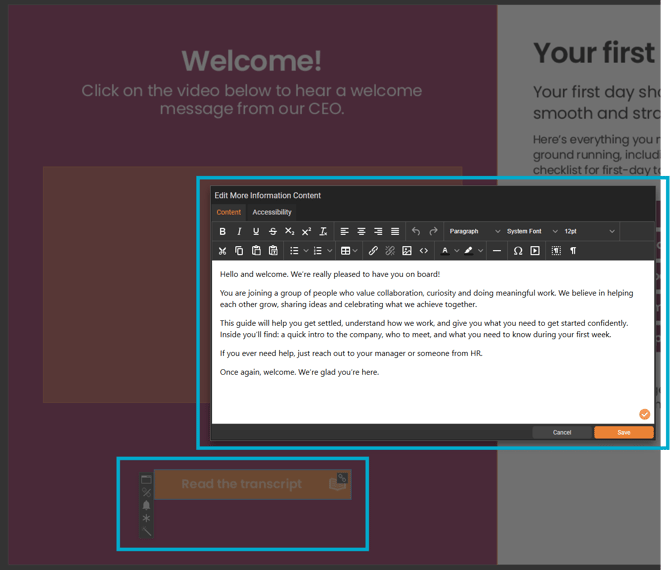
Currently when you translate a version that includes an AI video, the subtitles will be translated, but the voiceover/spoken audio will remain in the original language. Consider adding a More Information pop-up box in your native version that contains the full video transcript. Not only with this be translated automatically when you create a translated version, but you can also use the translated text as the script to generate a new AI video in the relevant language.
Version Control
For larger updates, we recommend duplicating the native version in your document and making changes to the copy. Once your updates are complete, you can create any required translated versions. This approach helps ensure a smooth, seamless update.
If you're making a small change, such as correcting a typo or updating just a few words, you may prefer to unpublish the native version (and any translations), make the changes manually - don't forget to republish once finished!