
Q. What is the 'Language' tab for and what should I select?
The ‘Language’ tab on the Document Management screen controls the language used for system-generated messages and prompts, such as error messages, cookie pop-ups, and toolbar text. When using it alongside the translations tool, make sure the native language is selected for the main document - any translated versions will then automatically update to display the correct language when viewed.
Example
If the native language is English, select 'English' from the drop-down list.,
Q. Can I still use a security rule and will it be translated?
Yes! When a security rule is used with the translations tool, the help text can be translated. Full guidance can be found here.
Q. Will my menu be translated?
Yes! Menus can be translated and will automatically update to the language of the document being viewed. Full guidance can be found here.
Q. Is there a way to swap between the different languages of my document?
Yes! An option for 'Other Languages' is available from the toolbar menu. This setting is controlled by the Style applied to the document.
By default, any newly created Styles will have this option selected by default - however, if you are using a existing Style, please follow these instructions.
Q: My Czech version needs to be restricted to a different group of users compared to the English version. How should I handle the security rule?
If a different audience needs access to a specific version of your document, duplicate that version and save it as a separate document so you can apply a dedicated security rule.

Remember to select the 'Language' tab for the new document and set the native language.
Q. I need to make changes to the native version of a document. How do I do this, and what does that mean for my existing translations?
Two options are available, so you can choose the one that best suits your needs.
For larger updates: We recommend duplicating the native version in your document and making changes to the copy. Once your updates are complete, you can create any required translated versions. This approach helps ensure a smooth, seamless update.
For small edits: If you're correcting a typo or changing just a few words, you may prefer to unpublish the native version (and any translations), make the changes manually - don't forget to republish once finished!
Q. Can I link to different translations of my document from the toolbar?
Yes! Simply select the “Other Languages” option from the toolbar - a pop-up box will appear, allowing viewers to choose their preferred language from the available translated versions.
If 'Other Languages' is not available in the toolbar, make sure the 'Other Languages Option' is selected for the Style applied to your document.
Q. Can the help text for my SSO security rule be translated?
As your SSO login page is provided by your authentication provider, it's not something that can be changed within PageTiger. Please contact your IT team who can advise further.
Q. I've translated my content, but the text doesn't fit in the panel. Can you advise?
Once you have approved the translation in the Review area, open the design in TigerDesigner to make any necessary layout adjustments so the text fits. This may include resizing panels or adjusting the font size and margins.
Q. I have translated my content, but the text isn't displaying correctly.
For any translated version, you need to use a font that supports all characters for the language. If characters are not displaying correctly, check that the applied branding uses an appropriate font (for example, Noto Sans Chinese Simplified). First, approve the translation, then apply an alternative branding - if you do not have a suitable branding available, please contact us.
Q. I'm in the 'Review' area but can't change the design of my document to fit the text. How can I do this?
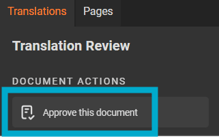
The review of the translation must first be approved - you can then continue to work in the Design area of TigerDesigner and make any changes as needed.
Q. I have a menu on my document but it hasn't translated. What do I do?
This can happen if you have created translated versions of the document before the menu was applied to it. Don't worry though, as this is simple to change by editing the menu directing from document settings. Edit the menu and select the 'Translations' tab, followed by 'Translate' for any language you wish to translate to.
Q. Can I choose what link is used for a translated version?
The translated version uses the same base URL as the original (native) version, and cannot be changed. The only difference is an abbreviated language reference suffixed to the end of the link to indicate the selected language.
Ensure you’re happy with the version link before creating any translations, as all translated versions will use the same URL structure.
Q. How do translations work with SCORM (LMS)?
All translated versions are accessible from the toolbar under the ‘Other Languages’ option. If you generate a SCORM file for a document that includes translations, the SCORM package will always open the native version first - viewers can then select ‘Other Languages’ from the toolbar to switch to their preferred language.
Q. I would like to SCORM wrap a particular translated version. How do I do this?
There are two ways to approach this:
-
Create a SCORM package for your document as normal. This will open the native version, and readers can select their preferred language by selecting 'Other Languages' from the toolbar.
-
If you need to SCORM package a specific translated version, it can be duplicated and saved in its own document. To do this, select 'Manage' for the translated version, followed by 'Duplicate', then choose the document you would like to save it in.

Q. Can I delete all the translated versions for a document in one go?
Yes! A bulk delete option is available making it more efficient if you need to delete all translated versions. Simply select 'Manage Version', followed by 'Delete Translations'.
Q. Can I publish and unpublish all the translated versions for a document in one go?
Yes! Select 'Manage Version', followed by 'Publish' (or 'Unpublish') to publish/unpublish multiple translations at once.
Q. I have an existing document in my account - can it be translated?
Yes! Before you begin, make sure the content is unpublished and where possible, apply any security rules, menus and styles. Once everything is set up as desired, you can begin to create translated versions.
Q. Can I translate a version of a document that has been set as a template?
To keep the translation workflow as efficient as possible, templates cannot be translated. If you would like a translated version, simply create this first and then set it as a template.
Q. Can I translate a version of a document that was created using the 'Upload a File' option?
When a document is created from an uploaded PDF or PowerPoint file (rather than built directly in the platform), the text can't be extracted and therefore can't be translated. Translations are supported for content added directly within PageTiger, as this remains fully editable and accessible.
Q. How do translations work for AI generated videos?
AI generated videos can be recreated in the matching language.
To do this:
-
Create a copy of the video from resources manager in the translated version.
-
Select the script language from the drop-down menu to translate your script.
-
Choose the correct accent for your selected language.
-
Click 'Generate'.
-
Once the video is ready, select it from the video module drop-down menu to use it in your translated version.
Find more info on this here -> Video Generator
Q. Will the subtitles automatically change for my videos once I make a translated version?
Yes! When you create a translated version, the video subtitles will be translated.
Q. I want to update a shared Style/Security Rule. Can you help?
A shared setting can't be amended, however you can create a copy of it to make your own version and adjust it as needed.