
Document settings control aspects such as who can view your content, system prompt language, and visual elements like toolbar colour.
Top tip!
When you create the 'native' version of your document, we recommend applying document settings before creating any translated versions.
Why is this important?
If applied before creating a translated version, the platform will handle a lot of the work for you by automatically translating the menu and security rule help text. It can also make all your translated versions available to select from the toolbar with a single click!
While you may already be familiar with how settings work, there are some important considerations when working with translated versions for:
-
Document Viewer Language
-
Styles
-
Security Rules
-
Menus
Document Viewer Language
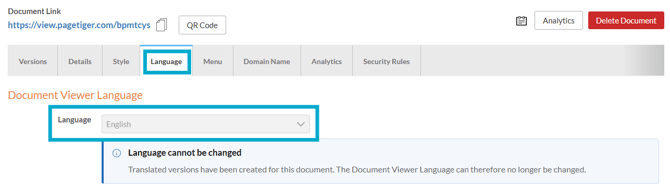
Ensure the native language is selected for the document viewer language - for example, if the native language is English, select 'English' for this option.
Document viewer language relates to system generated messages and prompts, such as error messages, cookie pop-ups and toolbar text.
- Select the 'Language' tab.
- Select the native language for your document from the drop-down list.
- Select the 'Save' button.
Styles
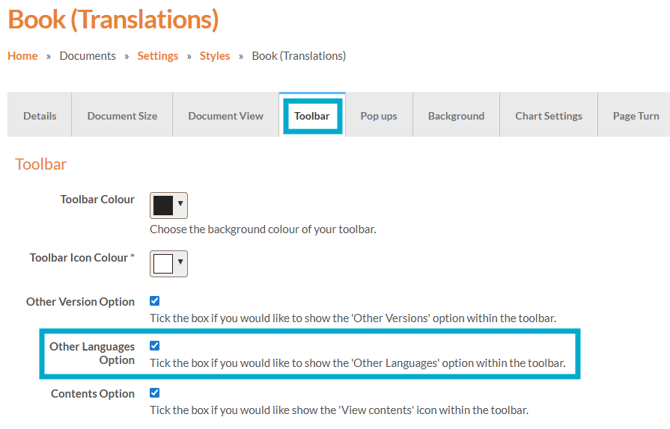
Allow viewers to seamlessly switch between available languages of a version with the 'Other Languages Option' in Style settings.
Any newly created Styles will have this option selected by default - however, if you are using a existing Style, please follow the instructions below.
- Select 'Documents', followed by 'Settings'.
- Select 'Styles'.
- Add or edit an existing style.
- Select the 'Toolbar' tab.
- Tick the checkbox for 'Other Languages Option'.
- Select the 'Save' button.
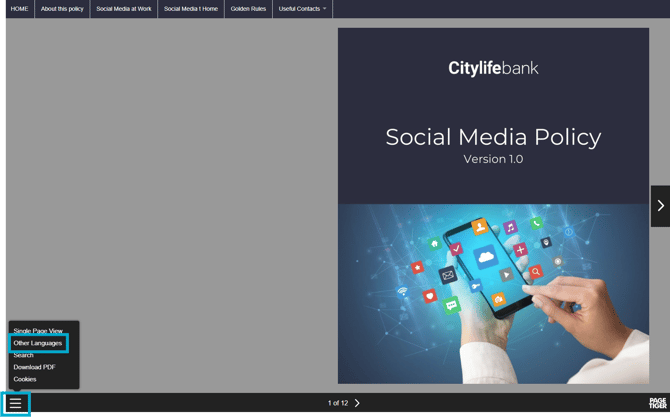
The viewer will then be able to select their chosen language from the toolbar.
Security Rules
Help text for security rules created in your account can be translated, making it easier for your viewers to understand the login instructions in their preferred language.
This can be done in two ways, and applies to the below types of security rule only:
-
Reader Login
-
Basic Login
-
Employee Number Login
Help text for Single Sign-On (SSO) security rules can’t be translated, as it is owned by your organisation and managed on your side.
1. When translating a version
When you translate a version, if the native document has a security rule applied to it, a checkbox will appear to confirm that the help text will be translated.
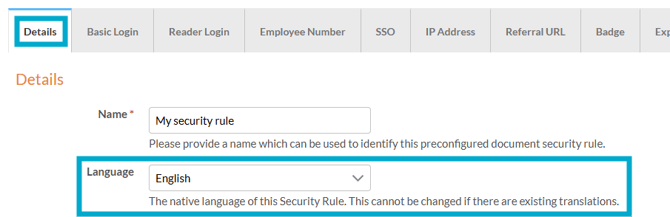
The security rule must have been created in your account, with the native language selected in the 'Language' drop-down list.
The help text will be automatically translated into the target language after selecting 'Translate Version', and can be reviewed directly within the security rule if needed (see below).
2. Directly within a security rule
- Select 'Documents', followed by 'Settings'.
- Select 'Security Rules' and edit an existing security rule.
- Select the native language from the 'Language' drop-down list.
- Now, select the 'Translations' tab, and choose the target language that you would like to translate the help text into.

- The translation can then be edited, retranslated or deleted, giving you full flexibility to manage security help text translations when it suits you!
Menus
Menu text can also translated for menus created in your account, ensuring your viewers see the information in their chosen language for a clear, streamlined experience. There are two ways to translate menu content:
1. When translating a version
When you translate a version, if the native document has a menu applied to it, a checkbox will appear to confirm that it will be translated.
The menu must have been created in your account, with the native language selected in the 'Language' drop-down list.
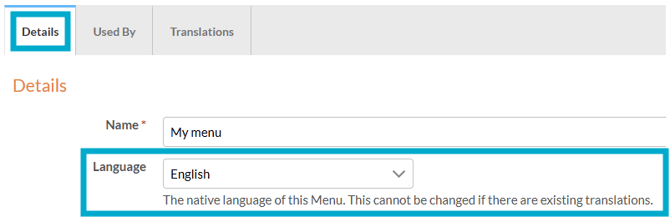
The menu text will be automatically translated into the target language after selecting 'Translate Version', and can be reviewed directly within the menu if needed (see below).
2. Directly within a menu
- Select 'Documents', followed by 'Settings'.
- Select 'Menus' and edit an existing menu.
- Select the native language from the 'Language' drop-down list.
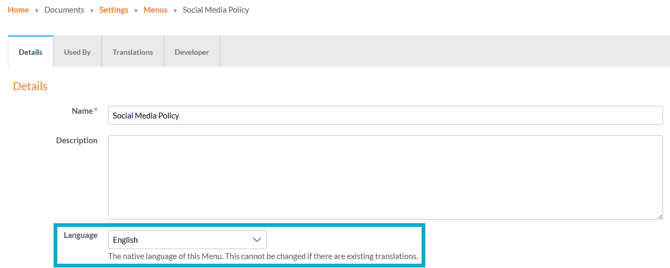
- Select the 'Translations' tab.
- Select the target language that you would like to translate the menu into.
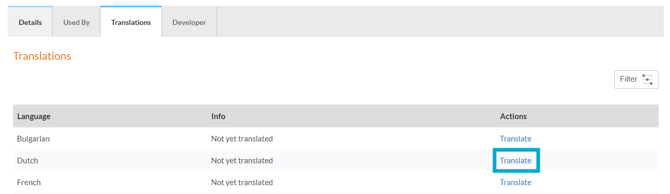
-
The translation can then be edited, retranslated or deleted, giving you full flexibility to manage menu translations whenever you need.
