
Available with Essentials Plus - contact your Customer Success Manager to upgrade!
Whether you're reaching international audiences, collaborating with global teams, or simply working in a multilingual environment, having your content available in different languages can make a big impact. Using our translation tool, you can create multiple translated versions all linked to from one place.
The languages available will depend on your service charge and any translation bolt-on's you have added. Learn more about the options here.
First steps
Before translating anything, you need to have something to translate! 😁
To begin, create a new document that contains the native version of your content - for this example, we have created a Social Media Policy in English - this will act as the source version for all translations.
Set the native Language, and apply a Style, and Menu (if using) to the document to help keep translations consistent for any translated versions. These settings can be changed later if needed, but will need to be done manually.
We recommend building your native document using Components, as this makes it easier to switch to a branding that uses a font suitable for a specific language, rather than updating panels manually.
How to create a translated version
-
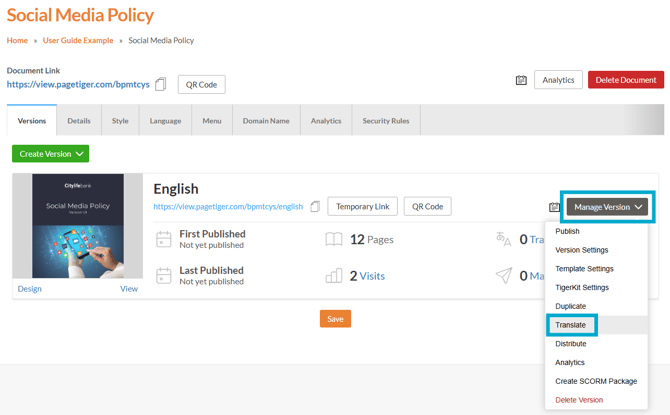
Select 'Manage Version', followed by 'Translate' for the version you would like to translate.
By default, 'Automatic' will be selected for the translation method - Follow this link if you would prefer to use XLIFF.
-
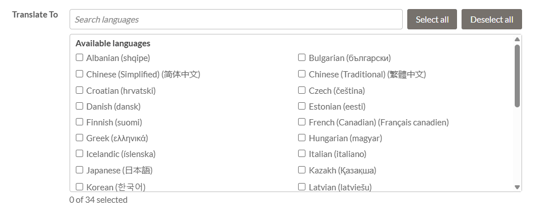
Tick all of the required languages from the 'Translate To' list or use the search bar to find a particular language.
-
Upload a Glossary file (must be .TSV file), if required.
A Glossary File is a list of specific words or phrases that you want to handle in a particular way or exclude from translation. This ensure key terms, brand names and technical language are treated consistently across every version.
-
If your native document already has a menu and security applied, the checkboxes for ‘Translate Menu’ and ‘Translate Security Rule’ will appear and be selected by default. Keep these selected if you would like the menu and security rule help text to be automatically translated for the new version.

-
Select the 'Translate Version' button to create new translated versions of your document.
Any on-page text, interactivity (not including charts), accessibility content, and subtitles will be translated.
What happens next?
On the 'Manage Document' page, the 'Translations' link will open the translation drawer, where any translated versions will appear.
A 'translation drawer' is a section within your document that lists all translated versions of the native content. It keeps everything organised and in one place, making your translations easy to access and manage!
-
Select 'Translations' to expand the translations drawer.
-
Any translated versions will be listed with the following options:
The next step to get your translated documents ready is to click the 'Review' button.
From here, you can review each translated version, share it with your audience, or manage and refine individual translations to keep everything aligned and up to date.
Continue to the Review stage.