
You can use the XLIFF feature for any language included in your service package.
XLIFF files allow you to export the text of native version ready for translation by your internal language team or professional translator. Once the translation is completed, simply import the file back into PageTiger at the create stage, to generate a translated version of your content.
The XLIFF option is a great way to stick to your existing translation workflow, whilst ensuring the translated text is placed into the correct panels of your PageTiger document.
What is an XLIFF file?
An XLIFF file is a file used to store text that needs translating. It keeps the original text (e.g. English), the translated text (e.g. French, Italian, etc.) and any helpful notes for translators.
This type of file is a widely supported industry standard, and most translation platforms and Computer-Assisted Translation (CAT) tools can open it directly, making it ideal for external translators or localisation providers. Typically, you would send the XLIFF file to your translators to update the text while keeping the structure intact. Once completed, the file can be uploaded to create a newly translated version of a document.
Example
Your Social Media policy needs an Italian version - the text for the native version can be exported into an XLIFF file, ready for your translation tool or translator to fill in the translations. A new translated version can then be generated by importing the file.
How to use an XLIFF file
-
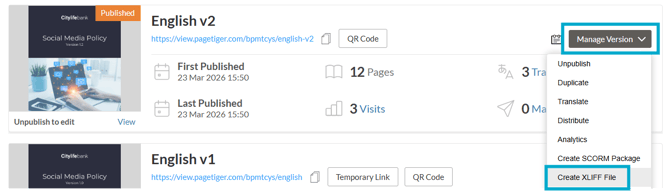
Select 'Manage Version', followed by 'Create XLIFF file' for the version you would like to translate.
-
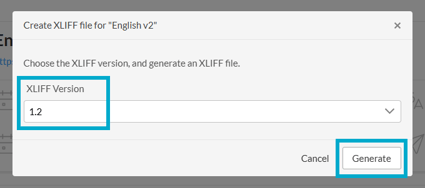
Select '1.2' from the 'XLIFF Version' drop-down list.
- Select the 'Generate' button.
-
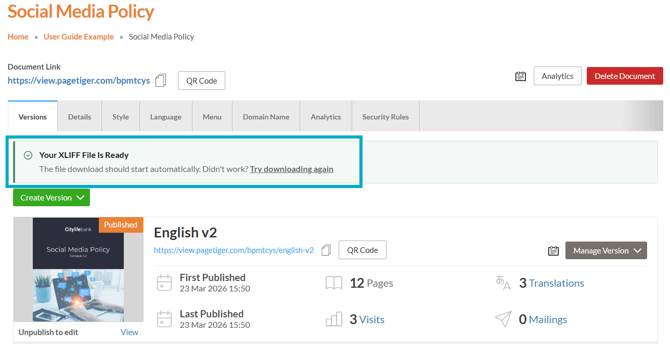
A file will then be generated and downloaded ready for you to open in your translation tool (or send to a translator).
The translator tool/translator will read the original text and add the translated version - once done, the file can be imported back into PageTiger.
-
Navigate to the native version of your document.
-
Select 'Manage Version', followed by 'Translate'.
-
Select 'XLIFF Import' from the 'Translation Method' drop-down list.
-
Choose the required language from 'Translate To' drop-down list.
-
Upload the XLIFF file using the XLIFF Import File option.
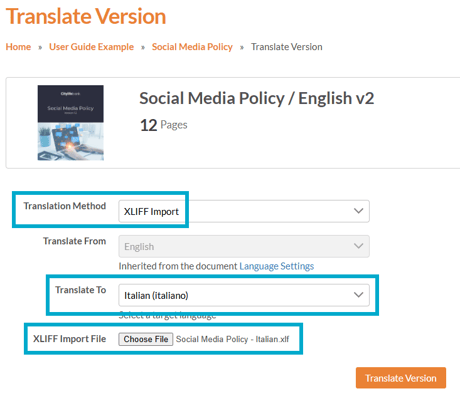
- Select the 'Translate Version' button to create a new translated version of your document!
You can now return to the 'What happens next?' section on the Create page to continue with the translation process.