
Webhook signing keys let receiving systems check that each webhook notification genuinely comes from PageTiger before accepting it. Each notification is signed with your chosen key, and your system uses that key to verify it’s authentic.
Create a signing key
- In 'Notifications', select 'Webhook signing keys'.
- Select 'Add key'.

- Enter a name for the key, such as the name of the receiving system, and select 'Generate key'.
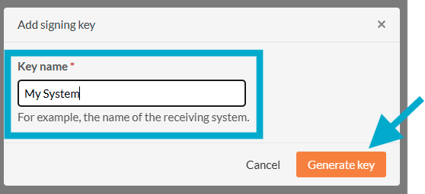
- Select 'Copy key', then store it somewhere safe.
- Select 'I’ve saved my key'.
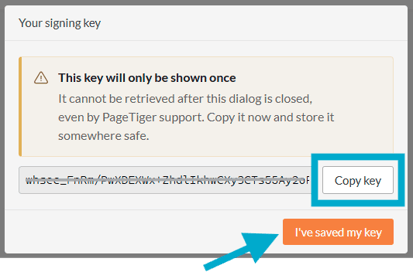
Your key is only shown once. It can’t be retrieved after this dialog is closed, so make sure you copy and save it before continuing.
Add a key to a webhook notification
-
Go back to 'Notifications' and add a new webhook notification or edit an existing one.
-
From the drop-down list, select the key your receiving system uses.
-
Save the notification.

From now on, every time this webhook sends, your system can check the key to confirm the notification is genuine.
Manage your keys
Select 'Webhook signing keys' to see all your keys and where each one is used.

From here you can:
-
See the status, name, and create date.
-
See which notifications use the key (if any).
-
Rotate a a key to generate a new one
-
Delete a key that you no longer need.

Rotating a key
-
When you rotate a key, the old key continues to work until you finish the rotation, or for 30 days if you don’t.
-
The keys expiry date is shown when you start the rotation.
-
Update your receiving system with the new key before finishing the rotation.
Deleting a key
-
You can’t delete a key while it’s used by a notification.
-
Any receiving system still checking for a deleted key will reject requests.
-
Deleting a key is permanent and can’t be undone.