
The Document View tab allows you to configure the entire reading experience for a published document, including how pages are laid out on different devices, how they animate as readers move through the content, and how interactive areas are highlighted.
Available Layouts
Here you can choose the layout in which your document will be displayed.. The options given in the drop down are single pages, double pages or both.
For documents created with Book pages (portrait), double-page mode works best, while Presentation pages (landscape) are better suited for single-page mode.
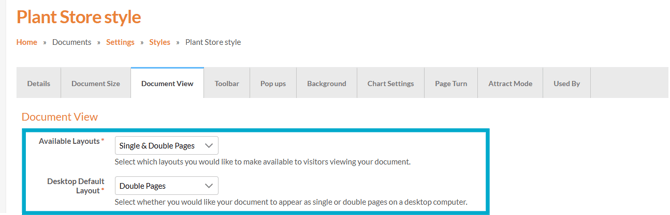
Desktop Default Layout
The second option is 'Desktop Default Layout' which chooses if your document displays as single pages or double pages on a desktop computer.
The options given are single pages, double pages and automatic. 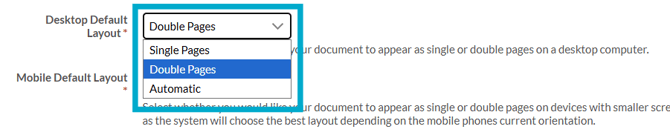
The automatic selection will mean the system will automatically choose the best option for the desktop.
Mobile Default Layout
This option will choose if your document displays as single pages or double pages on a mobile device.
Desktop Page Animation
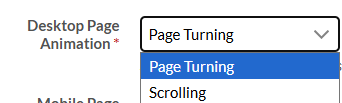
This option allows you to select the page animation when the document is being viewed on a computer. The options are between 'Page Turning' which would allow the pages to turn like a book and 'Scrolling’ will allow readers to move through the pages vertically.
Mobile Page Animation
This option allows you to select the page animation when the document is being viewed on a on a mobile. The options are between 'Page Turning' which would allow the pages to turn like a book and 'Scrolling’ will allow readers to move through the pages vertically.
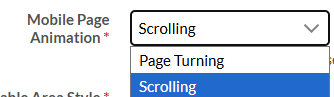
Scrolling works well on mobile devices, letting readers swipe vertically through your document rather than turn individual pages. Preview both options on a mobile device to choose the best fit for your content and audience.
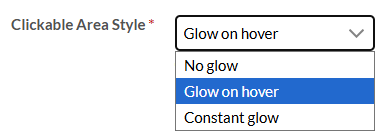
Clickable Area Style
This option allows you to choose how your interactivity visually highlighted for your readers.
The options are as follows:
- No glow: No visual highlight is shown, even when the pointer hovers over the clickable area.
This option reduces accessibility and should only be used in controlled or non-interactive contexts. - Glow on hover: A glow appears only when the pointer hovers over the clickable area and when the page is loaded or turned.
- Constant glow: A glow is always visible and becomes stronger when the pointer hovers over the clickable area.
Glow Duration
This option will decide upon how long your interactivity glows for when the page loads or turns.
The options are as follows:
- Off (0 seconds) - This will
- Shorter (1 second) - This setting displays the interactivity glow for 1 second when the page loads.
- Standard (1.5 seconds) - This setting displays the interactivity glow for 1.5 seconds when the page loads.
- Longer (2 seconds) - This setting displays the interactivity glow for 2 seconds when the page loads.
- Custom - This setting allows you to set the seconds you would like the interactivity to glow for when the page loads.
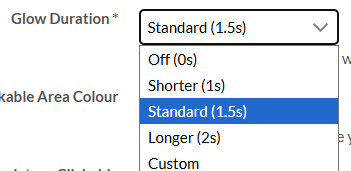
When custom is selected, a box will appear for you to input how many seconds you would like the interactivity to glow for on page load/turn.

Select a glow duration that gives readers time to notice interactive elements without drawing their attention away from your content.
Clickable Area Colour
This option is given to choose what colour you would you like your clickable interactivity area to glow.

Mandatory Clickable Area Colour
The mandatory clickable area colour sets the colour applied to all mandatory clickable areas. Using a distinct colour helps readers clearly identify which interactions are mandatory to complete.
Choose a mandatory clickable area colour that contrasts with the page background and differs from your standard clickable area colour, so readers can easily spot required interactions.
These guides may also help:
- Style Settings: Document Size
- Style Settings: Toolbar
- Style Settings: Pop ups
- Style Settings: Background
- Style Settings: Chart Settings
- Style Settings: Page Turn
- Style Settings: Attract Mode
- Style Settings: Used By
You can see a video walkthrough on creating Custom Styles in the PageTiger Learn Centre -> Training | Custom Styles