
This tab controls how charts appear throughout the document, so you can make sure they are clear, consistent and aligned with the rest of your branding.
Use these options to adjust visual details such as background colour and transparency, series colours and borders, text styling, grid lines, legends, titles and tooltips.
Background Colour
Select a background colour for the chart.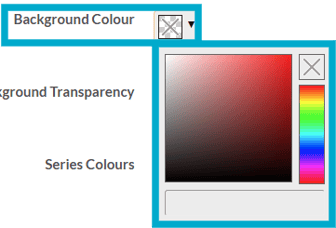
Background Transparency
Enter a numerical value to determine the amount of background transparency for charts within your documents between 0 (Transparent) and 100 (Opaque)
Series Colours
Select a set of data series colours for your charts to use.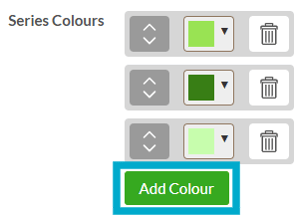
Series Border Colour
Select the data series border colour.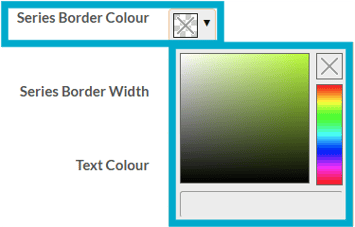
Series Border Width
Enter a numerical value for the width of data series border (in pixels).
Text Colour
Select the colour of the text used in your charts.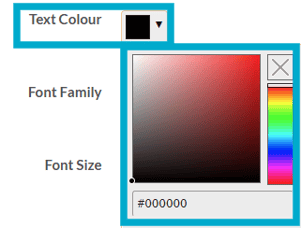
Font Family
Select the font family for charts within your documents.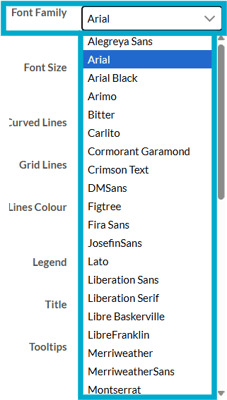
Font Size
Select the font size for charts within your documents. Choose from:
- Small
- Medium
- Large
- XLarge
- XXLarge
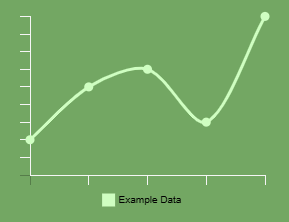
Curved Lines
Tick the box here if you would like line charts within your document to display curved lines.
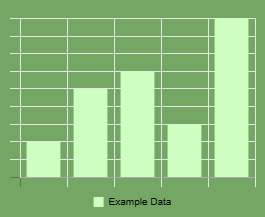
Grid Lines
Tick the box here if you would like to show grid lines for charts within your documents.
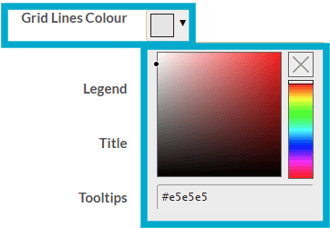
Grid Lines Colour
Select the grid line colour for charts within your documents.
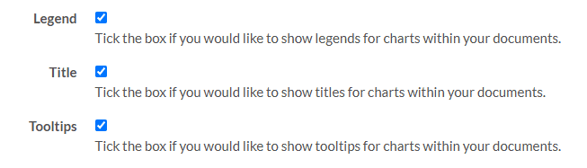
Legend
Tick the box here to show legends for charts within your document.
Legends are the key that explains what the colors, symbols, or patterns on your chart mean.
Title
Tick the box here if you would like to show titles for charts within your documents.
Tooltips
Tick the box here if you would like to show tooltips for charts within your documents.
These guides may also help:
- Style Settings: Document Size
- Style Settings: Toolbar
- Style Settings: Pop ups
- Style Settings: Background
- Style Settings: Page Turn
- Style Settings: Attract Mode
- Style Settings: Used By
You can see a video walkthrough on creating Custom Styles in the PageTiger Learn Centre -> Training | Custom Styles